Restocking Inventory
Receive new stock from a supplier, update the cost price and record the purchase as an expense
Last updated: November 1, 2026
Restocking Inventory
When a delivery arrives, restock the product instead of editing its stock number. A restock records where the stock came from, what you paid for it, and updates the cost price in the same step.
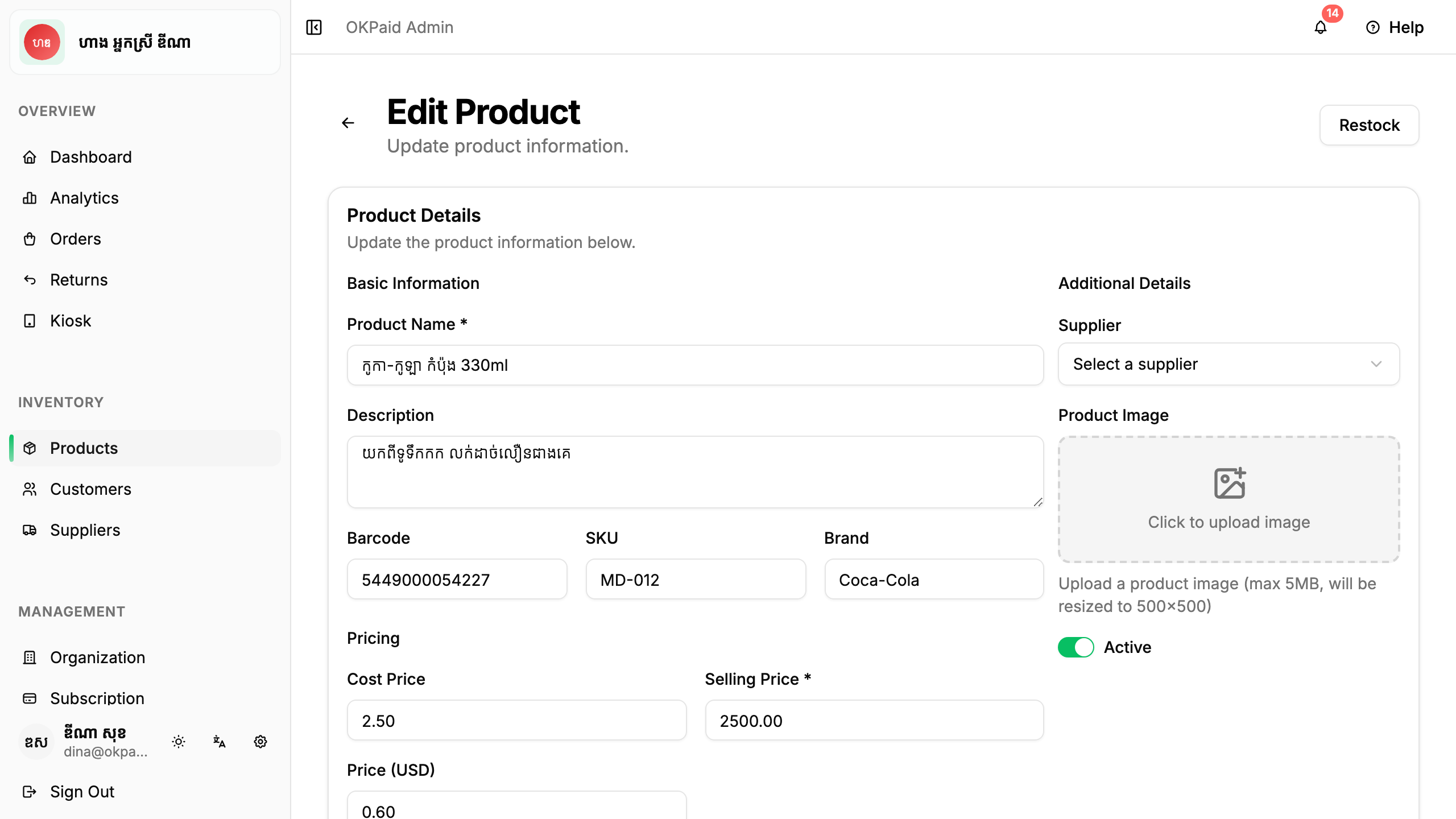
Restocking is available in the OKPaid mobile app and in the web admin, on the product’s own page.
Restock a Product
- Open Products and tap the product
- Tap Restock
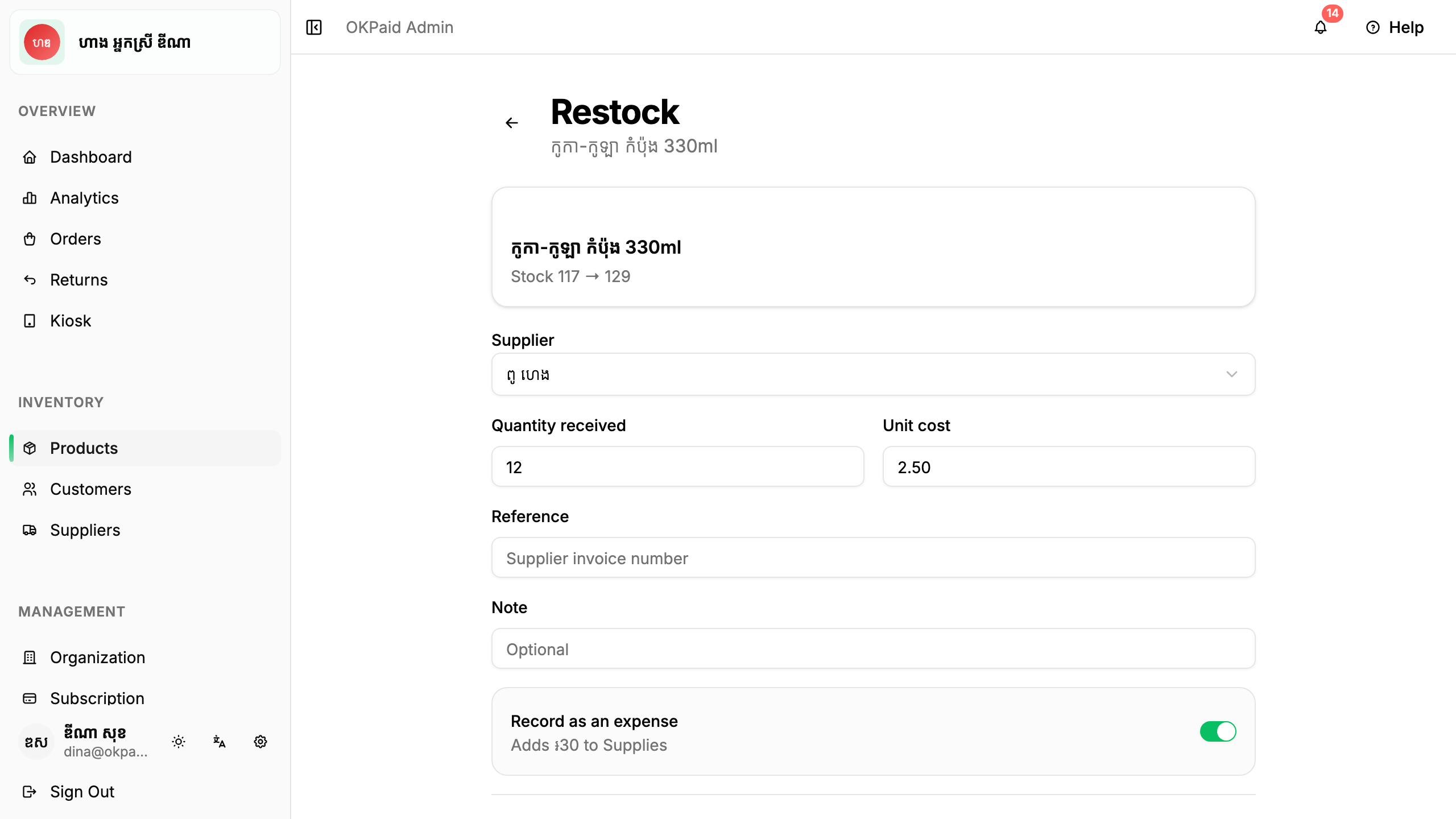
- Choose the supplier, or Cash purchase / no supplier
- Enter the quantity received and the unit cost you paid — the cost starts from the product’s current cost price
- Optionally add the supplier’s invoice number as the reference, and a note
- Leave Record as an expense on to book the total under Expenses → Supplies
- Tap Receive stock
The page shows the stock before and after (for example 12 → 32) and the total before you save.
What Changes
| Stock | Increased by the quantity received |
| Cost price | Set to the unit cost you entered |
| Purchase receipt | Recorded with supplier, quantity, cost and reference |
| Expense | Created for the total, category Supplies, when the toggle is on — linked to the supplier |
The new cost price is the latest cost, not an average: if a later delivery costs more or less, the product follows that delivery.
Cash Purchases
No supplier? Choose Cash purchase / no supplier. The expense is booked with the payee “Cash purchase”, and no supplier is attached to the receipt.
One Product per Receipt
A restock receipt covers one product at a time. For a delivery with several products, restock each product — each one gets its own receipt and its own expense line, so the totals still add up.
A Connection Is Required
Receiving stock needs a connection. Stock and expenses are written on the server so two devices cannot disagree about the count, and the Receive stock button stays disabled while the device is offline.
Selling is unaffected: sales still work offline and sync when the connection returns. See Working Offline for what else keeps working without internet.
Correcting a Mistake
A restock cannot be edited after it is saved. If you entered the wrong quantity, correct the stock on the product page (Edit) and adjust the matching row in Expenses.
Related
- Managing Products — add, edit and organize the catalog
- Suppliers — keep supplier details for restocking
- Expenses — where the purchase appears
- Working Offline — what keeps working without internet