
Dual Currency (USD + Local)
How to set up and use dual currency on the web app: a second price for every product, two cash boxes, and two-currency receipts
Last updated: September 8, 2026
Dual Currency (USD + Local)
Dual currency lets you price and sell in two currencies at once. This is common in Cambodia, where US dollars and riel are both used every day.
Your business keeps one primary currency for accounting. Every stored amount, report, and dashboard stays in it. Dual currency adds a second currency that you show and accept at checkout.
This guide shows how to set up and use dual currency in the web app.
How Dual Currency Works
- Primary currency (accounting): the currency of your money records. You set it on the currency field (auto-filled from your country).
- Secondary currency: a second price per product, and a second currency for cash. It comes from your country’s local currency. If your primary currency is USD, the secondary is your local currency (KHR in Cambodia; ៛). If your primary is local (e.g. KHR), the secondary is USD.
- The posted rate: local currency per 1 USD, e.g.
4100KHR per $1 (៛4,100). It fills prices you leave empty. It never changes a price you set yourself.
Dual currency is two price lists, not a live conversion.
Set Up Dual Currency (Web App)
Before you start
Check the two settings your pair needs:
- Currency: set to USD or your local currency.
- Country: set to the country of your local currency (e.g. Cambodia).
Find both under Organization → Branding → Localization or Business Profile. Without a local (non-USD) currency, the second currency cannot form. You can still switch the toggle on, but nothing changes until the country is set.
Step 1: Open the Localization settings
Go to Organization → Branding → Localization on the web app.
Only the organization owner or manager can change these settings. Staff see them disabled.
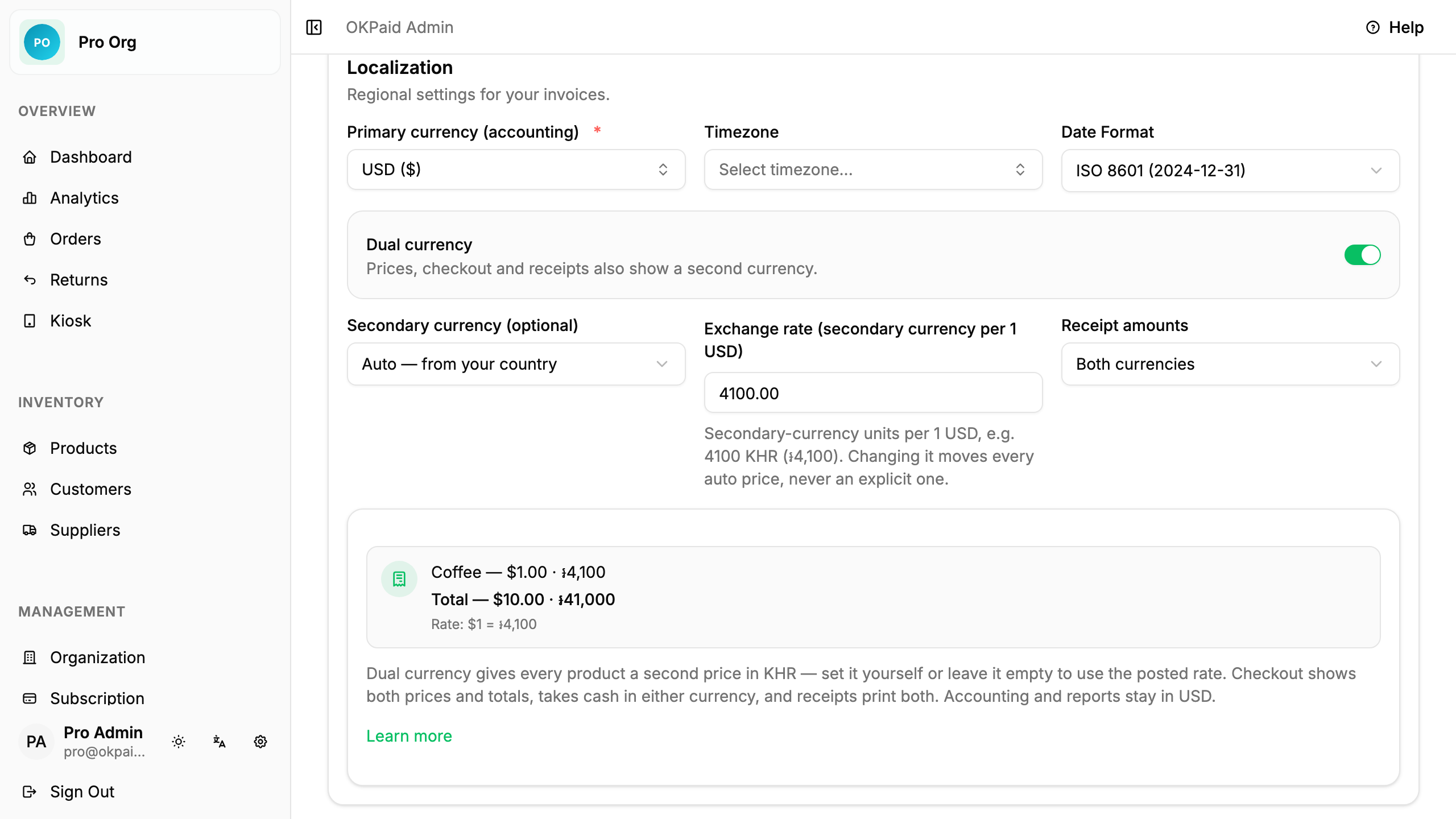
Step 2: Turn on dual currency
Find Dual currency: second price in the local currency and switch it on.
New account in Cambodia? During onboarding the toggle is already on and the rate field is pre-filled with
4100. You can change both before you finish.
Step 3: Enter the exchange rate
The rate is local currency per 1 USD. Type e.g. 4100 for KHR (៛4,100),
or 36.50 for Thai baht.
- The field appears only while dual currency is on.
- Use a number above 0 with up to 2 decimals (max 1,000,000).
- Saving is automatic on the Branding page. An empty or wrong rate shows an error and nothing is saved.
How the rate is used: it prices every product whose second price is empty (the auto price). Changing the rate later moves every auto price and never an explicit one.
Step 4: Choose how receipts print amounts
Still in Localization, set Receipt amounts:
- Both currencies (default): item and subtotal lines show both.
- Primary currency only: lines show the primary amount only.
- Secondary currency only: lines show the second amount only.
The TOTAL on a receipt always prints both currencies with the Rate line, whatever you choose here.
Step 5: Done
The dashboard may show a Dual currency for Cambodia notice on an older Cambodian account. Press Turn on there to enable it in one click. Press Not now to hide it.
Use Dual Currency (Web App)
Give products a second price
- Go to Products and open a product (or create a new one).
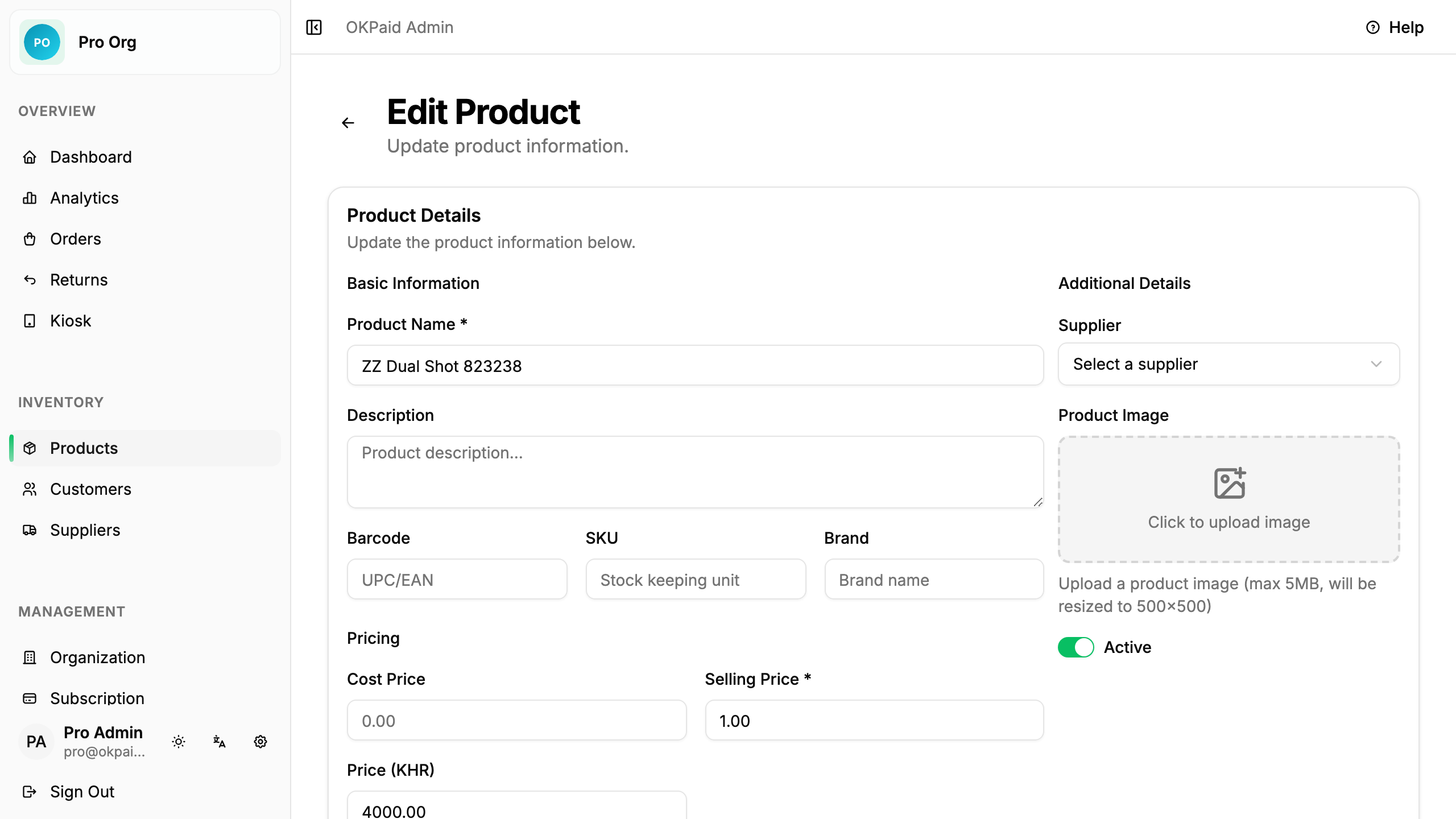
- Under Selling Price, find the second price field, e.g. Price (KHR).
- Do one of these:
- Type a price to set an explicit second price.
- Press Use rate to fill the field with the auto price at your posted rate.
- Leave it empty to keep the price automatic.
Product lists show both prices. The second price shown comes from your typed price or, when the field is empty, from the posted rate, the same price you see under Use rate.
Sell at the kiosk
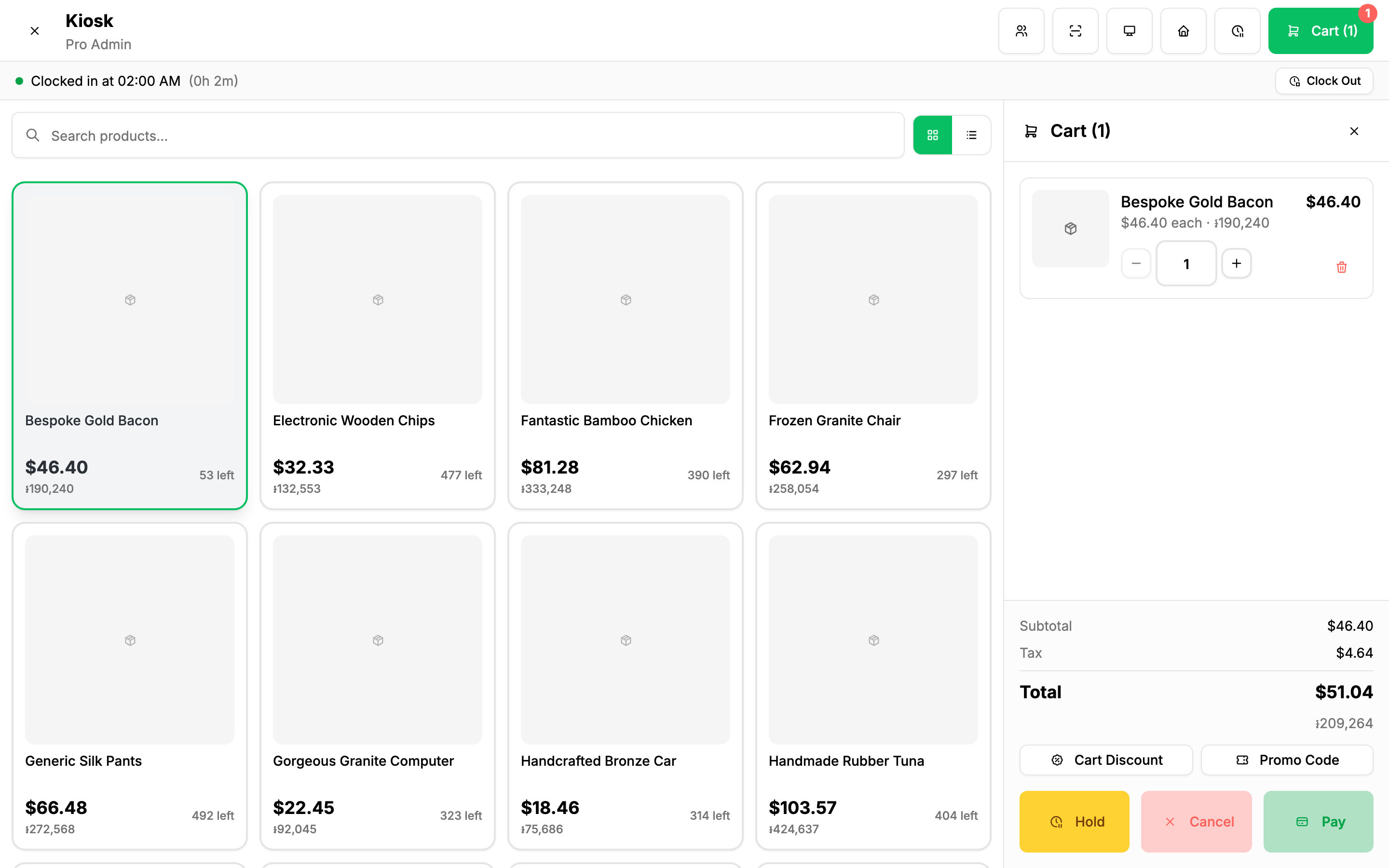
- Product cards show both prices.
- The cart shows the total in both currencies (the second total is the sum of the second prices, not a conversion of the first).
- When you take Cash, the calculator shows two boxes (one per currency) with note buttons ($1, $5, … and ៛1,000, ៛5,000, …). Take cash in either box or both. Change appears in both currencies.
- Confirm is disabled until the cash covers the total. Press Exact to fill the active box to the exact amount.
- The customer display shows both unit prices and the total.
Cash in and out, per currency
Every cash sale records what the customer handed over and what you handed back in each currency, not just the converted total:
- Clocking in asks for the starting float per currency (the toggle in Organization → Branding → Localization decides whether the second field appears, no rate needed; a drawer is counted in notes).
- Clocking out asks for the ending count per currency and shows, per currency, the cash received, the change given, the expected drawer and the over/short.
- An order opened from Orders shows the same per-currency lines for that sale.
The primary currency stays the accounting currency: the shift’s sales totals, reports and dashboards are unchanged. The per-currency figures exist so the drawer can be reconciled note-for-note.
Receipts and invoices
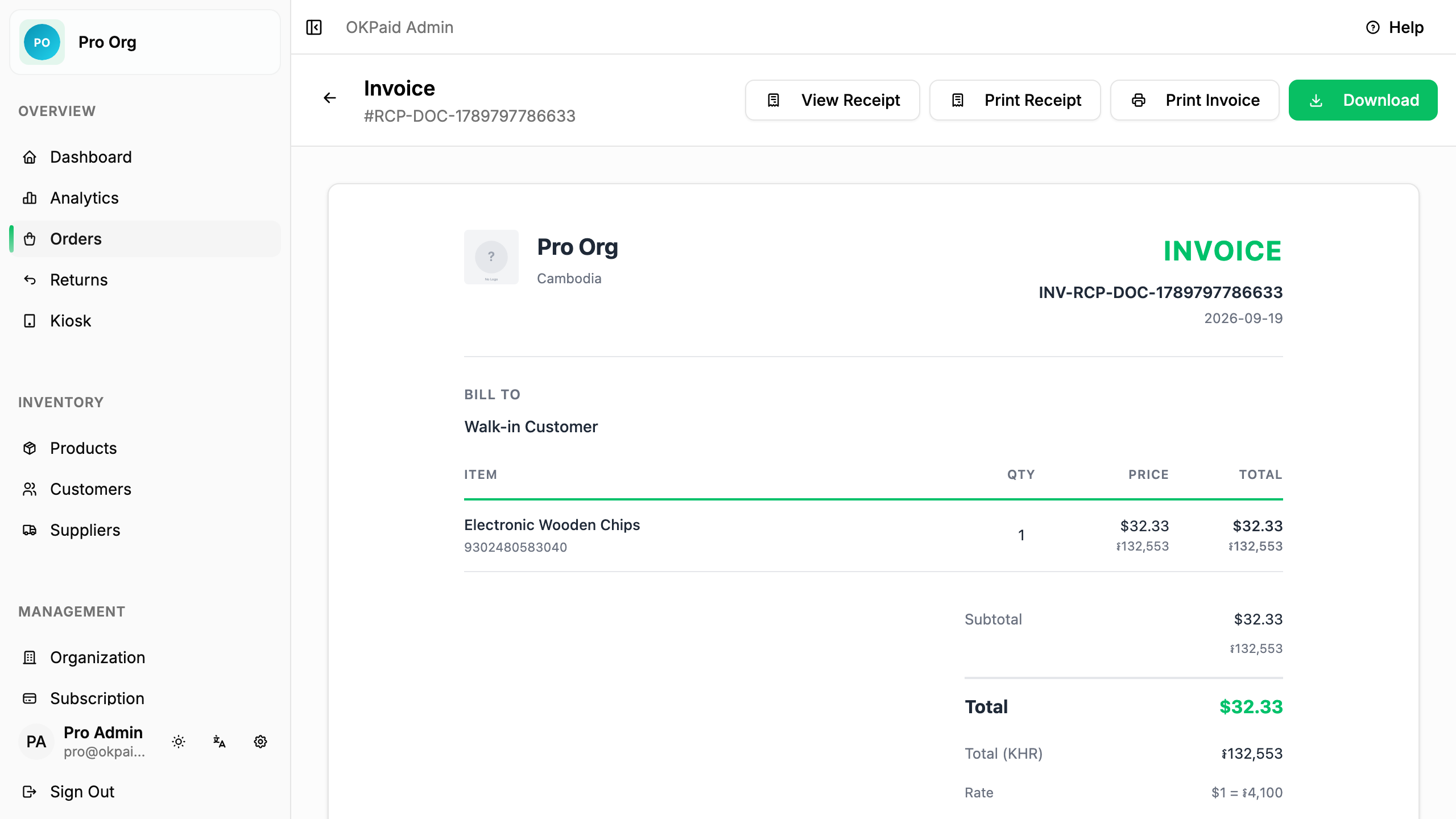
- Receipts and invoices show the TOTAL in both currencies and a Rate
line (e.g.
$1 = ៛4,100). - Item and subtotal lines follow your Receipt amounts choice.
- Reprints of past orders use the current posted rate, because past sales store only the primary currency.
What stays primary only
Reports, dashboards, expenses, and order lists keep showing the primary currency only. Dual currency changes prices, checkout, cash, and receipts.
Related Features
- Branding & Customization: Localization settings for currency, country, and receipts
- Products: how to manage products and prices
- Kiosk Mode: selling at the counter
- Invoices: what prints on invoices