
Creating Orders
Learn how to create and manage sales orders
Last updated: June 5, 2026
Creating Orders
Orders are sales to your customers. This guide shows you how to create and manage orders in OKPaid.
View Your Orders
- Click Orders in the sidebar
- You will see a list of all your orders
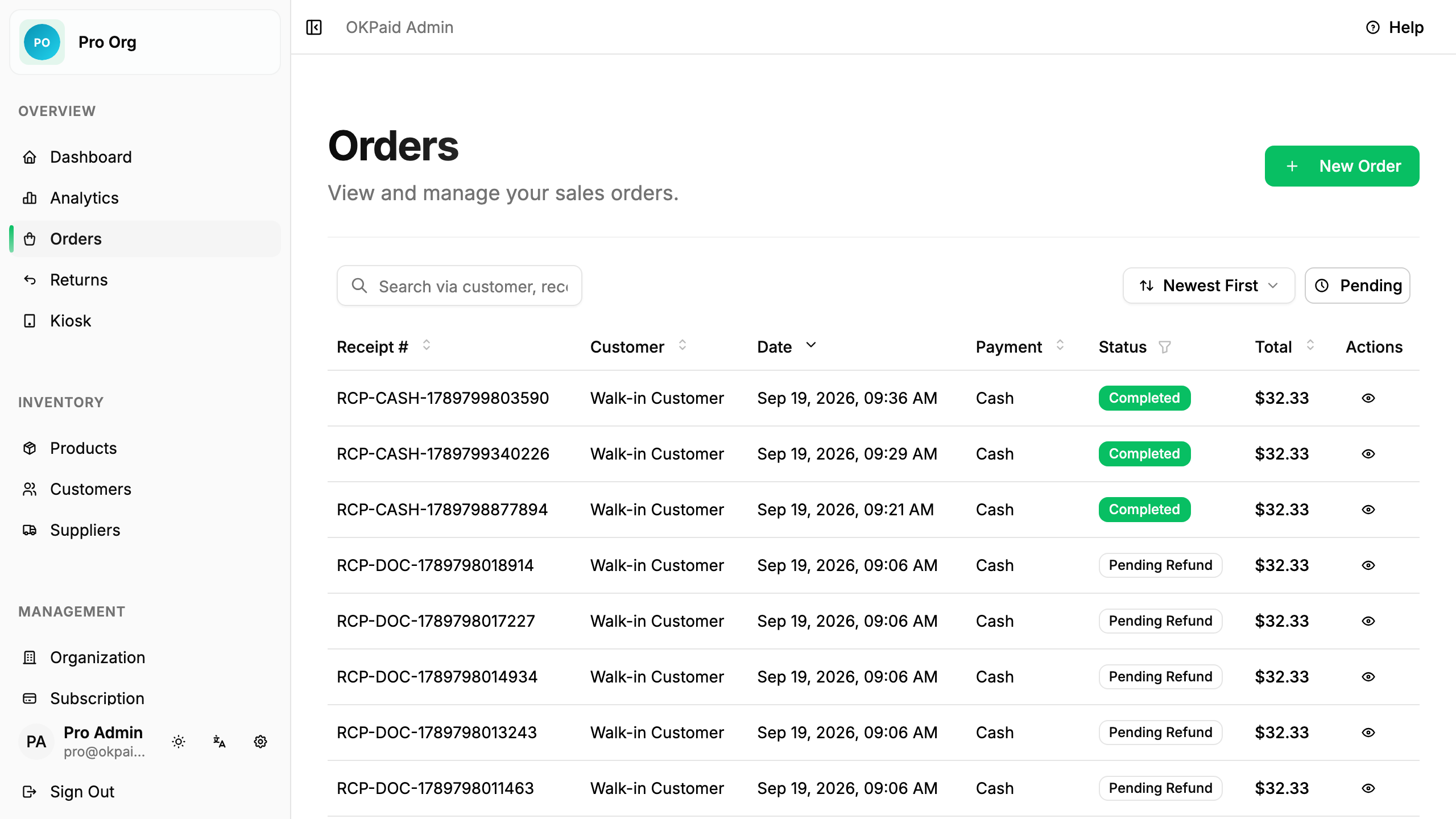
The orders list shows:
- Order number
- Customer name
- Order date
- Total amount
- Payment status (Paid / Unpaid)
Search and Filter
- Use the search box to find orders by number or customer name
- Click filter to show only paid or unpaid orders
Create a New Order
Step 1: Start a New Order
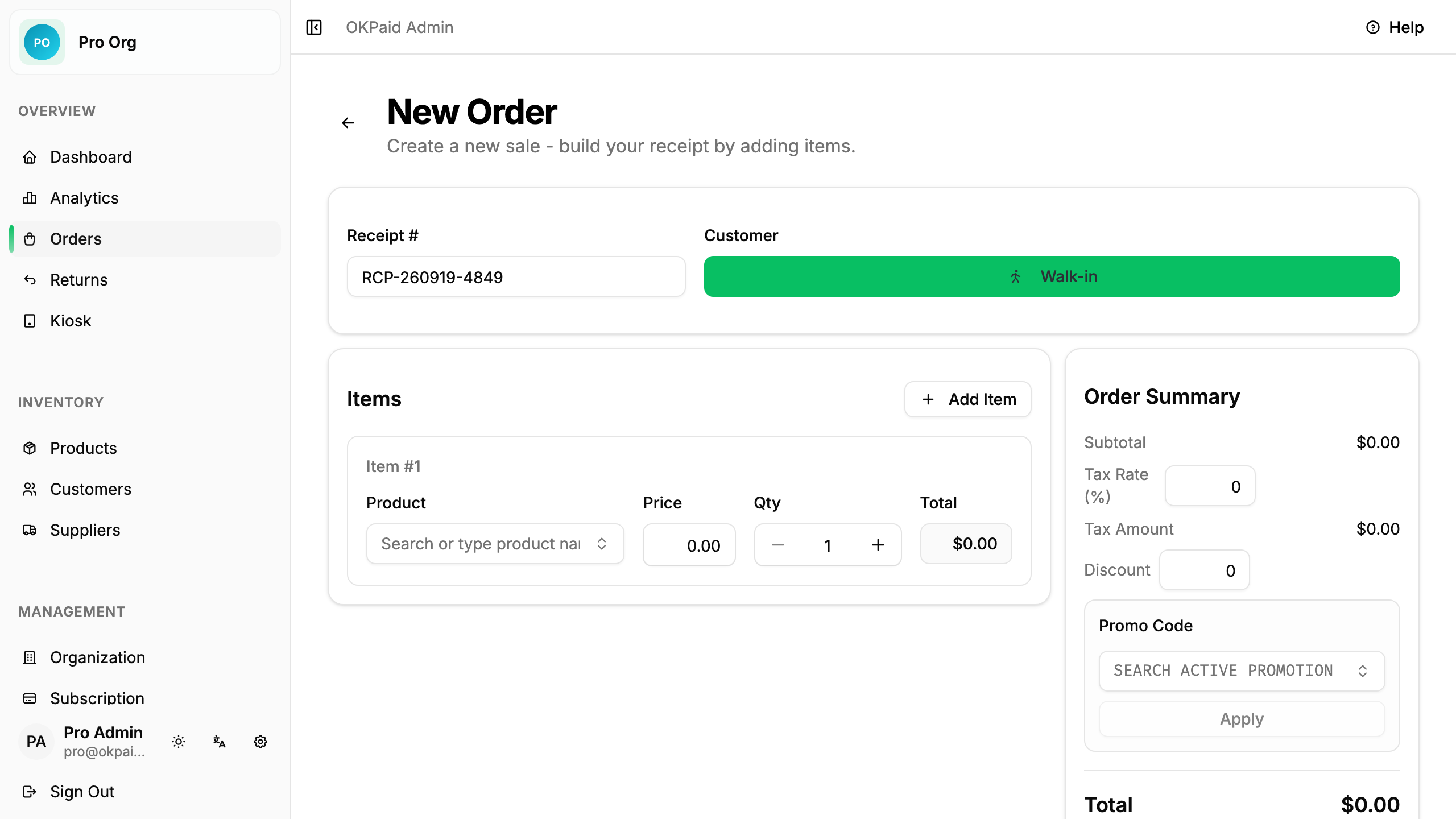
- Click New Order button
- The order form opens
Step 2: Select a Customer
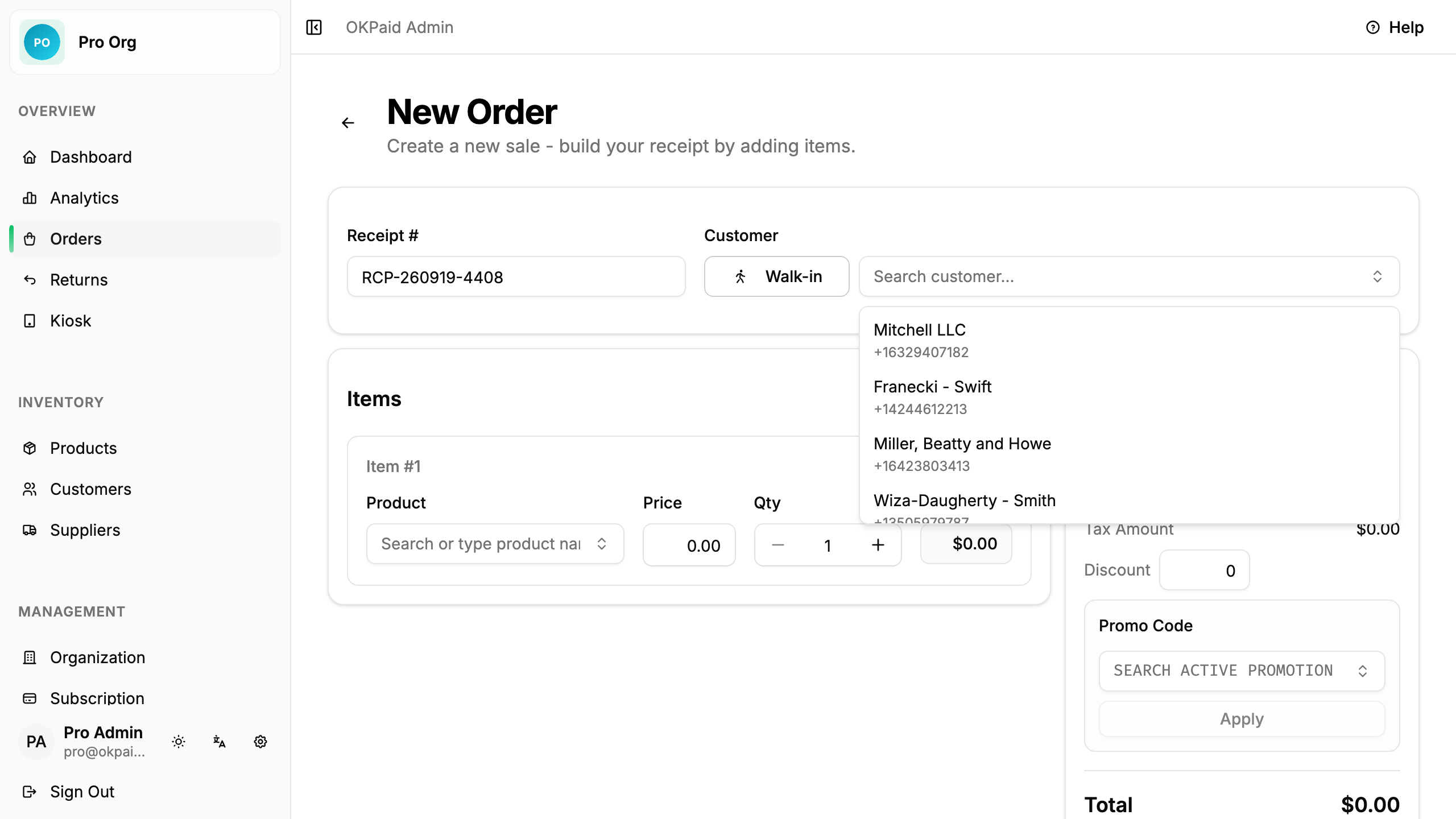
- Click the Customer dropdown
- Search for an existing customer, or
- Click Add New Customer to create one
Step 3: Add Products
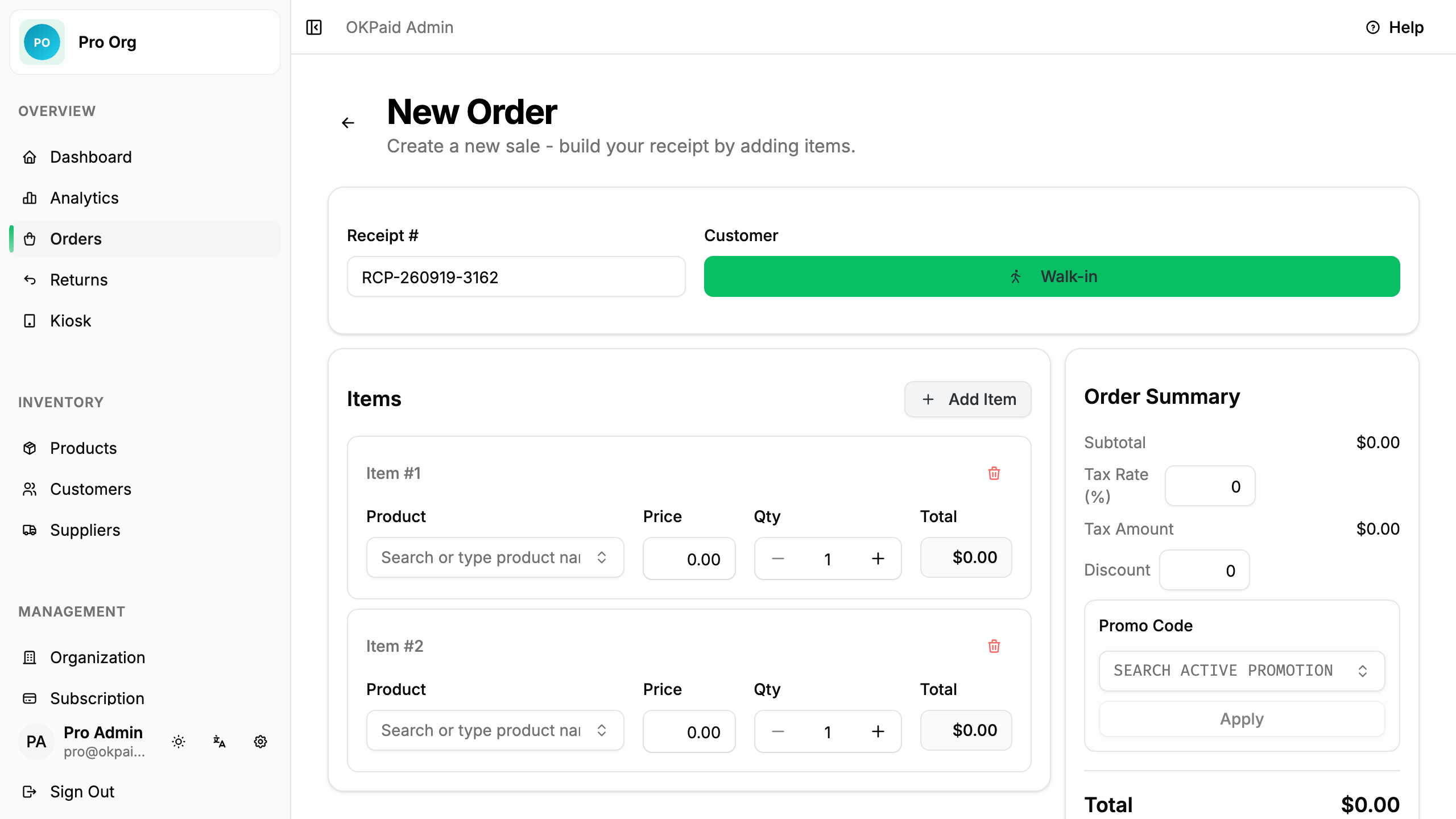
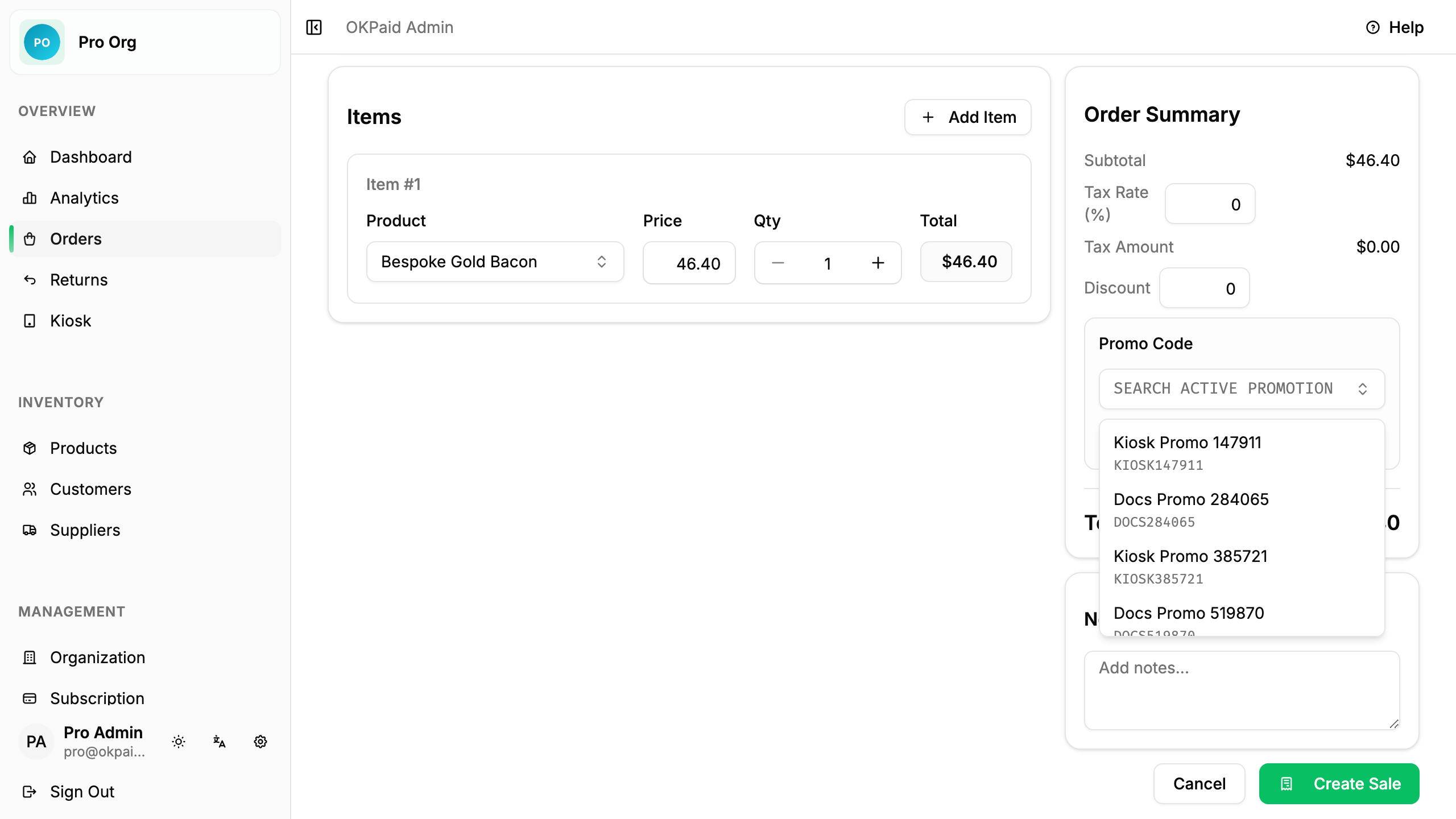
- Click Add Item
- Select a product from the list
- Enter the quantity
- Repeat for each product
Tip: You can scan barcodes to add products faster.
Step 4: Review Order Details
Check the order summary:
| Field | Description |
|---|---|
| Subtotal | Total before any discounts |
| Discount | Amount or percentage off (optional) |
| Promo Code | Promotion code or active promotion (optional) |
| Tax | Tax amount if applicable |
| Total | Final amount to pay |
Step 5: Apply a Promo Code (Optional)
- In Order Summary, open Promo Code
- Search an active promotion, or type a code
- Click Apply
- Check that discount appears before total
If code is not valid, OKPaid shows an error.
Step 6: Add Notes (Optional)
Add notes for yourself or the customer:
- Internal notes (only you see these)
- Customer notes (appear on invoice)
Step 7: Create the Order
- Review all details
- Click Create Order
The order is saved and you can view it in your orders list.
View Order Details
- Click on an order in the list
- The order detail page opens
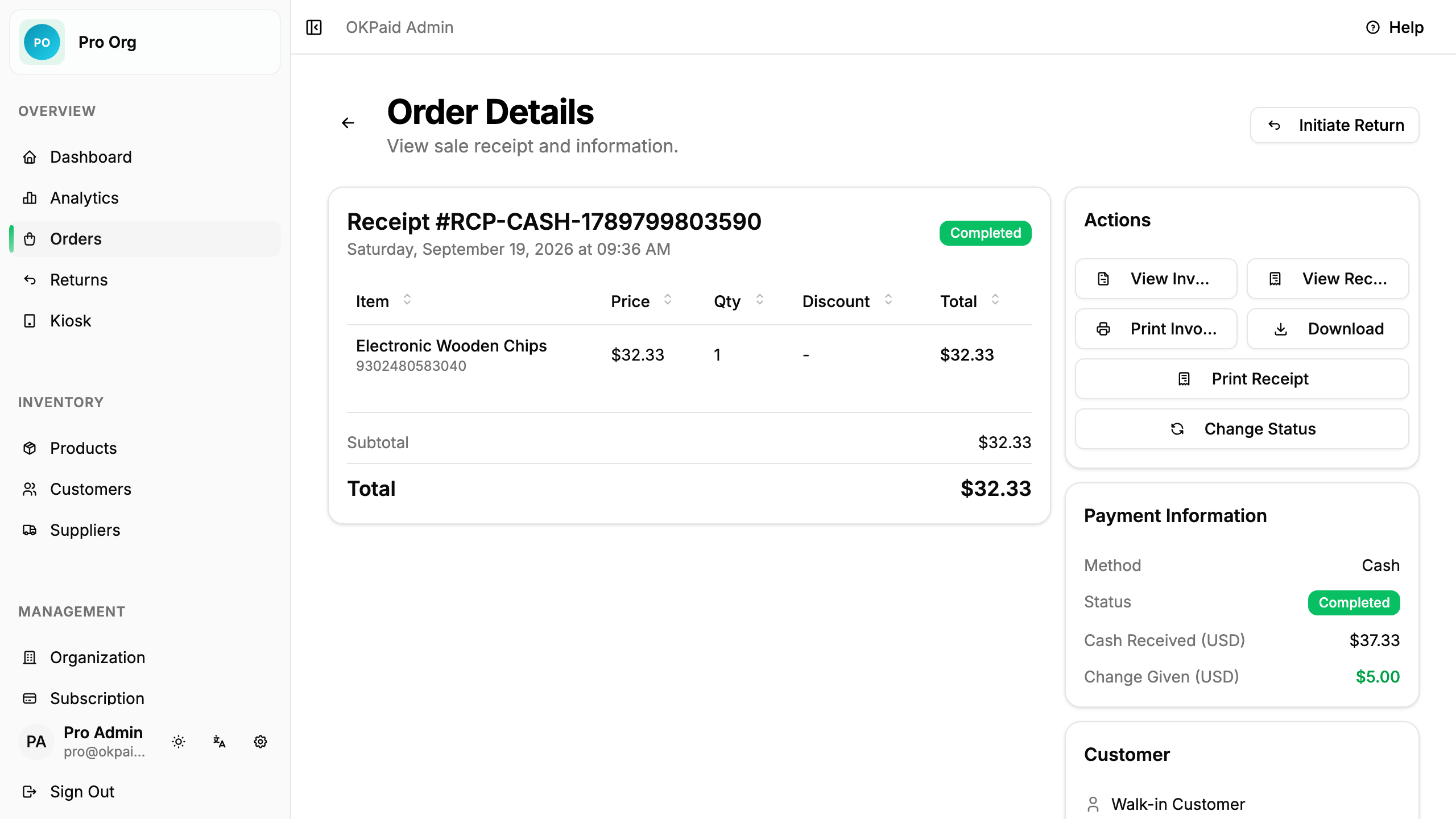
On the order detail page you can:
- View all order information
- Change payment status
- Generate invoice
- Print or download PDF
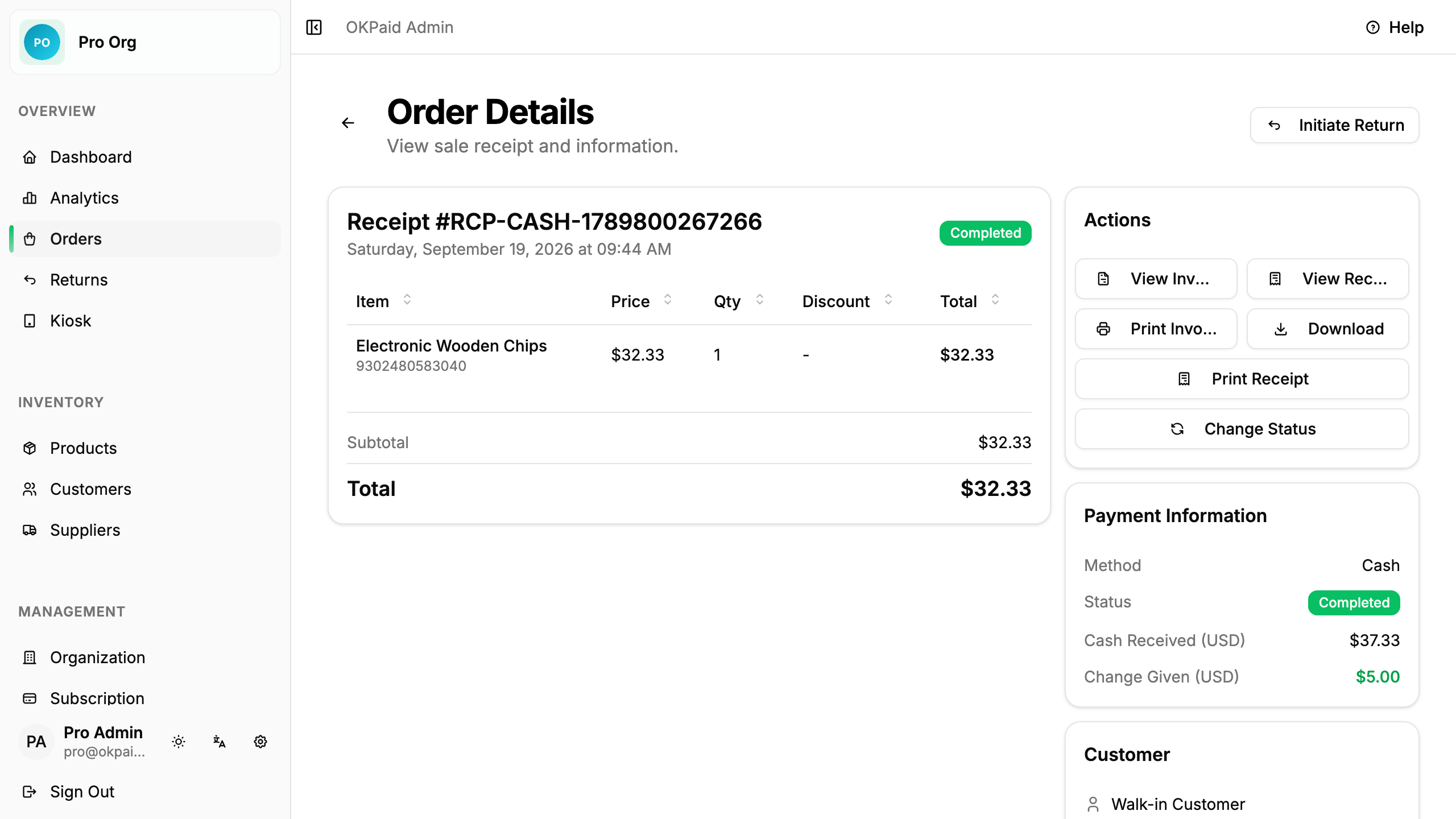
Amount Tendered Information (Cash Payments)
For cash payments, the order detail page shows additional information:
- Amount Tendered: How much cash the customer gave you
- Change Given: How much change you returned to the customer
This helps you track cash flow and reconcile your till at the end of the day.
How Amount Tendered Works
When making a cash sale:
- Enter products to the cart
- The system shows the total
- Enter how much cash the customer gave you (amount tendered)
- The system calculates the change due
- Complete the sale
Example:
- Sale total: $15.50
- Customer gives: $20.00
- Amount Tendered: $20.00
- Change Due: $4.50
The system saves both the amount tendered and change given with the sale record.
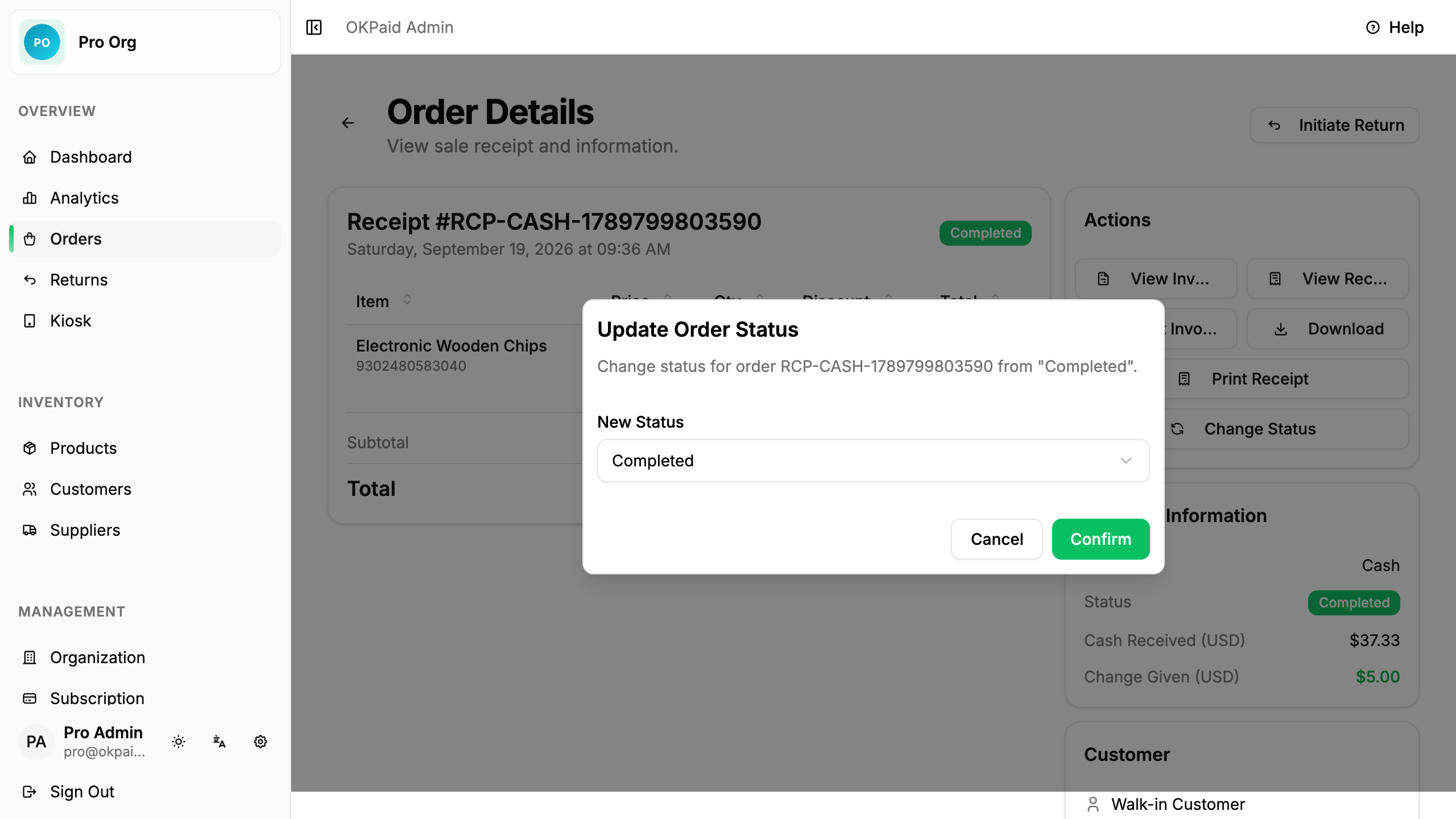
Update Payment Status
- Open the order detail page
- Click the Status dropdown
- Select the new status:
- Unpaid - Customer has not paid yet
- Paid - Customer has paid
- Partial - Customer paid part of the total
- Cancelled - Order was cancelled
Edit an Order
You can only edit orders that are unpaid.
- Open the order detail page
- Click Edit
- Make your changes
- Click Save
Note: Paid orders cannot be edited. Create a new order instead.
Delete an Order
- Open the order detail page
- Click Delete
- Confirm the deletion
Warning: Deleted orders cannot be recovered.
Tips
Tip: Mark orders as paid immediately after receiving payment to keep your records accurate.
Tip: Use customer notes for delivery instructions or special requests.
Common Questions
Can I create an order without a customer? No. Every order needs a customer. You can create a quick customer when making the order.
Can I add discounts? Yes. You can add a manual discount and also apply a promo code when creating the order.
What happens to stock when I create an order? Product stock decreases automatically when you create an order.
Can I duplicate an order? Not yet. You need to create orders individually.
Next Steps
- Invoices Guide - Generate and send invoices
- Managing Customers - Learn more about customers
- Discounts & Promotions - Create and manage promo codes