
Barcode Problems
Fix barcode scanning issues
Last updated: January 19, 2026
Barcode Problems
Having trouble with barcode scanning? Find solutions to common issues here.
Camera Not Working
Check Camera Permission
Your browser needs permission to use the camera.
Chrome:
- Click the lock icon in the address bar
- Find Camera
- Select “Allow”
- Refresh the page
Firefox:
- Click the lock icon in the address bar
- Click “More Information”
- Go to Permissions tab
- Find Camera and select “Allow”
Safari:
- Go to Safari > Settings for This Website
- Find Camera
- Select “Allow”
Camera Used by Another App
If you see “Camera is in use”:
- Close other apps that use the camera (Zoom, Teams, etc.)
- Close other browser tabs that might use the camera
- Restart your browser
- Restart your device if needed
No Camera Found
If OKPaid cannot find a camera:
- External webcam - Make sure it is plugged in
- Built-in camera - Check if it works in other apps
- Permissions - Some work devices block camera access
- Drivers - Update camera drivers (Windows)
Barcode Not Detected
Improve Lighting
Barcodes need good lighting to scan:
- Turn on room lights
- Move closer to a window
- Avoid shadows on the barcode
- Avoid direct light reflecting off the barcode
Adjust Distance
Hold the barcode at the right distance:
- Too close - Camera cannot focus
- Too far - Barcode too small to read
- Best distance - About 15-20 cm (6-8 inches)
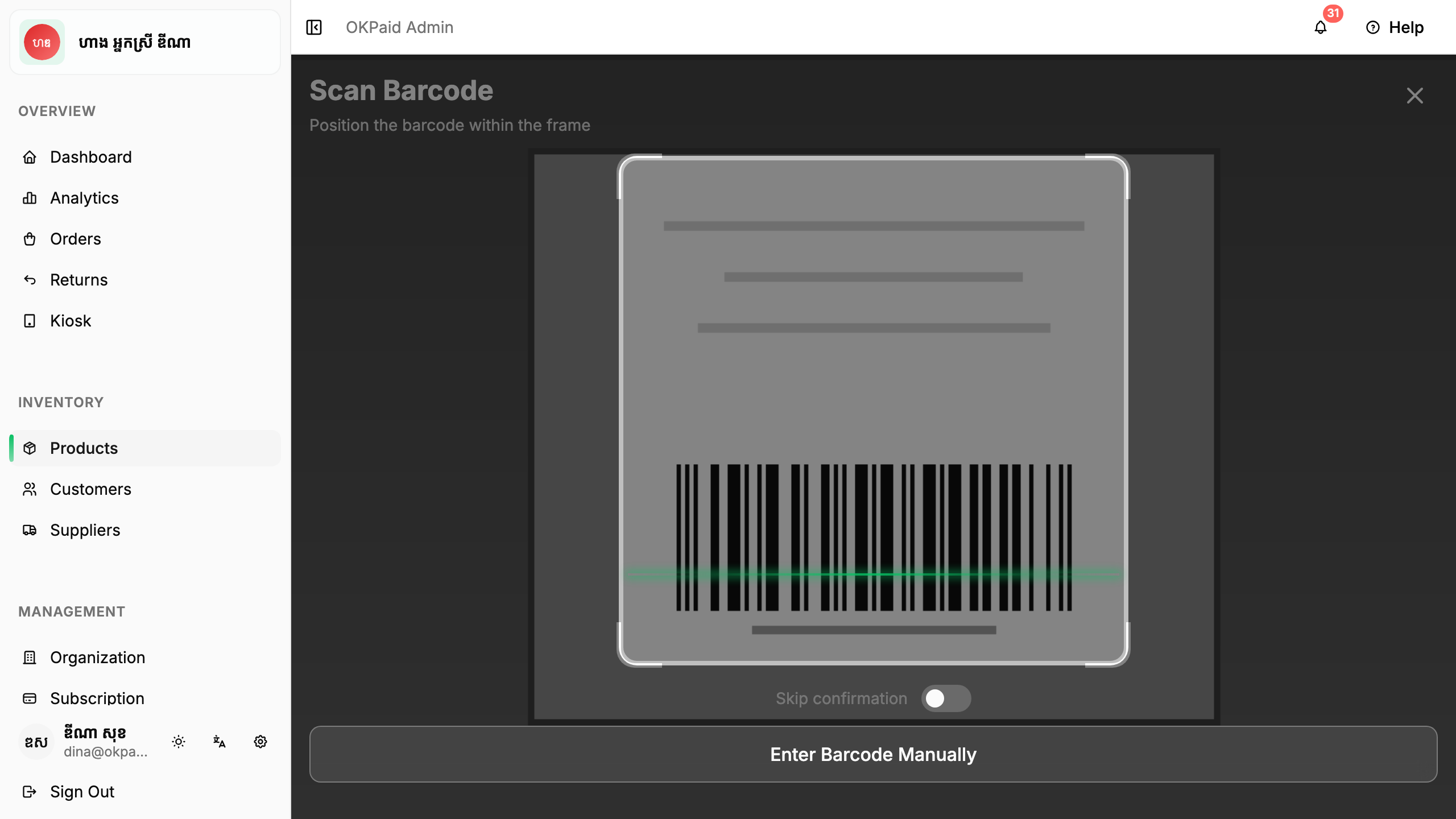
Check the Barcode
The barcode itself might have problems:
- Damaged - Scratched or torn barcodes may not scan
- Dirty - Clean the barcode surface
- Wrinkled - Flatten packaging if possible
- Faded - Very old barcodes may be too faded
Hold Steady
Movement makes scanning difficult:
- Rest your elbow on a surface
- Hold the device with both hands
- Wait for the scanner to focus
Clean Camera Lens
A dirty lens causes blurry images:
- Use a soft, clean cloth
- Gently wipe the camera lens
- Avoid touching the lens with fingers
Wrong Product Information
Product Not in Database
The our database does not have every product.
When this happens:
- The barcode number is still captured
- Enter product details manually
- The barcode is saved for future use
Incorrect Product Data
Our data may have errors:
- Review the auto-filled information
- Edit any incorrect details
- Save the corrected product
Wrong Product Found
If a completely wrong product appears:
- The barcode may be shared across regions
- Clear the auto-filled data
- Enter the correct information manually
- Your entry will be used next time
Scanning Performance Issues
Scanner is Slow
If scanning takes a long time:
- Improve lighting - More light helps
- Clean lens - Dirty lens causes focus issues
- Restart browser - Free up memory
- Close other apps - Free up device resources
- Try a different browser - Some perform better
Scanner Crashes
If the scanner stops working:
- Refresh the page
- Close and reopen the browser
- Clear browser cache
- Update your browser
- Restart your device
Battery Drains Quickly
Camera use drains battery fast:
- Close scanner when not using it
- Plug in your device while scanning many items
- Use continuous mode to scan faster
Specific Barcode Types
QR Codes Not Scanning
QR code support is coming soon. Currently only product barcodes are supported:
- EAN-13
- EAN-8
- UPC-A
- UPC-E
- Code 128
- Code 39
Barcode Format Not Supported
If you see “Unsupported format”:
- The barcode type may not be supported yet
- Enter the barcode number manually
- Check if the barcode is printed correctly
Mobile-Specific Issues
iOS Safari Problems
- Make sure Safari has camera permission in iOS Settings
- Close Safari completely and reopen
- Try using Chrome for iOS instead
Android Problems
- Check camera permission in Android Settings > Apps
- Clear browser app cache
- Update the browser app
- Try a different browser
Desktop Webcam Issues
Webcam Quality
Built-in laptop webcams may struggle with barcodes:
- Use better lighting
- Print larger barcodes if possible
- Consider an external webcam with auto-focus
Multiple Cameras
If you have multiple cameras:
- Go to Organization > Barcode Scanning
- Choose the preferred camera
- Back camera (on tablets) usually works best
Still Having Problems?
If barcode scanning still does not work:
- Add products manually - Use the regular product form
- Enter barcode number - Type the numbers below the barcode
- Contact support - Message us on Telegram or email contact@okpaid.io with:
- Device type (phone, tablet, laptop)
- Browser name and version
- Description of the problem
- Screenshot if possible
Tips
Tip: Test the scanner with a known product before scanning new items.
Tip: Keep your browser and device updated for best performance.
Tip: Practice scanning technique - it gets easier with experience.