App Settings
Configure general application preferences
Last updated: January 19, 2026
App Settings
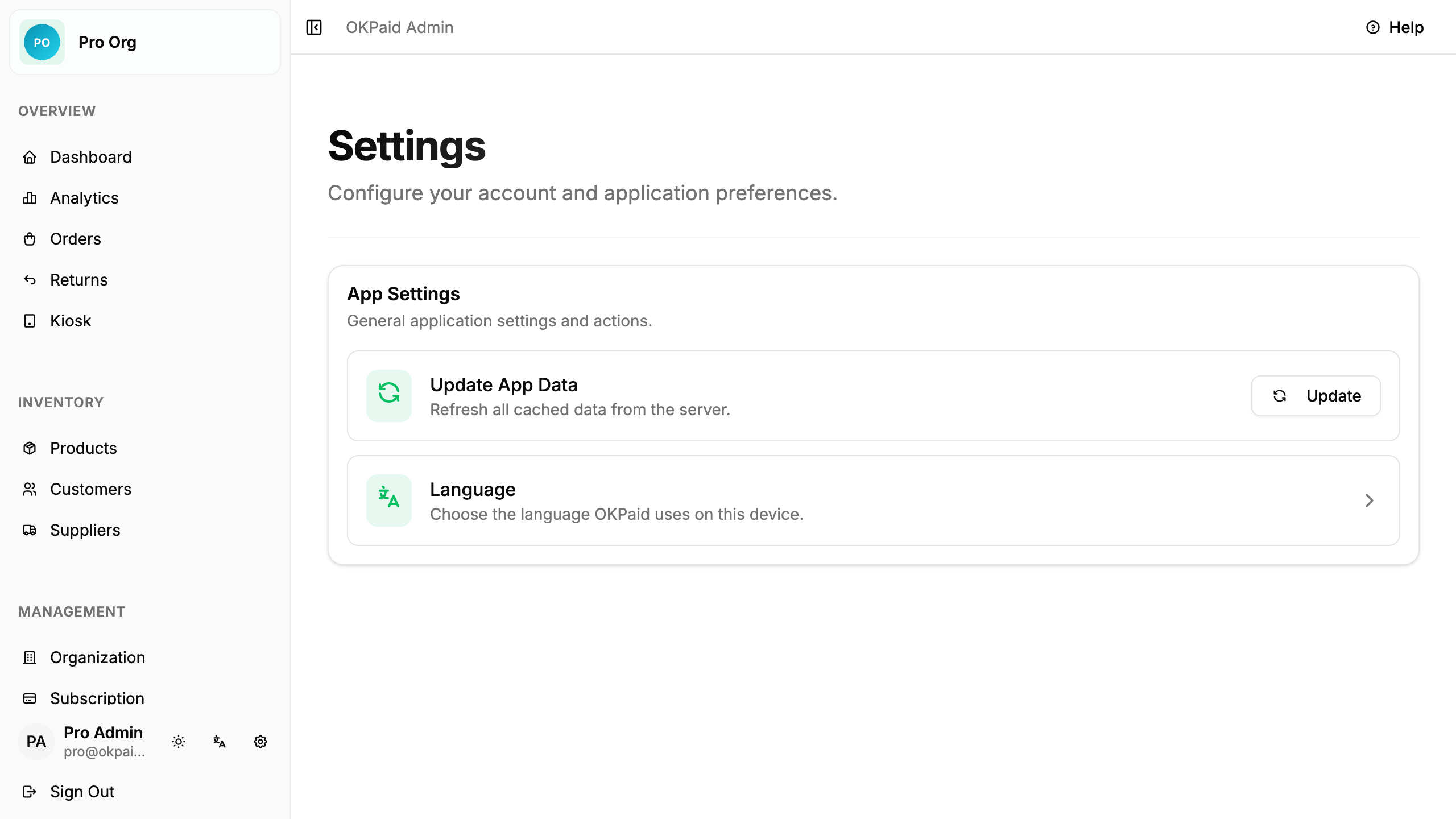
Configure general OKPaid settings to customize your experience.
Access App Settings
- Click Settings in the sidebar footer (or the More tab on mobile)
General Settings
Language
Choose your preferred language for the interface.
| Option | Status |
|---|---|
| English | Available |
| Spanish | Coming soon |
| French | Coming soon |
More languages are being added.
Date Format
Choose how dates appear throughout the app.
| Format | Example |
|---|---|
| DD/MM/YYYY | 19/01/2026 |
| MM/DD/YYYY | 01/19/2026 |
| YYYY-MM-DD | 2026-01-19 |
Time Format
Choose 12-hour or 24-hour time display.
| Format | Example |
|---|---|
| 12-hour | 2:30 PM |
| 24-hour | 14:30 |
Number Format
Choose how numbers are displayed.
| Format | Example |
|---|---|
| 1,234.56 | US/UK style |
| 1.234,56 | European style |
Display Settings
Theme
Choose light or dark mode.
| Option | Description |
|---|---|
| Light | Light background, dark text |
| Dark | Dark background, light text |
| System | Follow your device settings |
Compact Mode
Show more items on screen with smaller spacing.
| Option | Description |
|---|---|
| On | Smaller text and spacing |
| Off | Normal text and spacing (default) |
Useful on small screens or when viewing large lists.
Notification Settings
Open Settings → Notifications to choose what OKPaid tells you about, and when it stays quiet.
What you get
| Notification | When | Who receives it |
|---|---|---|
| Sale | Every completed sale, with the staff member and the amount | Owners and managers |
| Shift opened / closed | A shift starts, or ends with the drawer difference | Owners and managers |
| Low stock | A product’s quantity crosses its alert level | Owners and managers |
| Out of stock | A product reaches zero | Owners and managers |
| Sales synced | Sales a till took while offline, alerted as they upload (a client that sends more than five in one batch gets a single summary instead) | Owners and managers |
| Daily report | An email with the sales, takings and top products of the 24 hours ending at the hour you pick | Owners and managers |
Owners and managers receive these by default. The permission can also be granted to a custom role, so a shift lead can be told about the shop without being made a manager.
On this device
Notifications are per device: turn them on for each phone, tablet or computer that should be told.
| Option | Description |
|---|---|
| On | This device alerts you, even when OKPaid is closed |
| Off | This device stays silent |
Your browser asks for permission the first time you turn this on. If notifications were blocked for the site, allow them in the browser’s own settings — a page cannot ask a second time.
On iPhone and iPad, notifications only work after adding OKPaid to your home screen.
Quiet hours
Choose a window (for example 21:00 to 07:00) when pushes are silenced. Nothing is lost: the notifications list still records everything that happened while you were quiet.
Daily report
Turn the daily report on and pick the local hour it arrives. The hour is read in your business’s timezone, which is shown beside the setting. Each owner or manager can turn off their own copy on the same screen.
Email notifications
| Notification | Description |
|---|---|
| New team member joined | When someone accepts an invitation |
| Subscription changes | Payment issues, upgrades, renewals |
| Daily report | The day’s sales, takings and top products, at the hour you chose |
Data & Privacy
Delete Account
Permanently delete your account and all data.
- Click Delete Account
- Type “DELETE” to confirm
- Click Delete Forever
Warning: This cannot be undone. All your data will be permanently deleted.
Tips
Tip: Use dark mode at night to reduce eye strain.
Common Questions
Do settings sync across devices? Yes. Settings are saved to your account and apply on all devices.
Can I reset all settings? Contact support to reset your settings to defaults.
Why is dark mode not working? Make sure your browser supports dark mode. Try clearing cache if issues persist.
Next Steps
- Barcode Settings - Configure barcode scanner
- Business Profile - Update your business details