
Barcode Settings
Configure what product information to retrieve when scanning barcodes
Last updated: March 14, 2026
Barcode Settings
Choose what product information to retrieve from the Open Food Facts database when scanning barcodes. This helps you build detailed product records automatically.
Access Barcode Settings
- Click Organization in the sidebar
- Click Barcode Scanning under Store setup
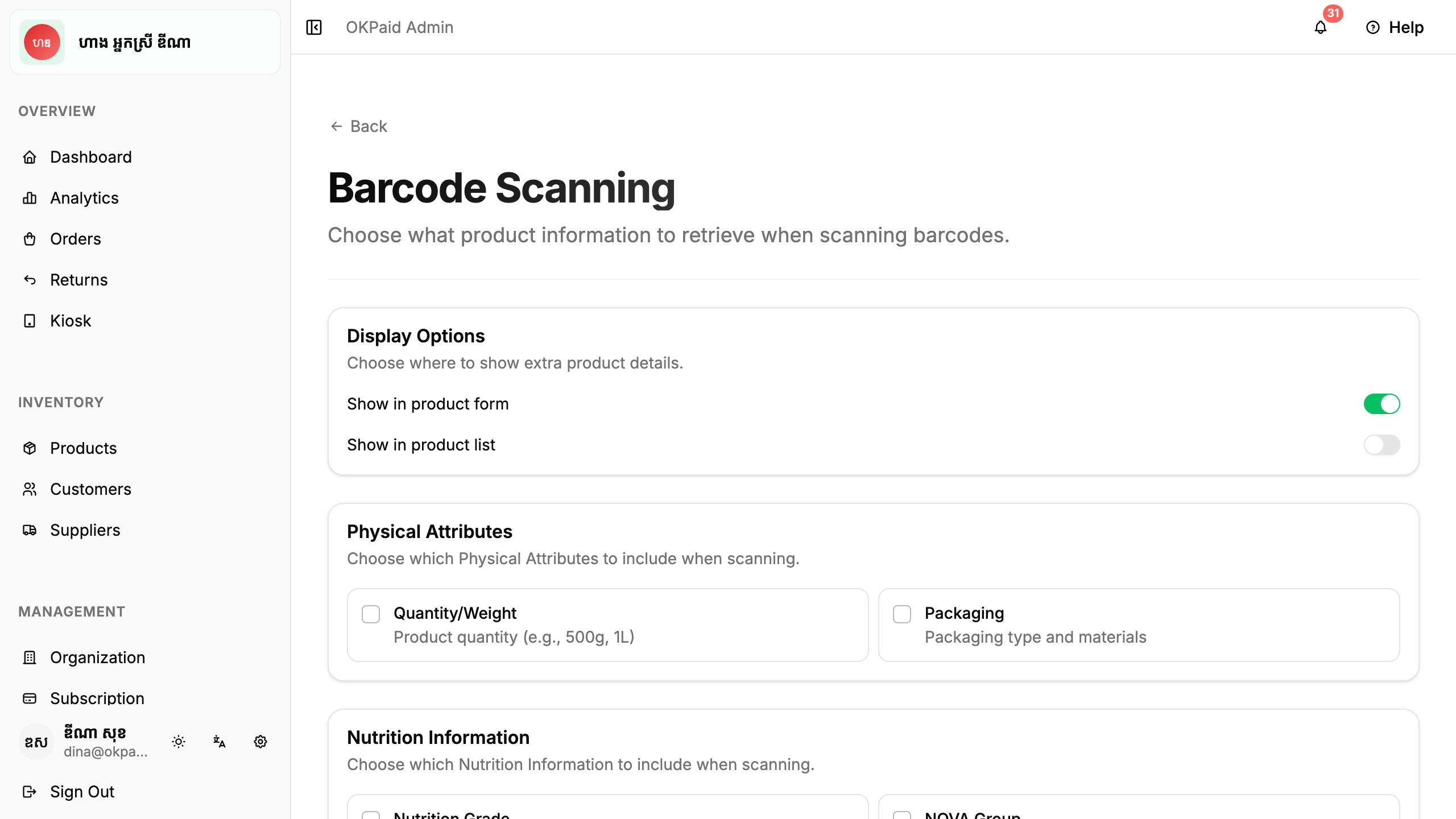
Display Options
Choose where to show the retrieved product information:
| Option | Description |
|---|---|
| Show in product form | Display fields when adding or editing a product |
| Show in product list | Display fields in the product catalog table |
Tip: Enable “Show in product form” to review and edit data when scanning. Enable “Show in product list” to see key information at a glance.
Data Field Categories
Select which information categories to retrieve from the Open Food Facts database:
Physical Attributes
Product physical characteristics:
| Field | Description |
|---|---|
| Quantity/Weight | Product amount (e.g., 500g, 1L, 12 pack) |
| Packaging | Packaging type and materials used |
Nutrition Information
Nutritional data for food products:
| Field | Description |
|---|---|
| Nutrition Grade | Nutri-Score rating (A-E) for overall nutritional quality |
| NOVA Group | Food processing level classification (1-4) |
| Nutrition Facts | Detailed nutrition: calories, fat, protein, carbs, etc. |
| Serving Size | Recommended serving size and portions |
Note: Nutrition data is only available for food products in the database.
Ingredients & Allergens
Product composition information:
| Field | Description |
|---|---|
| Allergens | List of allergens present in the product |
| Ingredients | Complete ingredients list as shown on packaging |
Important: Always review allergen information for accuracy before saving products.
Origin & Certifications
Product source and certifications:
| Field | Description |
|---|---|
| Labels/Certifications | Certifications like Organic, Fair Trade, Gluten-Free, etc. |
| Origin | Country or region where the product originates |
| Manufacturing Places | Locations where the product is manufactured |
| Categories | Product categories from the Open Food Facts database |
Selected Fields Summary
At the bottom of the page, you will see a summary of your selected fields. If no extra fields are selected, only basic product information (name, brand, barcode) will be retrieved.
How It Works
When you scan a barcode with these settings:
- OKPaid searches the Open Food Facts database
- If found, it retrieves the selected information categories
- The data pre-fills the product form fields you have enabled
- You can review and edit the information before saving
Note: Barcode lookup requires an internet connection and may take a few seconds.
Database Coverage
The Open Food Facts database contains:
- Food products: Extensive coverage with nutrition, ingredients, allergens
- Non-food items: Limited information (mainly name and brand)
Not all products are in the database. If a barcode is not found, you will need to enter product details manually.
Tips
Tip: Start with basic fields (Physical Attributes) and add more categories as needed.
Tip: For grocery stores, enable Nutrition Information and Allergens to build detailed product records.
Tip: For general retail, focus on Physical Attributes and Origin information.
Tip: Review all retrieved data before saving. The database is community-maintained and may have errors.
Troubleshooting
No Data Retrieved
If barcode scanning returns no information:
- The product may not be in the Open Food Facts database
- Check your internet connection
- The barcode might be for a non-food product with limited data
- Enter product details manually and save
Wrong Product Information
If the retrieved data is incorrect:
- Edit the product details after scanning
- Report incorrect data to Open Food Facts (optional)
- Manually correct the information before saving
Fields Not Showing
If selected fields do not appear:
- Check that “Show in product form” is enabled for the field category
- Refresh the page after changing settings
- The data may not be available for that specific product
Next Steps
- Barcode Scanning - Learn how to scan barcodes to add products
- Managing Products - Add and edit products in your inventory