
Working with Invoices
Generate, view, and download professional invoices
Last updated: September 22, 2026
Working with Invoices
Every order in OKPaid can generate a professional invoice. This guide shows you how to view, download, and print invoices.
What Is an Invoice?
An invoice is a document that lists:
- Your business details
- Customer details
- Products or services sold
- Total amount to pay
- Payment terms
You send invoices to customers so they know what to pay.
View an Invoice
- Go to Orders in the sidebar
- Click on an order
- Click View Invoice
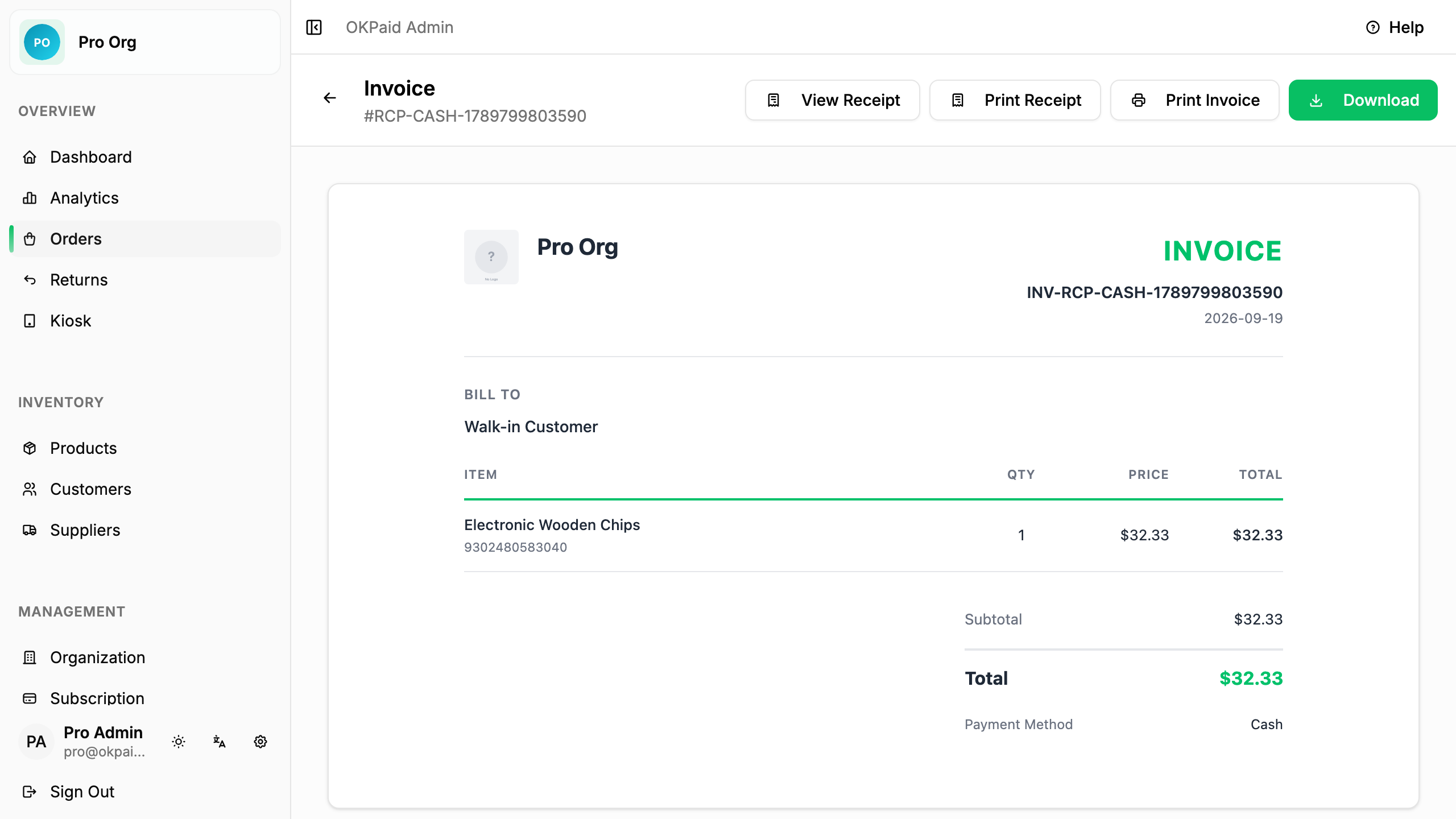
The invoice shows:
- Your business name and logo
- Invoice number (same as order number)
- Invoice date
- Customer information
- Line items with prices
- Total amount
Customize Your Invoice
Your business details appear on every invoice. To change them:
- Go to Organization > Business Profile
- Update your details:
- Business name
- Address
- Phone and email
- Tax ID
- Logo
- Click Save
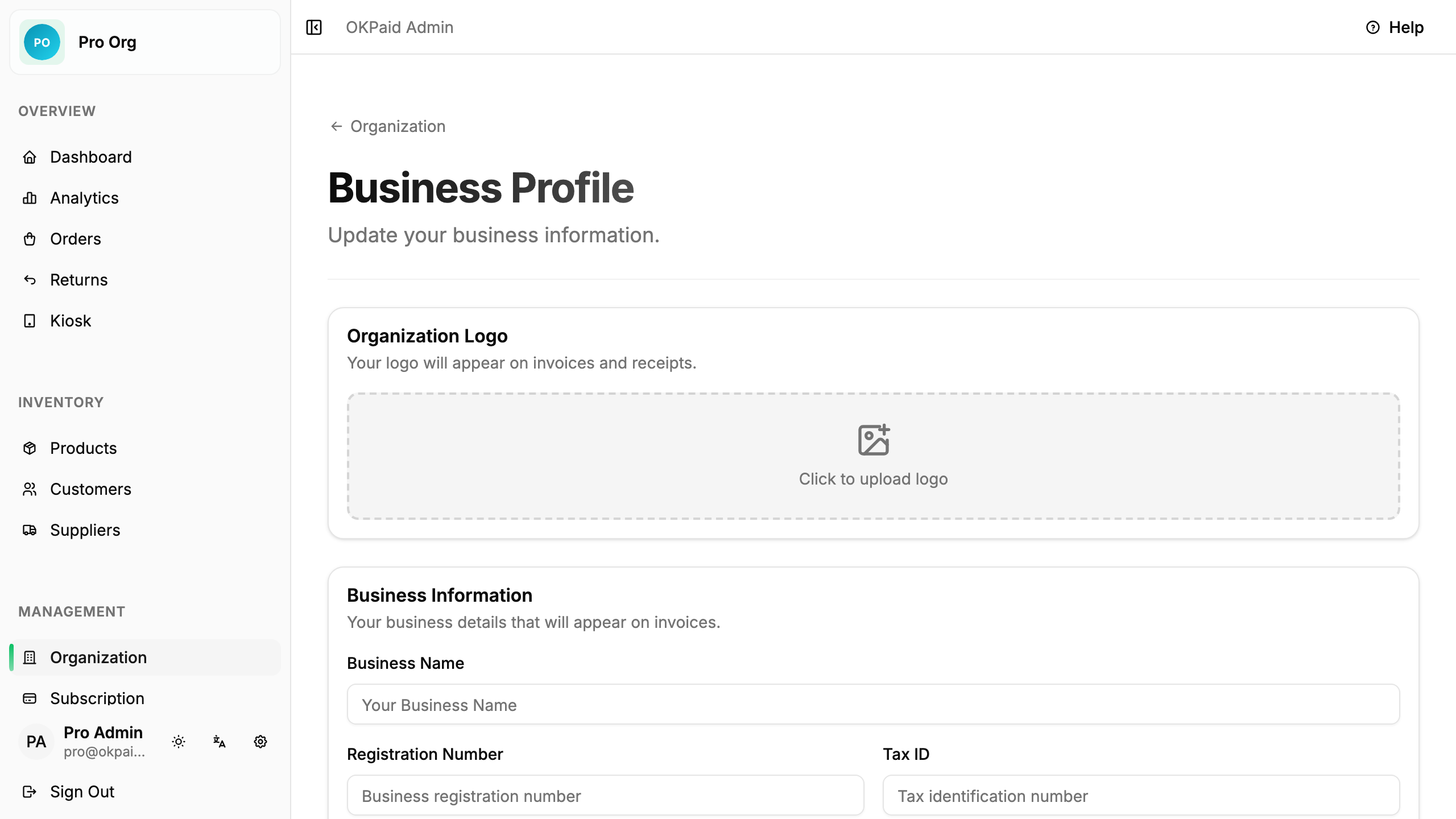
Changes apply to all future invoices.
Download Invoice as PDF
- Open the invoice preview
- Click Download PDF
- The PDF saves to your device
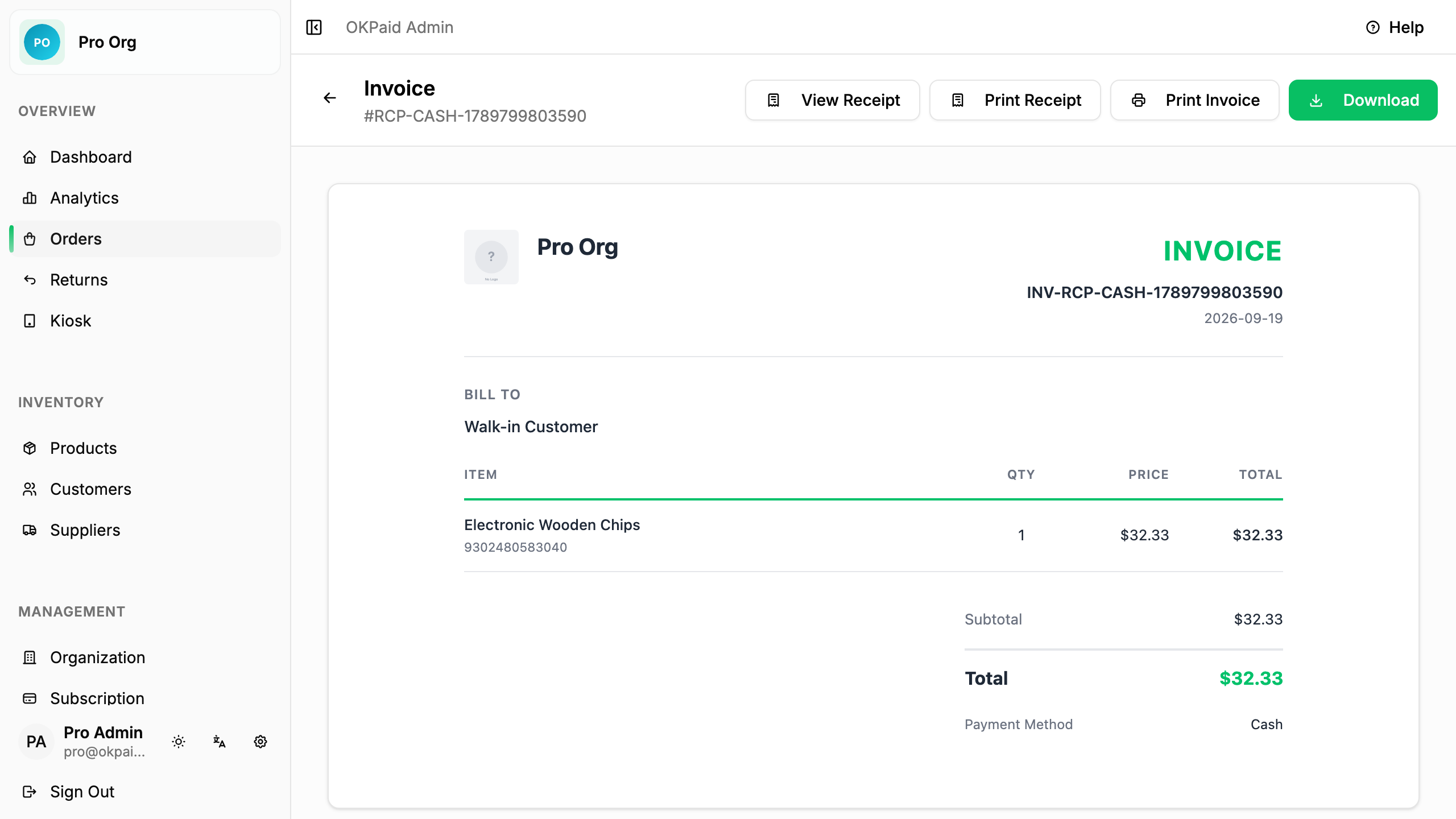
Tip: PDFs are great for sending by WhatsApp, Telegram, or email attachments.
Print an Invoice
- Open the invoice preview
- Click Print
- Your browser print dialog opens
- Select your printer and click Print
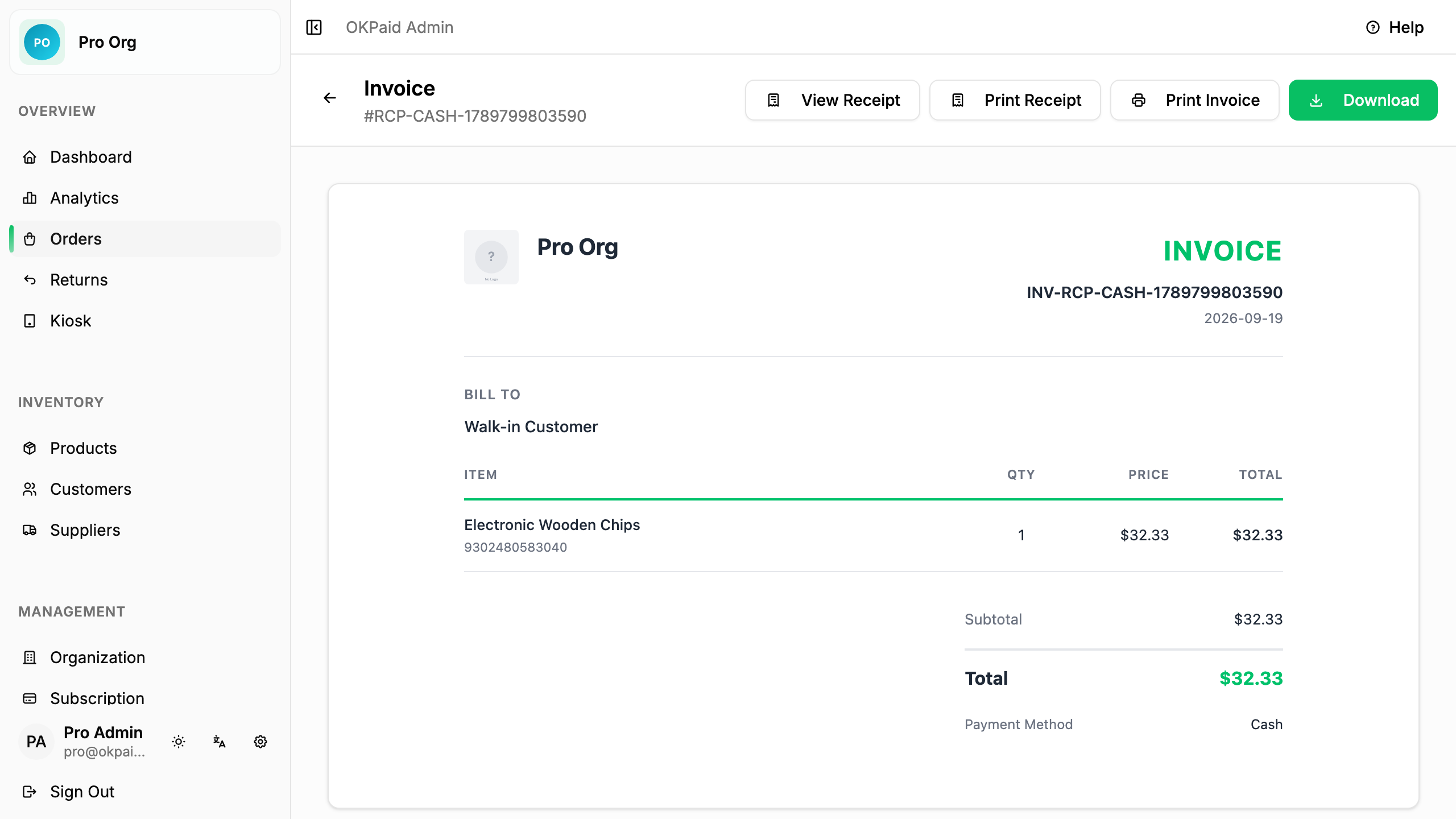
Tip: Use “Save as PDF” in the print dialog as another way to save a PDF.
Invoice Numbering
Invoices use the same number as the order. The format is:
INV-{year}{month}-{number}Example: INV-202601-0042 means January 2026, order number 42.
Tips
Tip: Add your logo to make invoices look professional. Go to Organization > Business Profile.
Tip: Add bank accounts under Organization > Billing so customers know where to pay.
Tip: Download invoices as PDF for your records.
Common Questions
Can I change the invoice design? The design is fixed, but you can customize all the information shown. Custom templates are coming soon.
Can I add payment terms? Not yet. You can add this information in the customer notes field when creating the order.
Can I void an invoice? Cancel the order to effectively void the invoice. The invoice will show as cancelled.
Can I send invoices in other languages? Not yet. Invoices are in English only. More languages coming soon.
Next Steps
- Managing Customers - Manage customer information
- Creating Orders - Learn more about orders
- Business Profile - Customize your invoice details