
Staff PIN Login
Let staff sign in at the kiosk with a PIN instead of email
Last updated: September 20, 2026
Staff PIN Login
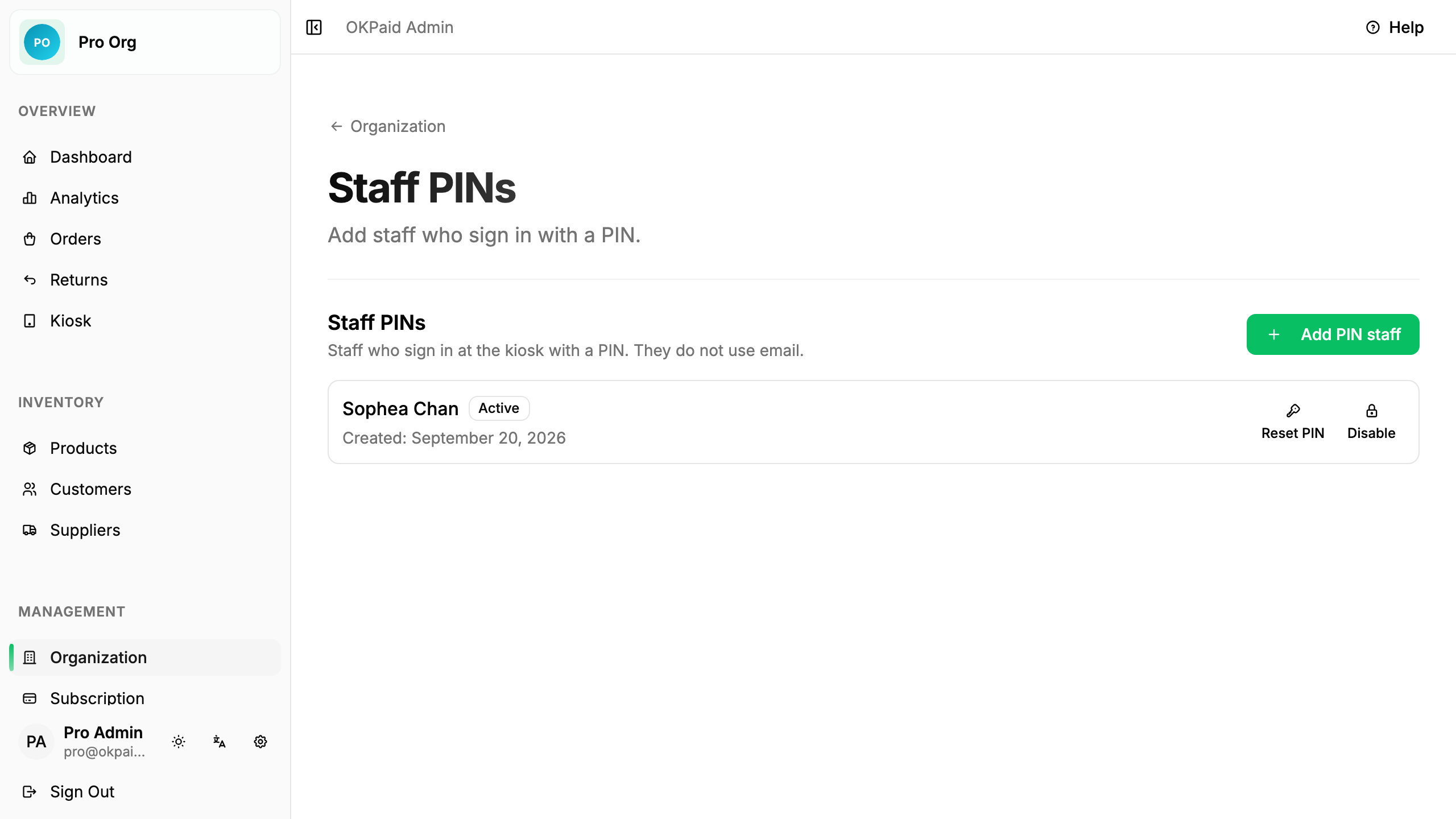
PIN staff sign in at the kiosk with a name and a PIN. They do not need an email address.
Add PIN Staff
- Click Organization in the sidebar
- Click Staff PINs
- Click Add PIN staff
- Enter a name
- Enter a PIN of 4 to 6 digits
- Click Save
The new person appears on the Staff PINs page. The Members page does not list them, because they are sign-in accounts, not team members.
Sign in at the Kiosk
- Go to Admin → Kiosk
- Click Staff Kiosk
- Tap the staff name
- Enter the PIN on the keypad
- Tap Sign in
The picker lists active staff only.
The keypad shows one dot for each digit you enter. Before you type, it shows an em dash (—). Sign in turns on at four digits, because a PIN has 4 to 6 digits.
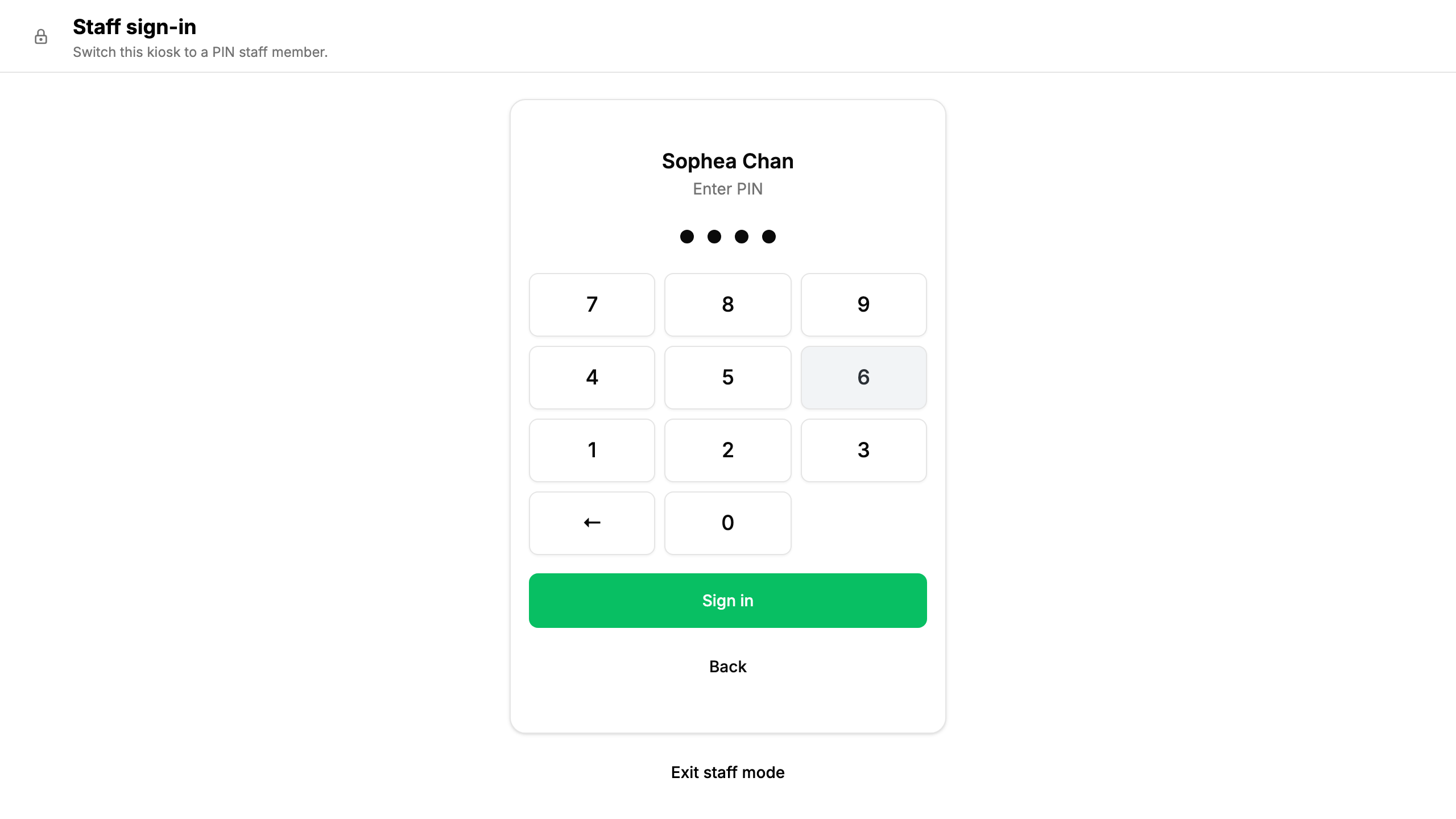
The clerk screen opens. The header shows that staff name.
On the mobile app, open Kiosk, tap Switch staff, then enter the PIN.
Staff Mode
While a PIN staff session is active, OKPaid shows kiosk screens only. The admin sidebar is hidden.
The session stays inside the kiosk:
- The Back button does not open an owner page. The clerk screen comes back instead.
- A typed owner address, like
/admin/products, also brings the clerk screen back.
Two controls leave the kiosk:
- Switch staff hands the device to another PIN staff member. No password is needed.
- The exit button in the top left opens the Exit staff mode screen. If a shift is open, OKPaid asks about the shift first.
The exit screen asks for the password of the account that started staff mode. A wrong password keeps staff mode on. Leaving staff mode needs the internet, because only the server can check a password.
Reset or Disable a PIN
On Staff PINs:
- Reset PIN sets a new PIN of 4 to 6 digits. Use this if someone forgets the PIN.
- Disable stops that person from signing in. Sales and shifts for that person stay in history.
- Enable turns a disabled person back on.
There is no delete action.
Offline Use
The first sign-in on a device needs the internet. After that, the desktop app and the mobile app can switch staff without the internet.
Sales made offline wait until that staff member signs in online again. Clock in and clock out need the internet.
Common Questions
Do PIN staff count toward the team member limit? No. PIN staff do not use a subscription seat.
Can two people share one PIN? Each person has a name on the picker. Two people may use the same digits. The name selects the person. The PIN proves it.
What role does PIN staff get? The Staff role. There is no role picker when you add PIN staff.
Can PIN staff open reports? No. A PIN session reaches kiosk screens only. Reports are for owners and managers.
Next Steps
- Kiosk Mode - Sell at the counter
- Clerk Shifts - Track work time and cash
- Team Members - Invite people with email