
Expenses Guide
Record expenses, set up recurring bills and salaries, and read the profit summary
Last updated: August 18, 2026
Expenses Guide
Track money going out and see what is left over after expenses. Owner and manager roles only.
Record an Expense
- Open Expenses in the sidebar (web) or More > Expenses (mobile)
- Tap New Expense
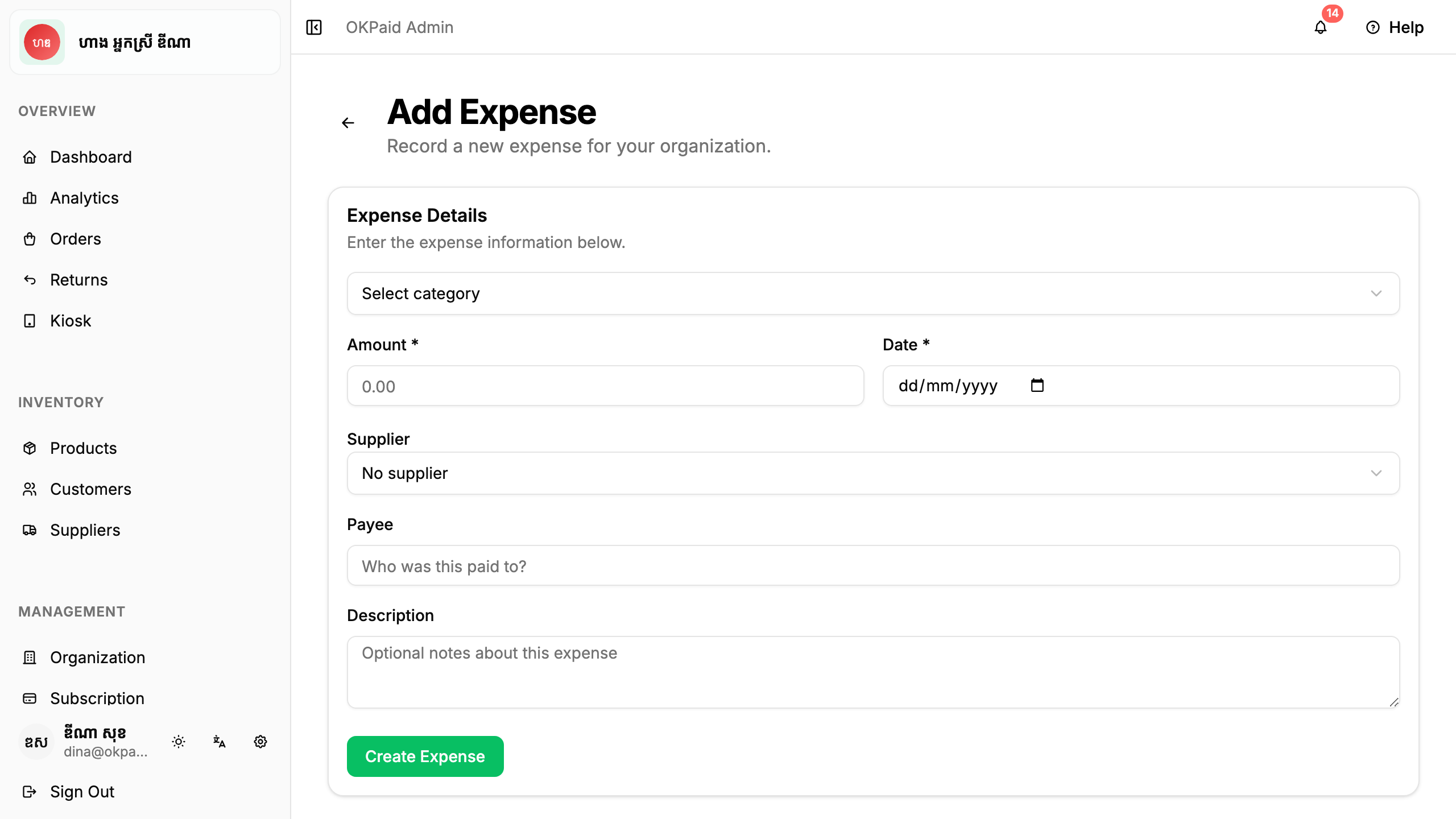
- Fill in the form:
- Category - pick one (utilities, salaries, rent, supplies, marketing, maintenance, taxes, other)
- Amount - enter the amount, for example
80.50 - Date - the date the expense applies to (defaults to today)
- Supplier - optional, the supplier the cost belongs to. When one is chosen the payee is the supplier and the field below disappears
- Payee - optional, who it was paid to (for example
EDCor a staff member’s name); only shown when no supplier is linked - Description - optional notes
- Save
The expense appears in the list and the month summary updates right away.
View and Filter Expenses
The expense list shows entries newest first.
Use the filters to narrow down:
- From / To dates - only expenses in that range
- Category - only one category, for example
Rent
The summary header updates with the filtered results.
Read the Summary
- Total - the sum of expenses in the selected period
- By category - each category with its total
- Net after expenses - sales net profit minus the expense total for the same period
If your sales net profit is $1,000 and expenses are $350, Net after expenses shows $650.
Edit or Delete an Expense
- Open the expense from the list
- Use Edit to change any field, or Delete to remove it
Deleting an expense removes it from the list and the summaries. Deleting a recurring template does not remove the expenses it already generated.
Set Up a Recurring Bill or Salary
Use this for things that repeat: monthly rent, staff salaries, weekly supplies.
- Open Expenses
- Go to Recurring
- Tap New Recurring Expense
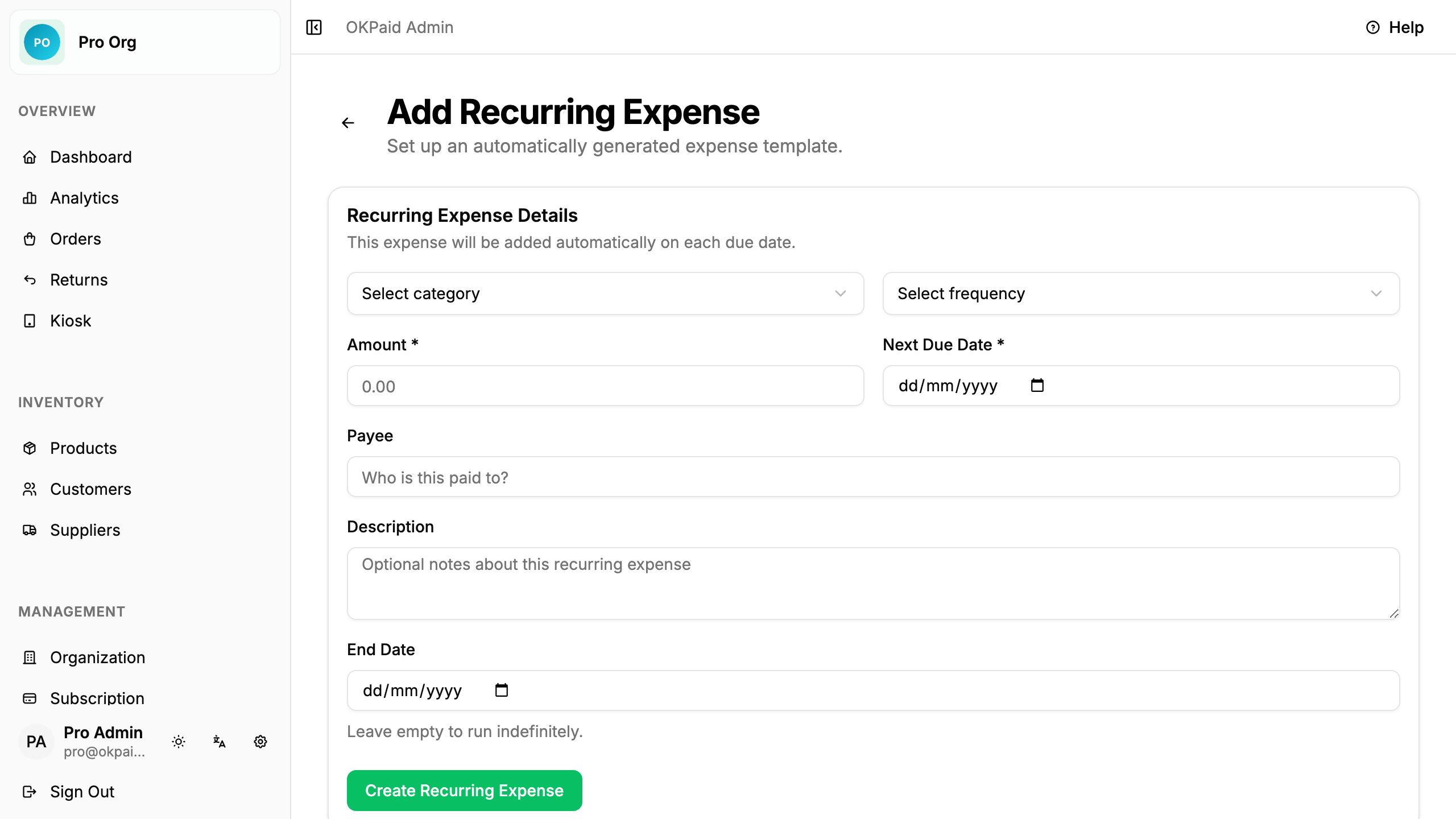
- Fill in the form:
- Category - for example
Salaries - Amount - for example
250.00 - Frequency - weekly, monthly, or yearly
- Next due date - the first date this should appear
- End date - optional, when to stop
- Payee / Description - optional
- Category - for example
- Save
How Recurring Expenses Work
- OKPaid checks every day and creates the expense automatically on each due date
- A monthly template due on the 1st appears on the 1st of every month
- Monthly dates clamp to the last day of shorter months (Jan 31 becomes Feb 28)
- An end date stops generation after the last due date
- Running more than once a day never creates duplicates
Stop or Change a Recurring Expense
- Edit the template to change the amount, frequency, or dates
- Delete the template to stop future entries (already-generated expenses stay)
- You can also set an end date in the past to stop it without deleting
Example: Staff Salary
Dara earns $250 monthly, paid on the 1st.
- Create a recurring expense: Category
Salaries, Amount250.00, FrequencyMonthly, Next due date2026-09-01, PayeeDara - On September 1, a
$250salary expense appears automatically - It repeats every month until you change or delete it
Example: Electricity Bill
Your electricity bill is about $80 per month, due around the 15th.
- Create a recurring expense: Category
Utilities, Amount80.00, FrequencyMonthly, Next due date2026-09-15, PayeeEDC - Each month on the 15th, the bill expense appears
- Adjust the amount whenever the real bill differs
Tips
Tip: Use the Payee field for billers and staff names so the list is easy to scan.
Tip: Create recurring templates for fixed costs once, then only record variable expenses manually.
Tip: Compare Net after expenses with your Reports page to keep an eye on margin.
Common Questions
Can staff see expenses? No. Expenses are visible to Owner and Manager roles only.
What happens if I delete a recurring template? Future entries stop, but expenses already generated stay in the books.
Do recurring expenses appear instantly on the due date? OKPaid generates them once per day, so they appear on the due date (before the business day starts).
Can I backdate an expense? Yes. Set the date to any past day when creating or editing an expense.
Next Steps
- Reports & Analytics - See sales net profit
- Expenses feature overview - What expenses can do