
Barcode Scanning
Add products quickly by scanning barcodes with your camera
Last updated: February 11, 2026
Barcode Scanning
OKPaid can scan product barcodes using your device camera. This helps you add products quickly without typing.
You can scan barcodes in two ways:
- Camera scanning: Use your device’s built-in camera (works in Chrome, Edge, and Safari)
- Manual entry: Type the barcode number directly
How It Works
- You scan a barcode with your camera
- OKPaid looks up the product in the our database
- If found, product details fill in automatically
- You review and save the product
Note: Barcode lookup works best for food products. Other products may not have data available.
Scan a Barcode to Add a Product
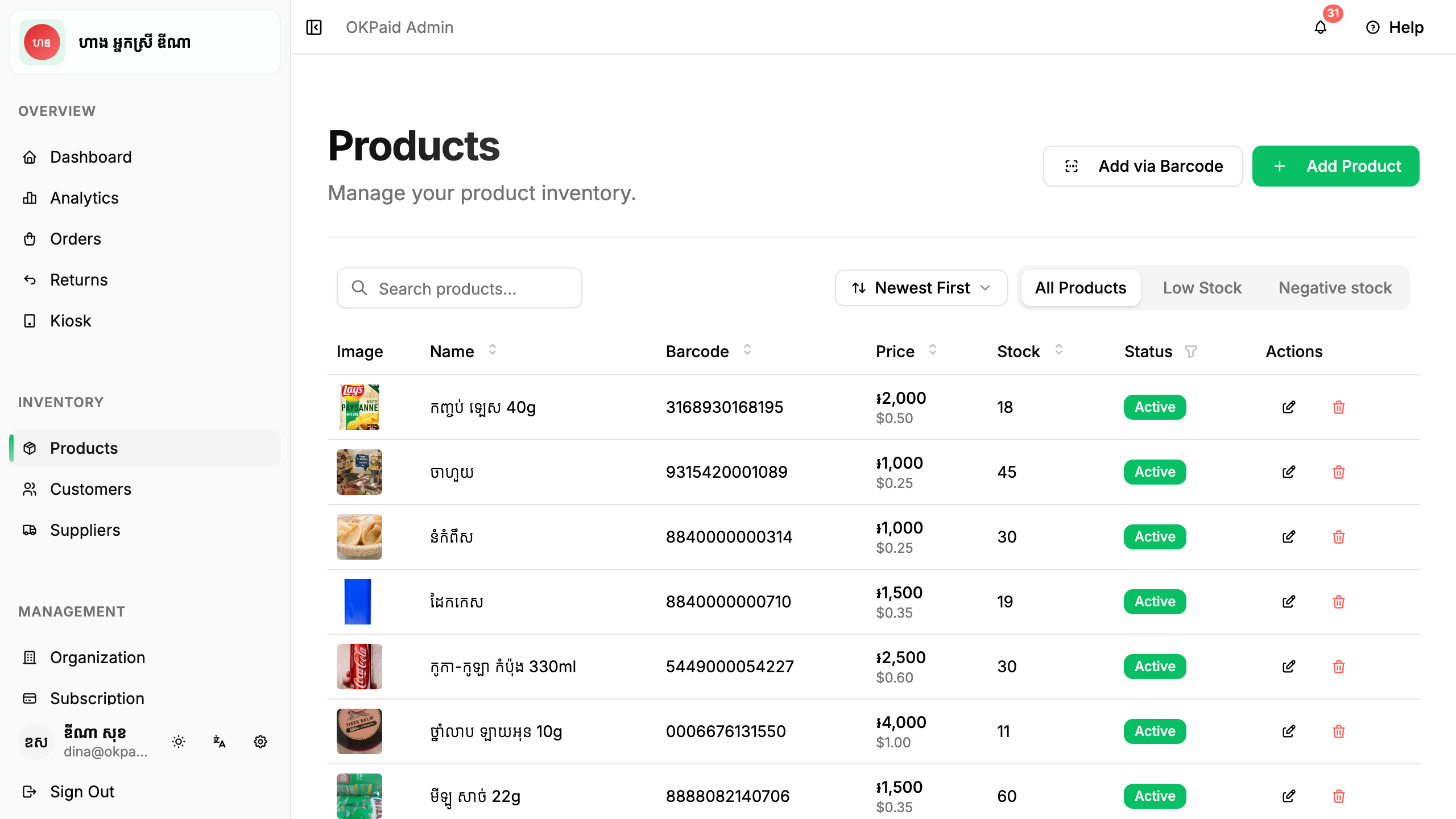
Step 1: Open Barcode Scanner
- Go to Products in the sidebar
- Click Scan Barcode
Step 2: Allow Camera Access
Your browser will ask for camera permission. Click Allow.
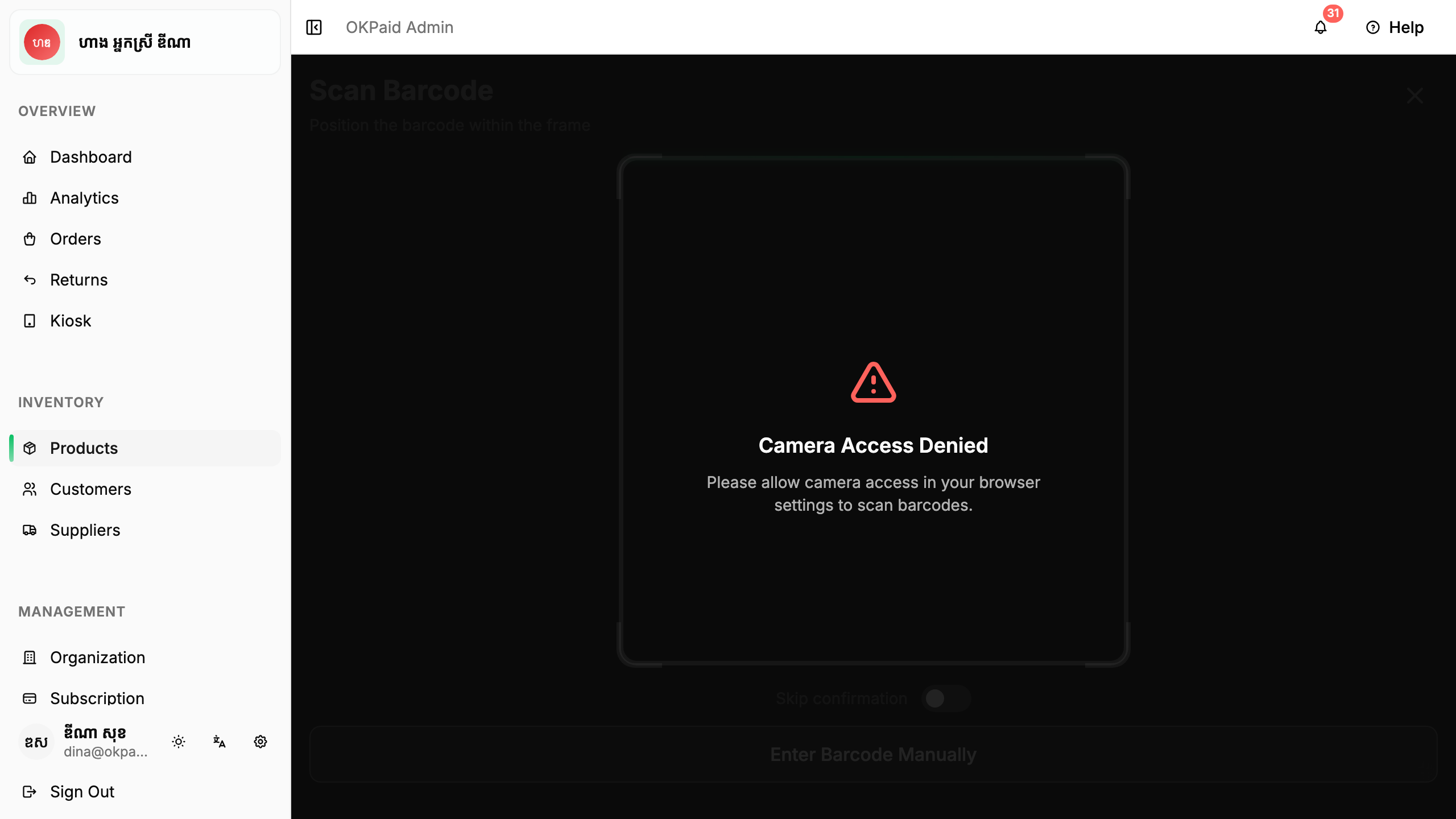
Chrome draws its permission prompt outside the page, so the screen above is what OKPaid can show here: the message the scanner puts up when the camera is blocked. See Barcode Problems to unblock it in Chrome, Firefox or Safari.
Step 3: Scan the Barcode
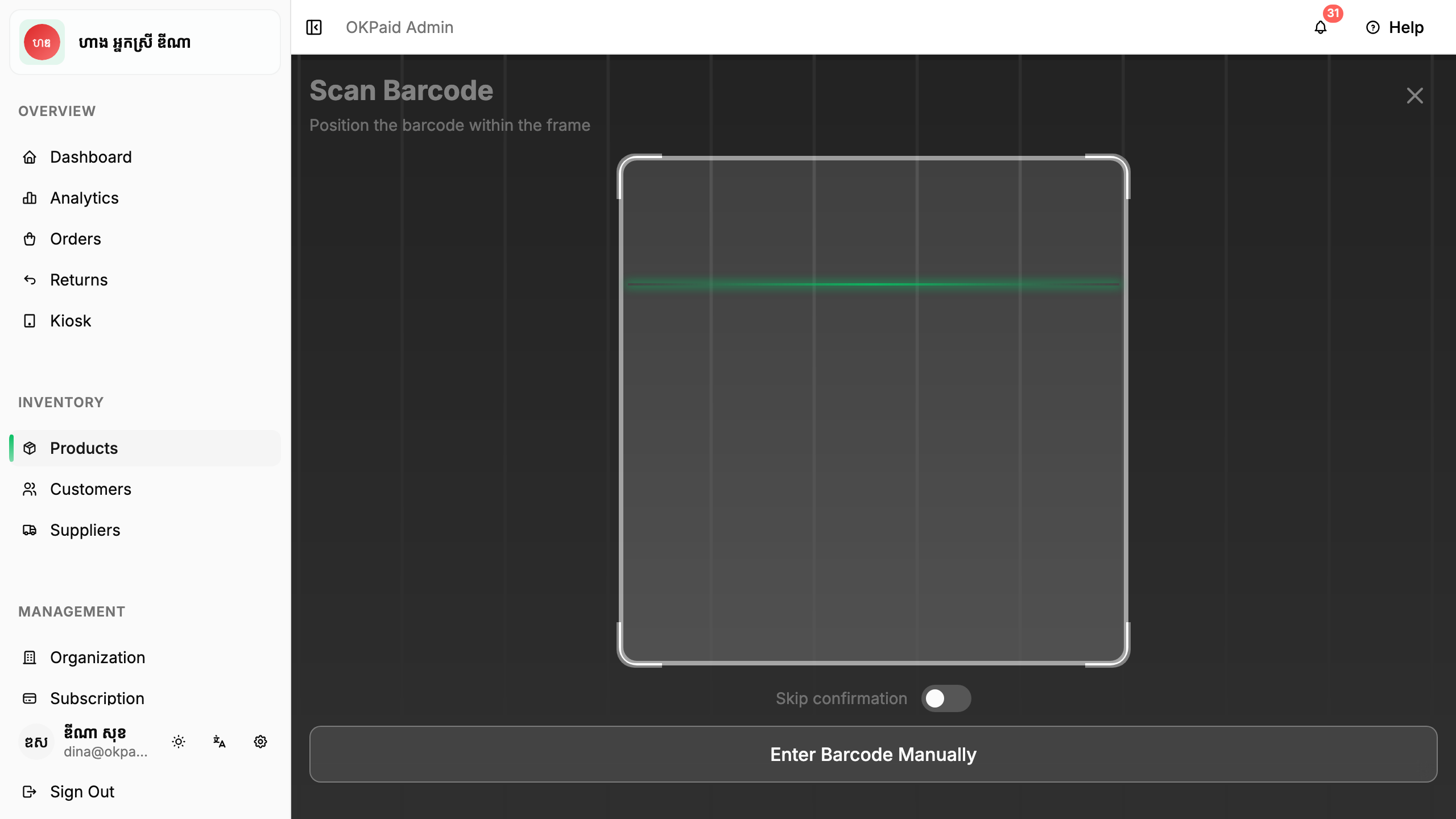
Using Camera:
- Click Scan with Camera button
- Allow camera permission when asked
- Hold the product barcode in front of your camera
- Keep the barcode inside the scanning frame
- Hold steady until the scanner detects the barcode
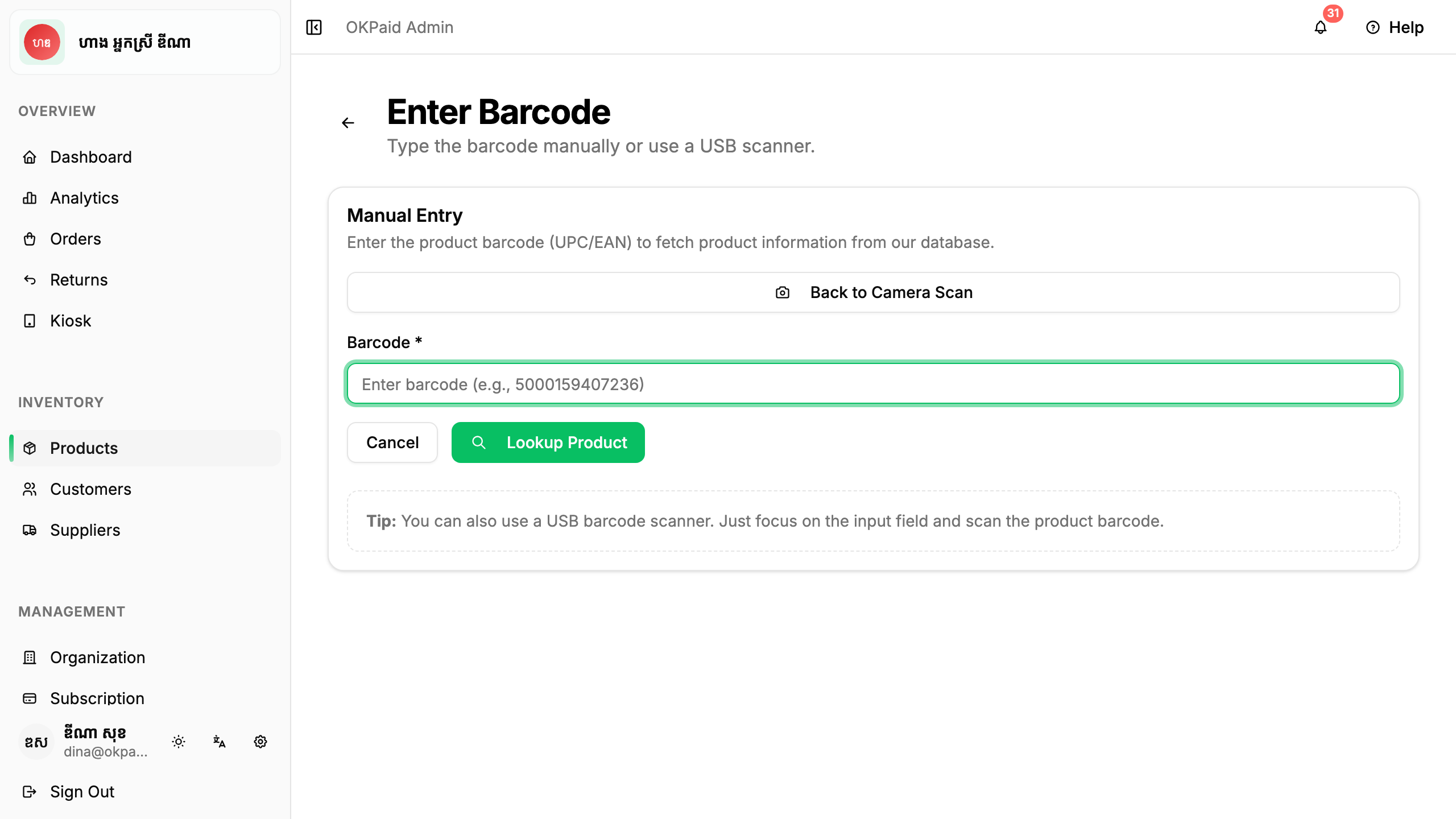
Using Manual Entry:
- Type the barcode number into the input field
- Press Enter or click Search
- The system looks up the barcode
Note: Camera scanning works in Chrome, Edge, and Safari. If using Firefox or another browser, use manual entry instead.
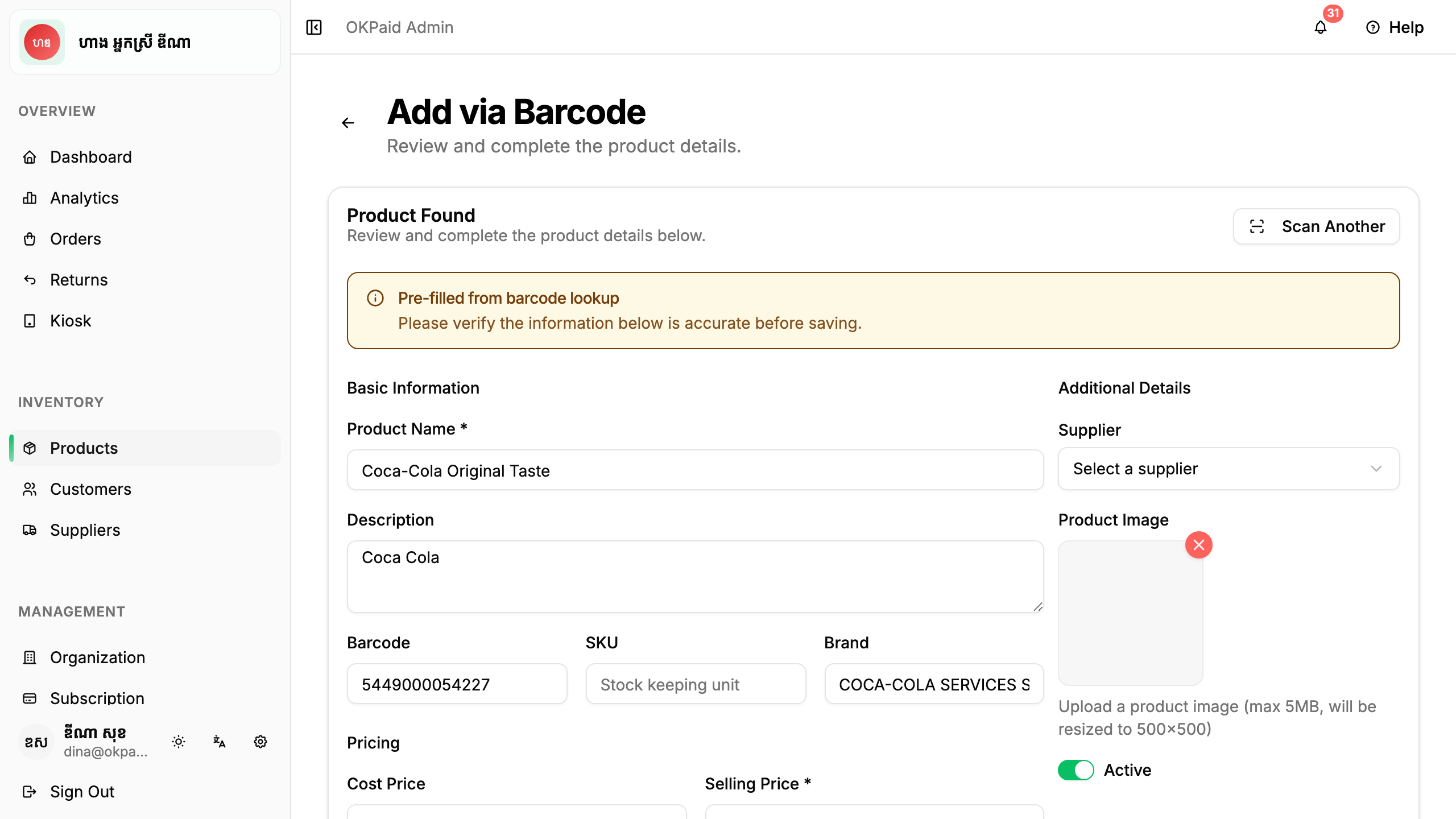
Step 4: Review Product Data
When the barcode is detected:
- If product data is found, the form fills automatically
- Review the name, description, and other details
- Add your selling price (this is not in the database)
- Click Save
If Product Not Found
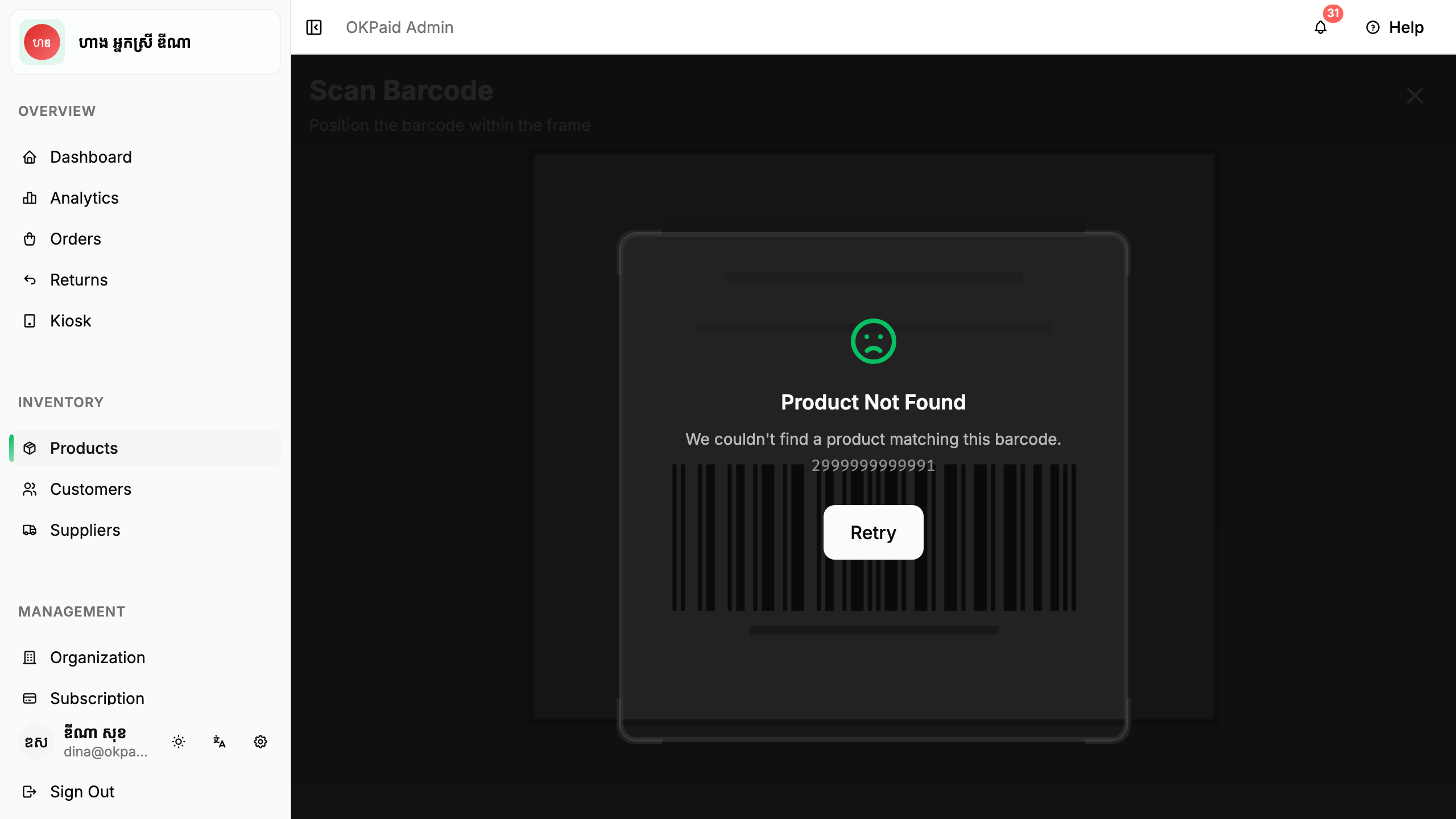
If the barcode is not in the database:
- The barcode number still fills in automatically
- You need to enter the product name and other details manually
- Click Save when done
Barcode Settings
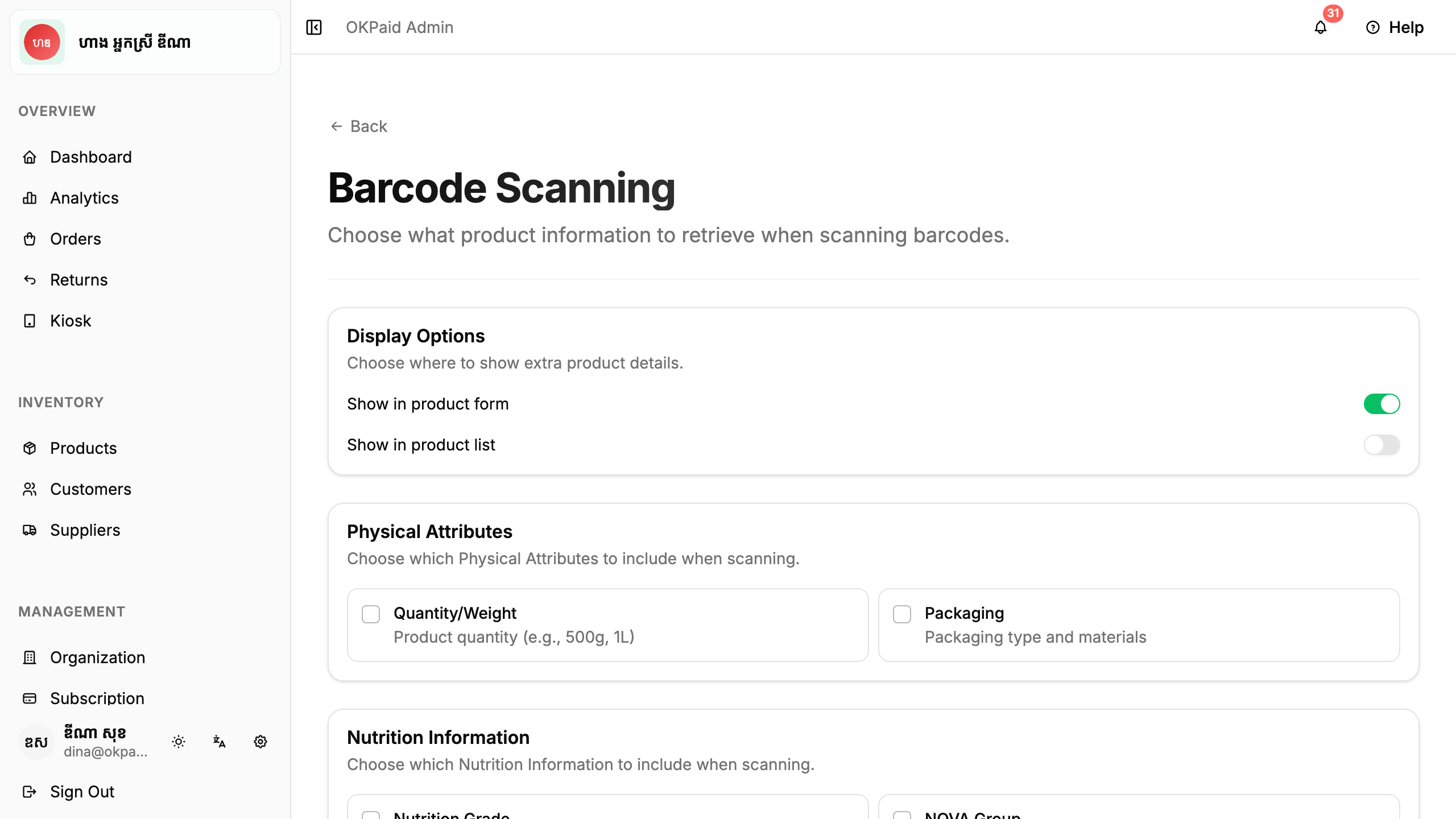
You can customize how barcode scanning works.
Access Barcode Settings
- Click Organization in the sidebar
- Click Barcode Scanning under Store setup
Available Settings
| Setting | Description |
|---|---|
| Auto-lookup | Automatically search for product data when barcode is scanned |
| Sound feedback | Play a sound when barcode is detected |
| Vibration | Vibrate device when barcode is detected |
Supported Barcode Types
OKPaid supports these barcode formats:
- EAN-13 (most common for products)
- EAN-8
- UPC-A
- UPC-E
- Code 128
- Code 39
Tips for Better Scanning
Tip: Make sure you have good lighting. Barcodes are hard to scan in dim light.
Tip: Hold your device about 15-20 cm (6-8 inches) from the barcode.
Tip: Keep your hand steady. Moving too much makes scanning difficult.
Tip: Clean the camera lens if scanning is slow.
Troubleshooting
Camera Not Working
- Check that you allowed camera permission
- Check if your browser supports camera scanning (Chrome 83+, Edge 83+, Safari 17.4+)
- Try refreshing the page
- Make sure no other app is using the camera
- If using Firefox, use manual entry instead (camera not supported)
Barcode Not Detected
- Check the lighting - more light is better
- Make sure the barcode is not damaged or wrinkled
- Try holding the device closer or further
- Clean the camera lens
Product Data Not Found
The our database does not have all products. You can:
- Enter the product details manually
- The barcode will still be saved for future orders
Common Questions
Does barcode scanning use the internet? Yes. The product lookup requires an internet connection.
Can I scan barcodes when creating orders? Yes! In the order form, you can scan barcodes to add products quickly.
What if the product data is wrong? You can edit any details before saving. The database is community-maintained and may have errors.
Next Steps
- Managing Products - Learn more about product management
- Creating Orders - Add products to orders