
Product Variants (Sizes and Colors)
Sell one product in many sizes or colors, each with its own stock, price and barcode
Last updated: October 20, 2026
Product Variants (Sizes and Colors)
Some products are one item sold in many forms: a shirt in S, M and L, a coffee in small and large, shoes in different colors. Variants let you keep them together as one product while tracking stock, price and barcode separately for each combination.
On the kiosk the product appears as a single tile. Tapping it lets the clerk choose the exact size or color, and the receipt shows both the product and the chosen variant.
Create a Product with Variants
- Go to Products and click Add Product
- Fill in the product name, selling price and other details as usual
- Turn on Variants in the Variants section
- Give the first option a name and its values, separated by commas — for example
SizeandS, M, L, XL - Add a second option if the product has one, for example
ColorandBlack, White - The matrix lists every combination. Enter each one’s stock; a price or barcode can be filled per combination too
- Click Create Product
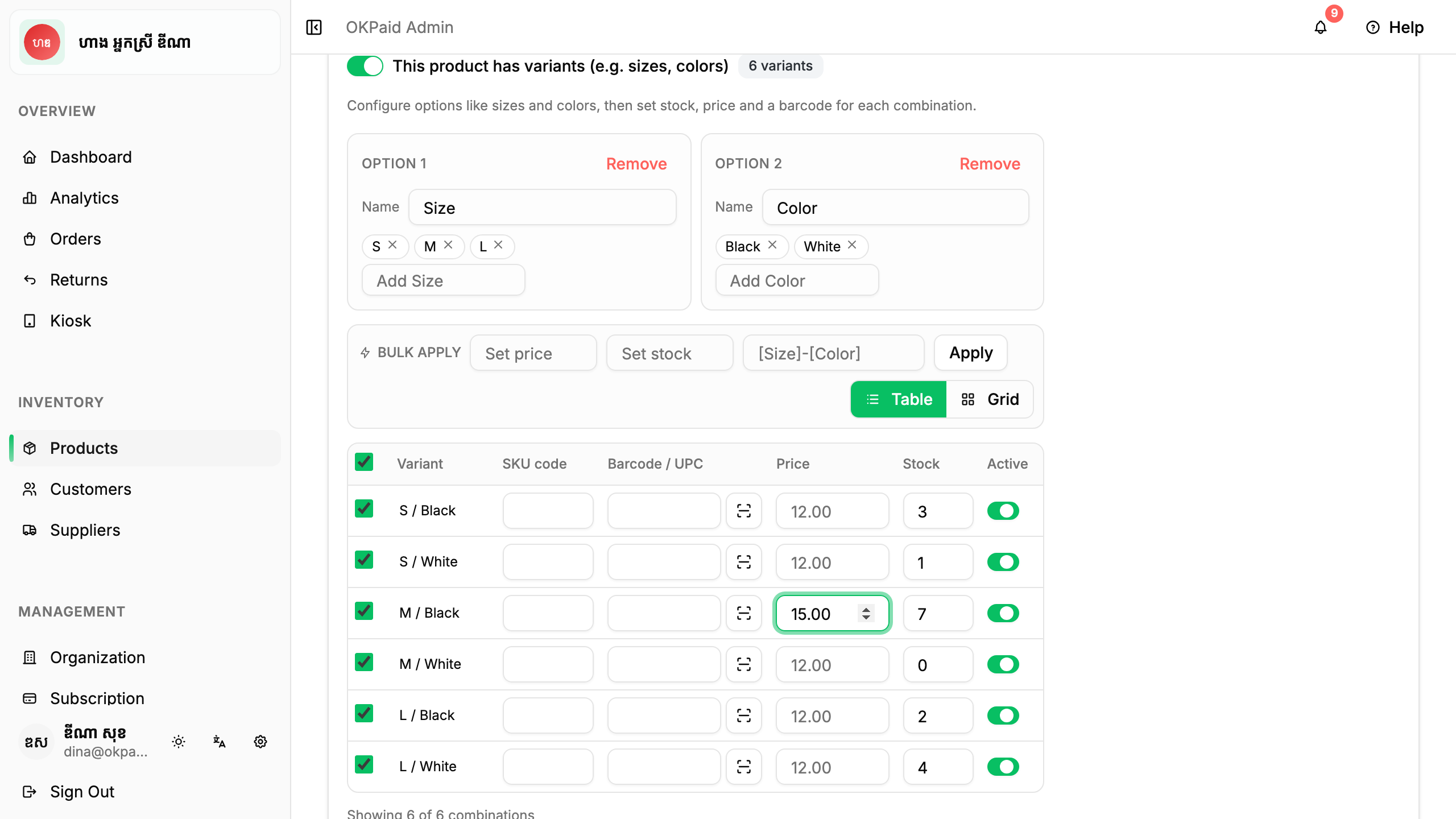
The Variant Matrix
Each cell is one sellable combination:
| Field | Description |
|---|---|
| Stock | How many of this exact combination you have |
| Price | Optional. Leave it empty to follow the product’s price |
| Barcode | Optional. Scanning it adds exactly this variant |
| SKU | Optional. Suggested as productSKU-combination, editable |
The table lists every combination as a row: enter its SKU, barcode, price and stock, and scan a barcode straight from its row. Switch Active off to keep a variant out of the kiosk without deleting it, and uncheck the box on the left to remove an existing variant when you save. Bulk apply sets a price, a stock count or an SKU pattern (like SKU-[Size]-[Color]) on every row at once, and Grid switches to a size × color pivot. The Generate missing combinations button fills in any combination that has no variant yet — useful after adding a new size or color.
How Prices Work
- Leave a variant’s price empty and it always follows the product’s selling price
- Type a price and that variant keeps its own price, even if the product price changes later
- Clear the price again to put it back under the product price
Selling Variants on the Kiosk
How the tile behaves depends on how many variants the product has:
- One variant — a tap adds it directly, no chooser
- Two to four variants — a tap flips the tile and divides it into equal sections. Tap the size or color you are selling; the item is added and the tile flips back. Out-of-stock sections are greyed out
- More than four variants — a tap opens the variant picker: label, price and stock for every combination. Tap one to add it
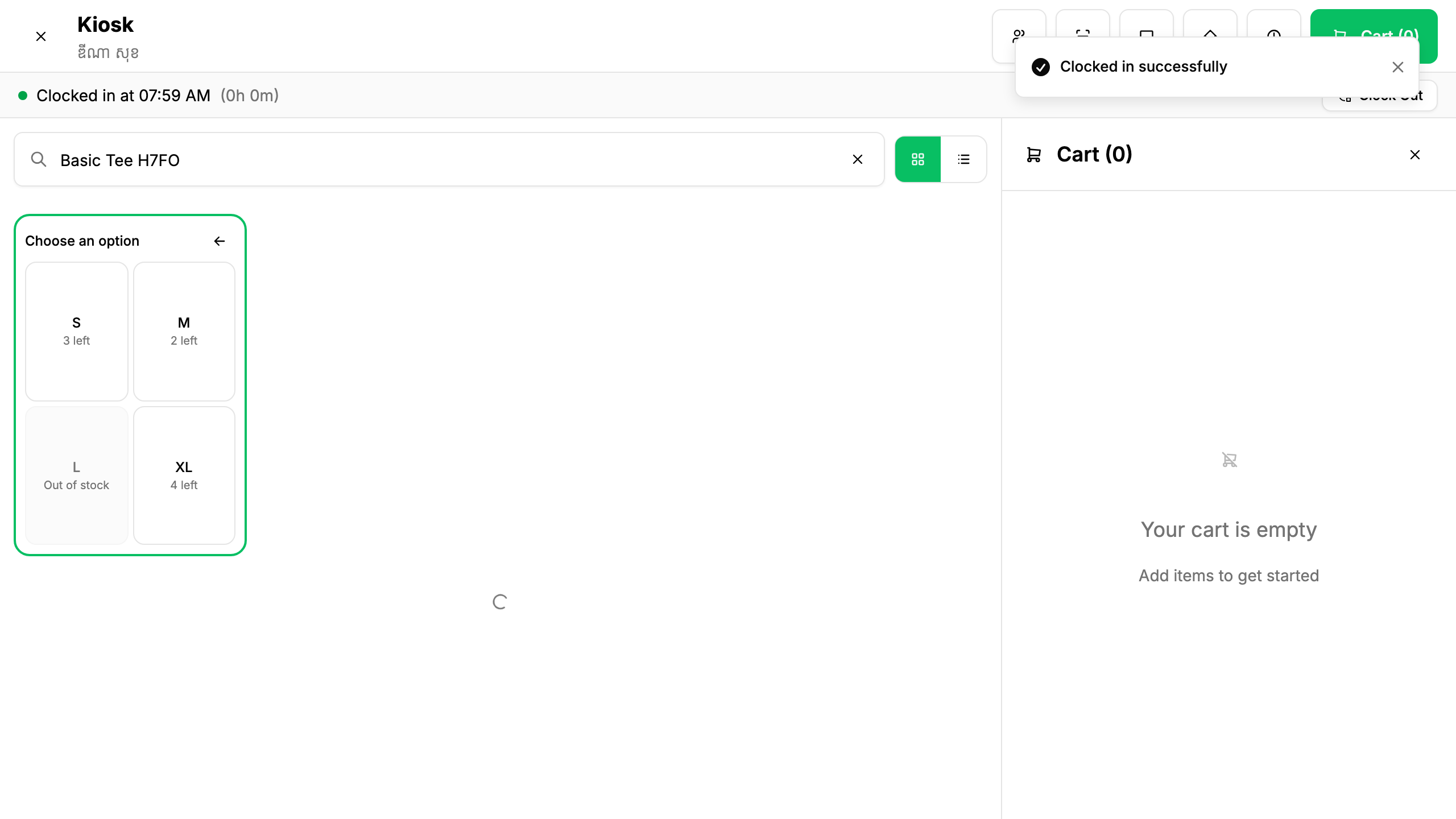
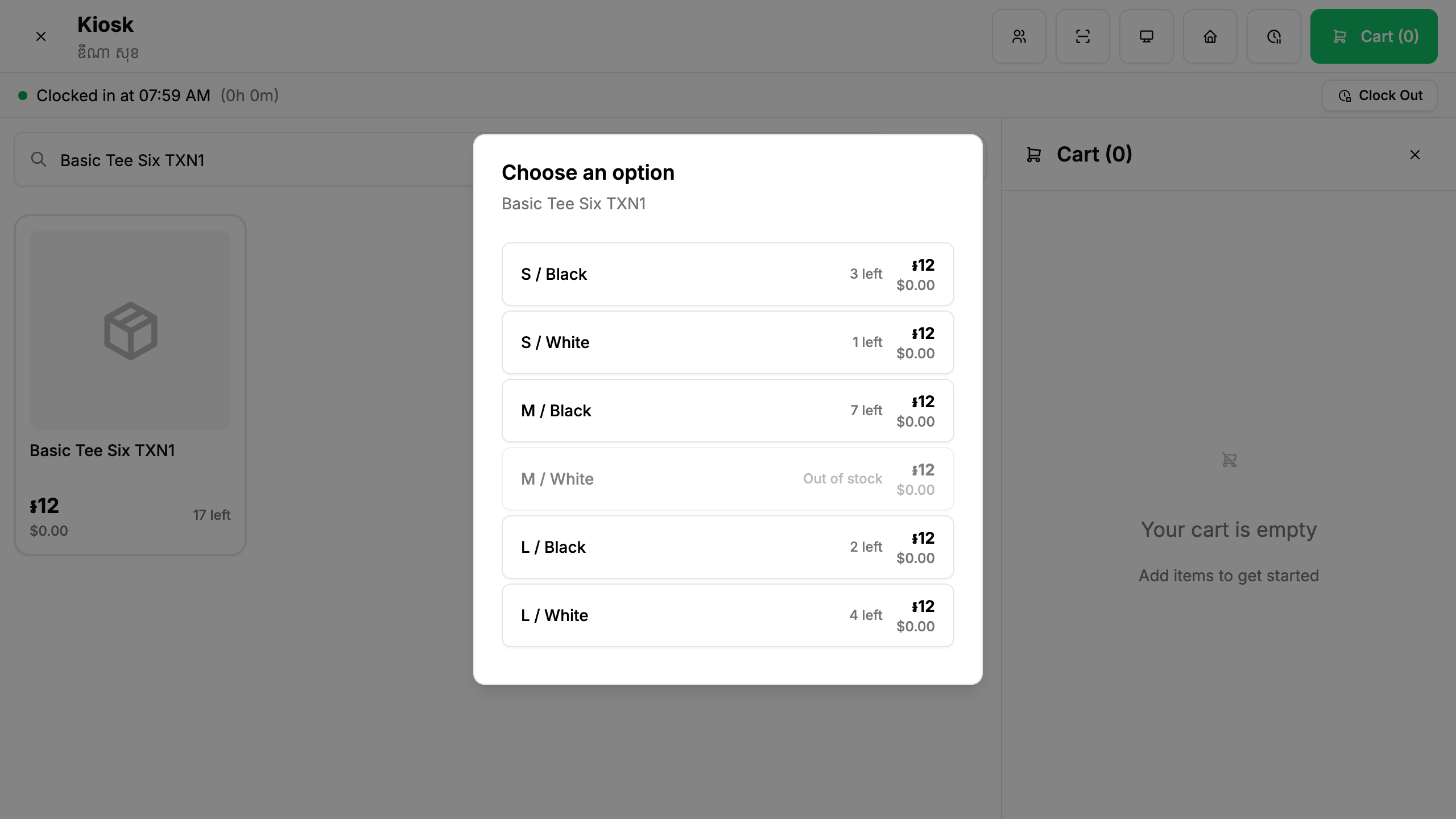
The cart, receipt and customer display show Product — Variant, for example Basic Tee — Black / M, so sales history always says which combination was sold.
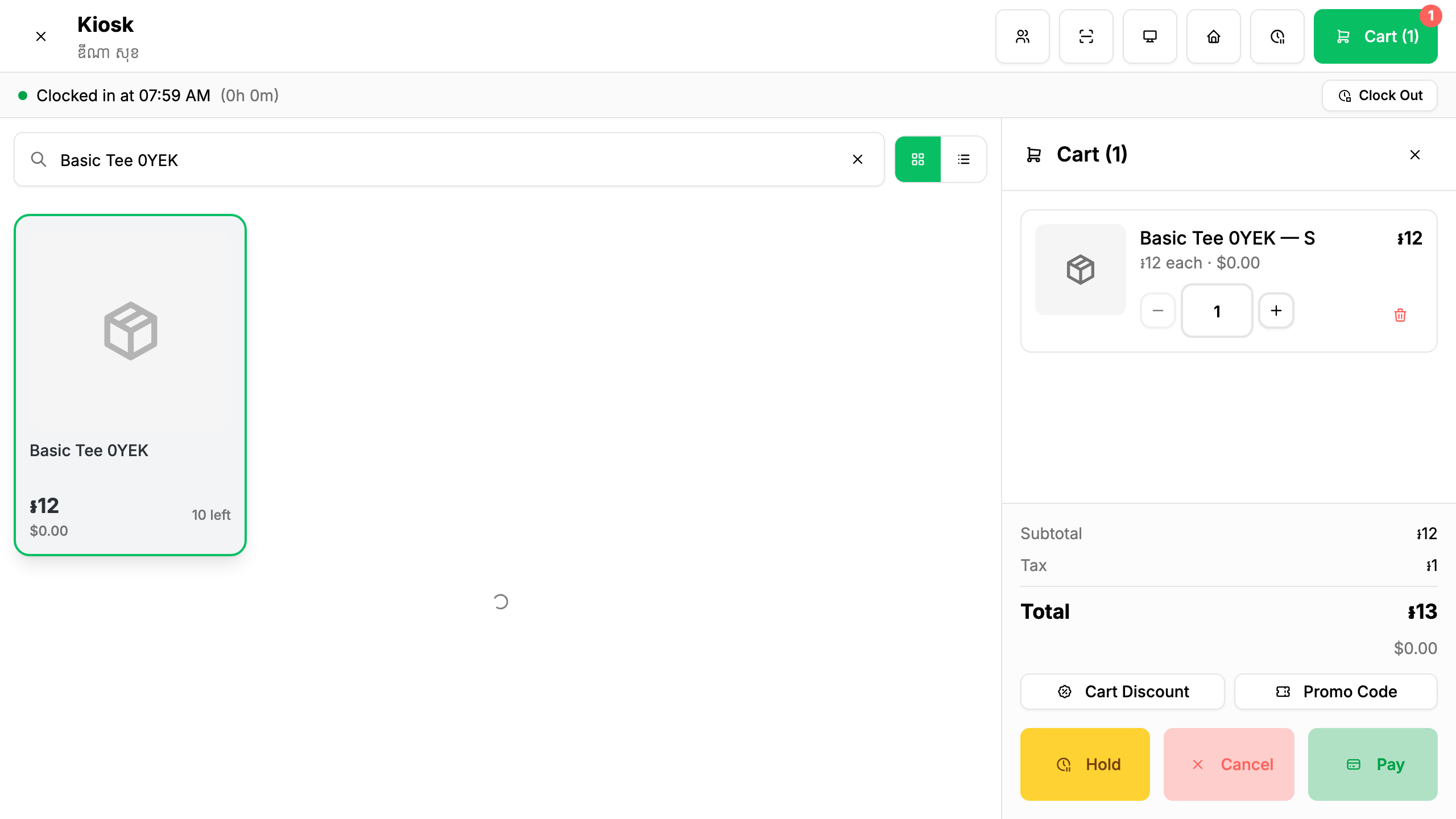
Editing and Deleting
- Open the product to edit its matrix inline, remove a variant, or generate missing combinations
- Renaming the product, changing its image, category, supplier or unit updates every variant
- Price changes update every variant except the ones with their own price
- Deleting the product removes all of its variants from sale
Variants sync to the offline catalog like any other product, and an offline sale reduces the stock of the exact variant that was sold.