
Organization Overview
Understand how organizations work in OKPaid
Last updated: September 22, 2026
Organization Overview
An organization is your business in OKPaid. All your products, customers, orders, and team members belong to your organization.
What Is an Organization?
When you sign up for OKPaid, you create an organization. Think of it as your business workspace. Everything you do in OKPaid is inside this organization.
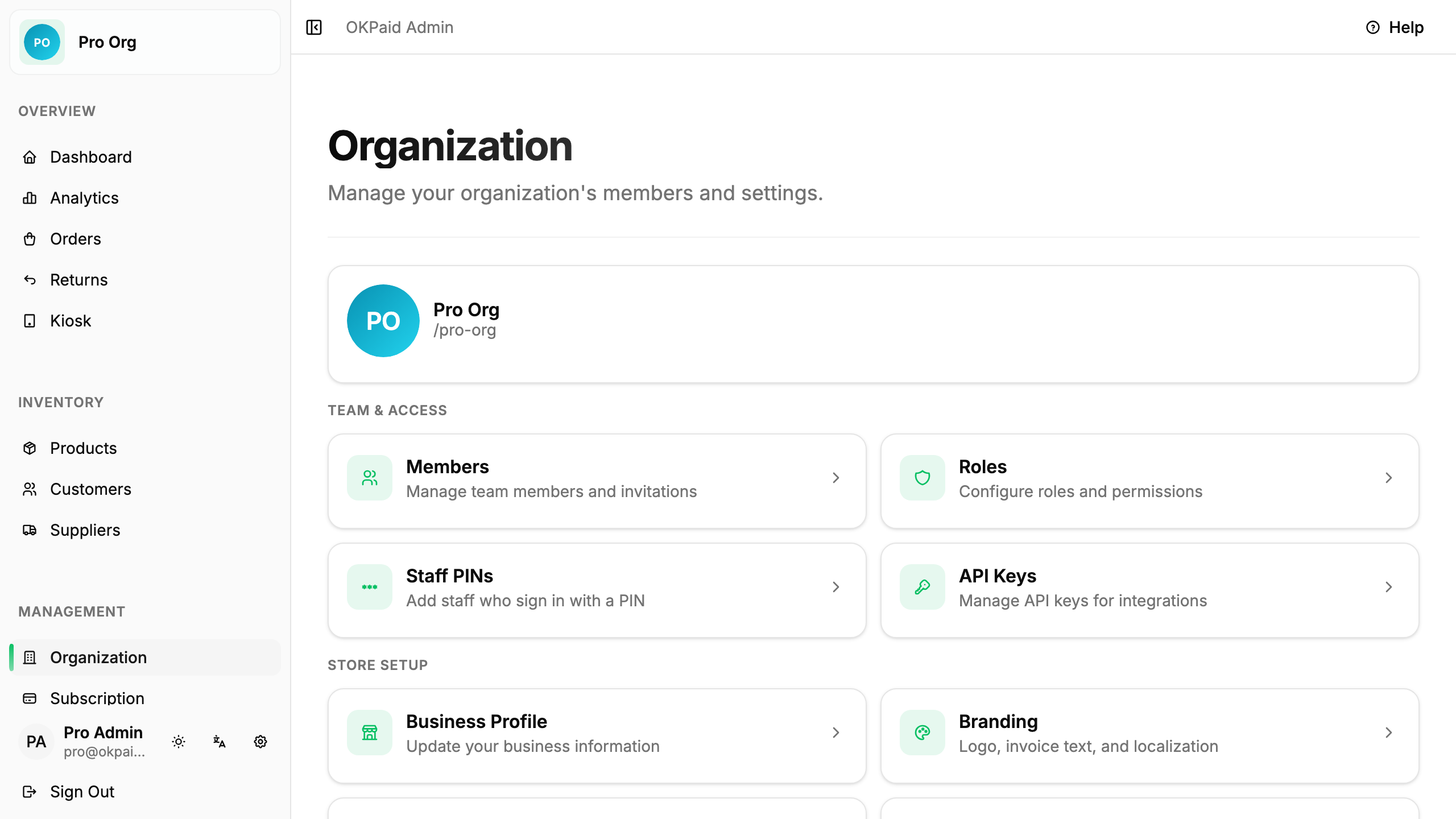
Organization Features
Your organization includes:
| Feature | Description |
|---|---|
| Business Profile | Your business name, address, logo for invoices |
| Team Members | People who can access your OKPaid account |
| Staff PINs | Add staff who sign in with a PIN |
| Roles | Control what each team member can do |
| Settings | Currency, country, and other preferences |
Access Organization Settings
- Click Organization in the sidebar
- You will see the organization menu
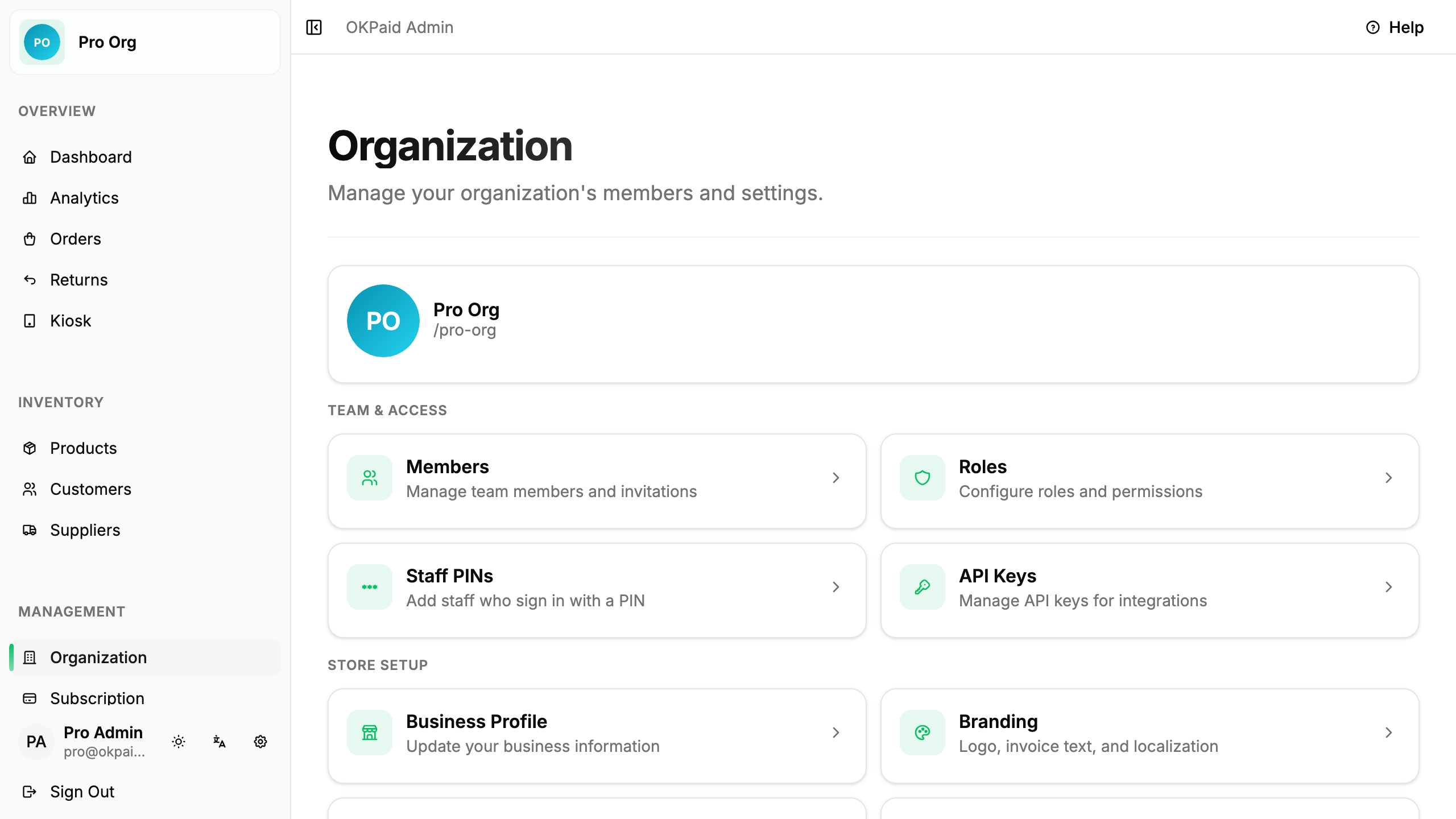
The organization menu has two groups:
Team & access
- Members - Manage team members
- Roles - Create custom roles (Pro only)
- Staff PINs - Add staff who sign in with a PIN
- API Keys - Keys for external integrations
Store setup
- Business Profile - Your business details
- Billing - Payment QR: upload any KHQR code and confirm the account numbers it pays into; automatic per-sale amounts work with ABA and ACLEDA (see KHQR Payments), bank accounts (any listed Cambodian bank, or a custom name), and support email
- Branding - Logo, invoice text, and localization
- Barcode Scanning - Choose what info to retrieve when scanning products
- Promotions - Create and manage discount promotions and promo codes
- Return Policy - Set return window and approval requirements
- Settings - Organization preferences and configuration
Organization Dashboard
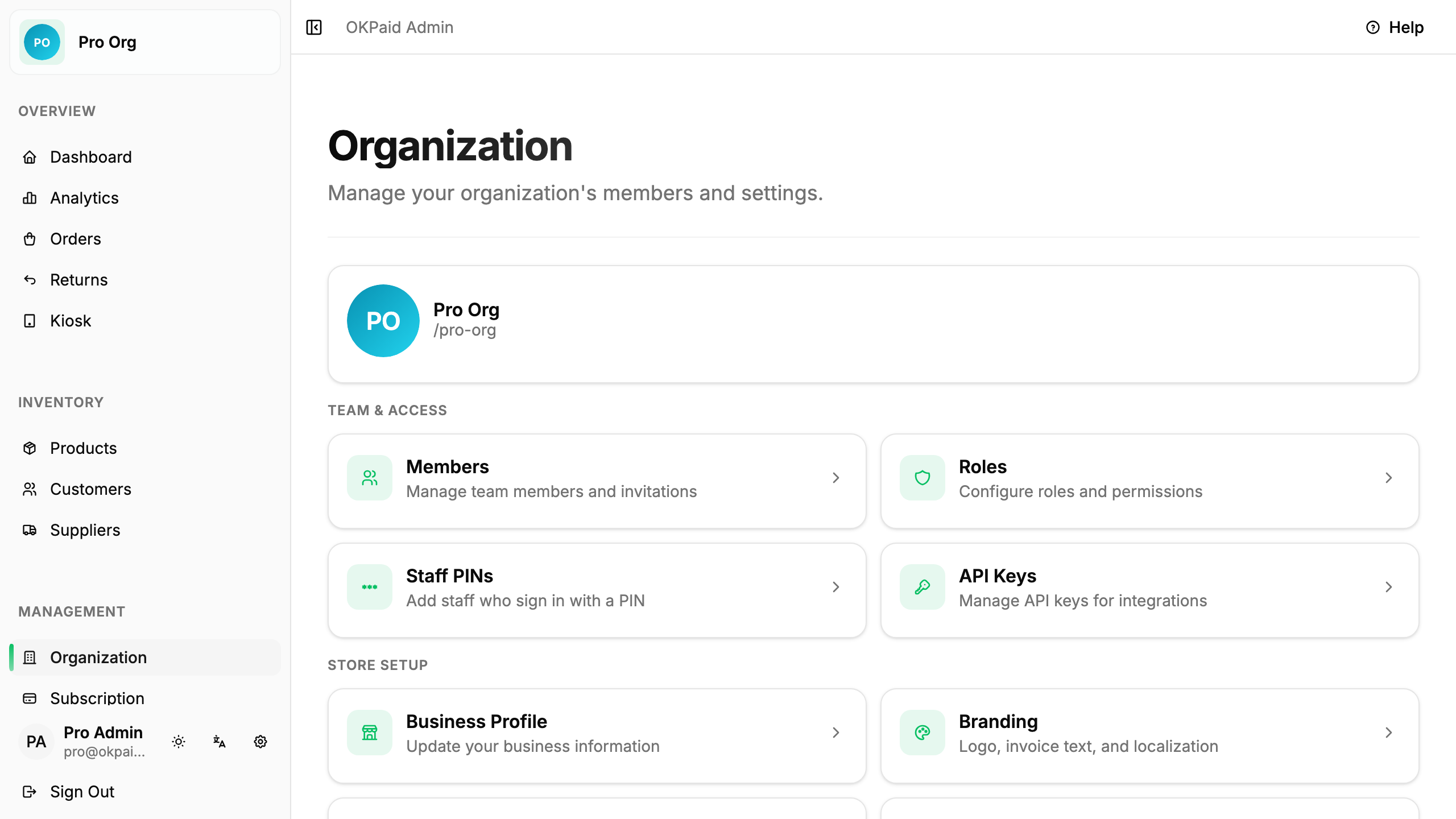
The organization overview shows:
- Total Members - How many people can access OKPaid
- Current Plan - Pro subscription
- Usage This Month - Orders and products used
- Account Status - Active or inactive
Multiple Organizations
Currently, each account belongs to one organization. If you need to manage multiple businesses, you need separate accounts for each.
Multiple organization support is planned for a future update.
Tips
Tip: Keep your business profile updated. This information appears on all your invoices.
Tip: Review your team members regularly. Remove people who no longer work with you.
Next Steps
- Business Profile - Set up your business details
- Team Members - Add people to your organization
- Staff PIN Login - Add staff who sign in with a PIN
- Roles - Create custom permissions
- Subscription - Manage your plan