
API Keys
Create and manage API keys to connect external applications to OKPaid
Last updated: February 11, 2026
API Keys
API keys let external applications access your OKPaid data. Use them to connect your kiosk system, inventory management tools, or custom applications.
Before You Start
- You need Owner or Admin role to manage API keys
View API Keys
- Click Organization in the sidebar
- Click API Keys
- You will see a list of your API keys
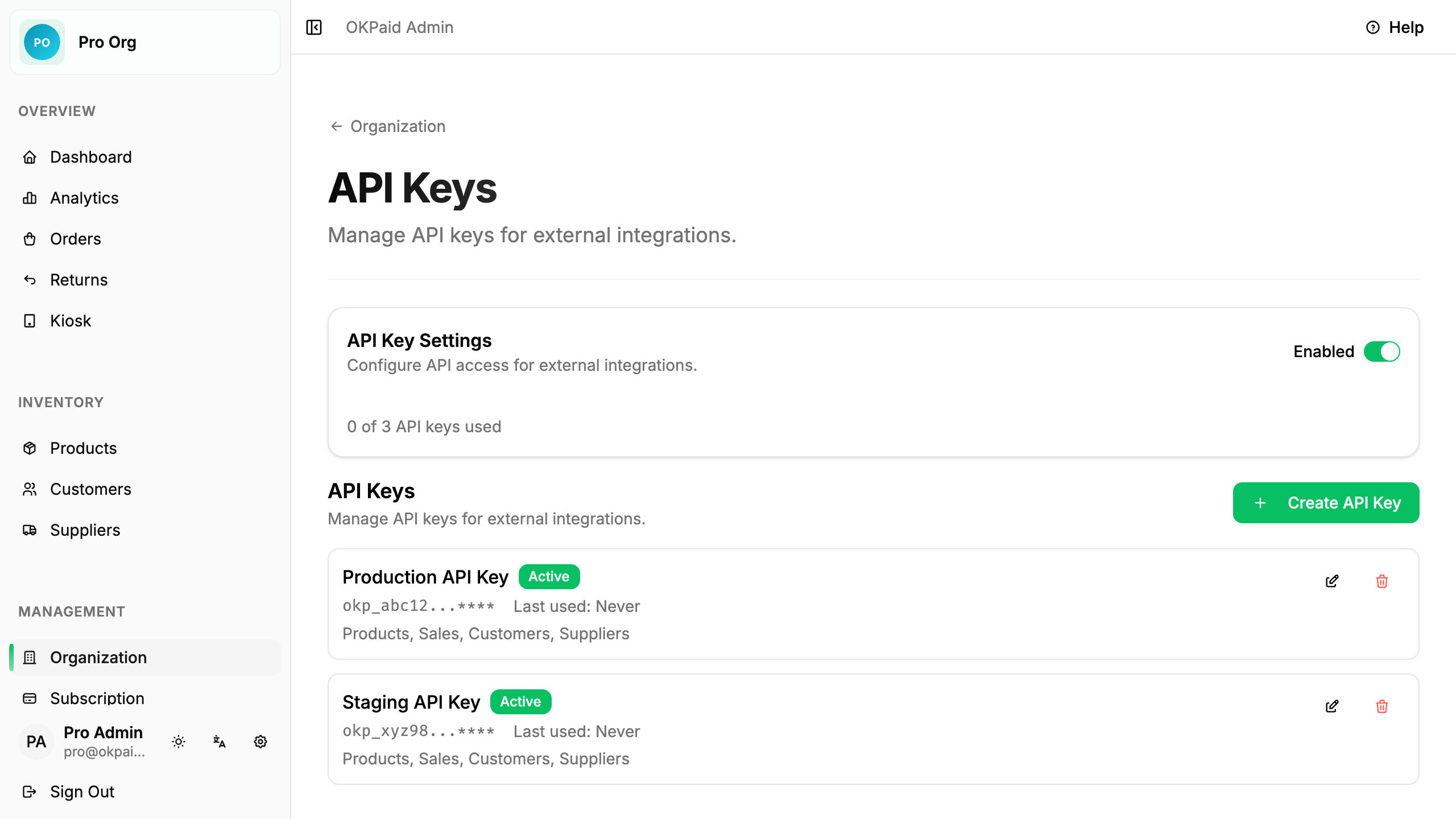
The list shows:
| Column | Description |
|---|---|
| Name | The name you gave to the key |
| Key | First characters of the key (the full key is hidden) |
| Permissions | What the key can access |
| Created | When the key was created |
| Last Used | When the key was last used |
| Status | Active or Disabled |
Create an API Key
- Go to Organization > API Keys
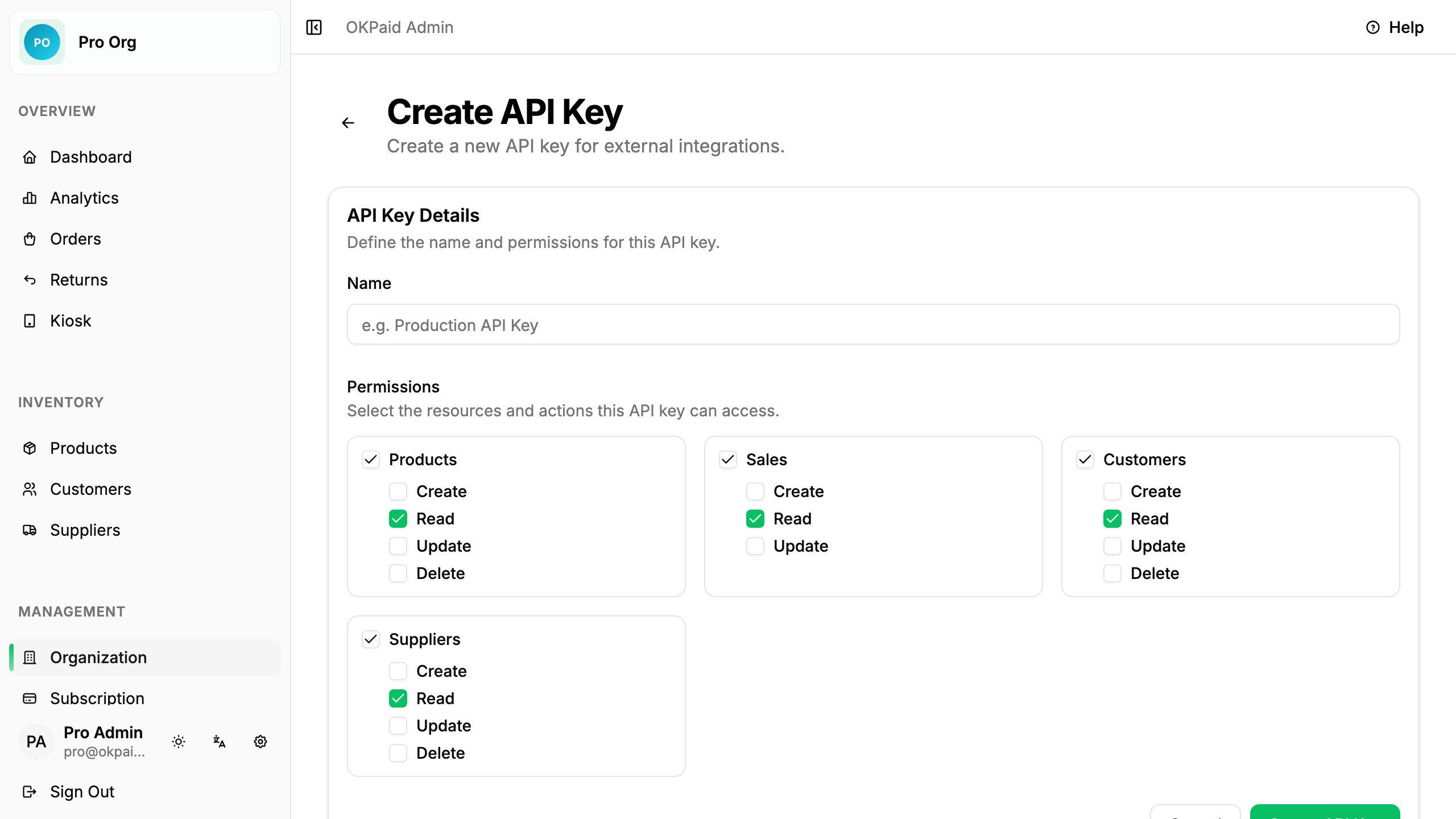
- Click Create API Key
- Enter a name for the key
- Select the permissions the key needs
- Click Create
Choose a Good Name
Use a name that describes what the key is for. Good examples:
- “Kiosk Integration”
- “Inventory Sync”
- “Accounting Export”
Select Permissions
Choose only the permissions your integration needs. This is safer than giving full access.
| Permission | What It Allows |
|---|---|
| Products: Read | View product information |
| Products: Create | Add new products |
| Products: Update | Edit existing products |
| Products: Delete | Remove products |
| Sales: Read | View orders and sales |
| Sales: Create | Create new orders |
| Sales: Update | Edit orders |
| Customers: Read | View customer information |
| Customers: Create | Add new customers |
| Customers: Update | Edit customer information |
| Customers: Delete | Remove customers |
| Suppliers: Read | View supplier information |
| Suppliers: Create | Add new suppliers |
| Suppliers: Update | Edit supplier information |
| Suppliers: Delete | Remove suppliers |
Tip: Start with read-only permissions. Add more permissions later if needed.
How Permissions Work
API keys have their own permissions. These permissions are separate from your user account permissions.
What this means:
- Your API key can only do what you allow it to do
- If the key does not have permission, the request will be blocked
- Your user account permissions do not affect API key permissions
Example 1: Read-only key An API key with only “Products: Read” permission can:
- ✅ View product information
- ❌ Create new products
- ❌ Edit products
- ❌ Delete products
Example 2: Products-only key An API key with only product permissions can:
- ✅ View, create, edit, and delete products
- ❌ View customers
- ❌ View sales
- ❌ View suppliers
Example 3: Full access key An API key with all permissions can:
- ✅ View, create, edit, and delete products
- ✅ View, create, and edit sales
- ✅ View, create, edit, and delete customers
- ✅ View, create, edit, and delete suppliers
Copy Your API Key
After you create a key, OKPaid shows it once. Copy it immediately.
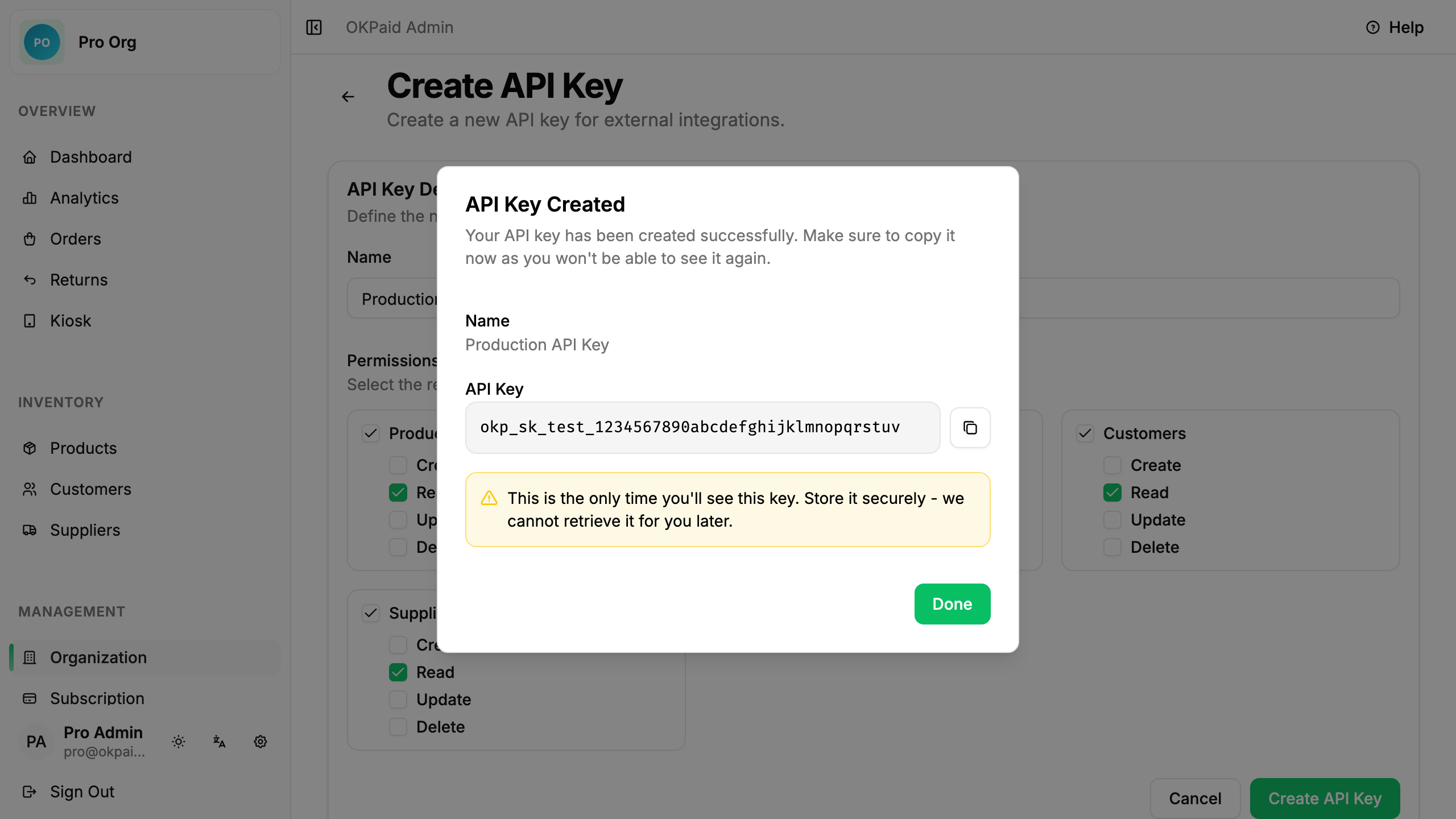
Important: You will not see the full key again. If you lose it, you must create a new key.
Store Your Key Safely
- Save the key in a password manager
- Never share the key in emails or chat
- Do not put the key in code that others can see
- Keep the key secret like a password
Use Your API Key
To use your API key, add it to your API requests as a header:
x-api-key: okp_your_api_key_hereThe key starts with okp_ followed by random characters.
Example Request
curl -H "x-api-key: okp_abc123..." \
     https://api.okpaid.io/api/v1/products
Rate Limits
Each API key has a rate limit to prevent abuse:
| Limit | Value |
|---|---|
| Requests per day | 1,000 |
| Requests per minute | 60 |
If you exceed the limit, you will receive a 429 Too Many Requests error. Wait and try again later.
Edit an API Key
- Go to Organization > API Keys
- Find the key you want to edit
- Click the key name or the edit button
- Make your changes
- Click Save
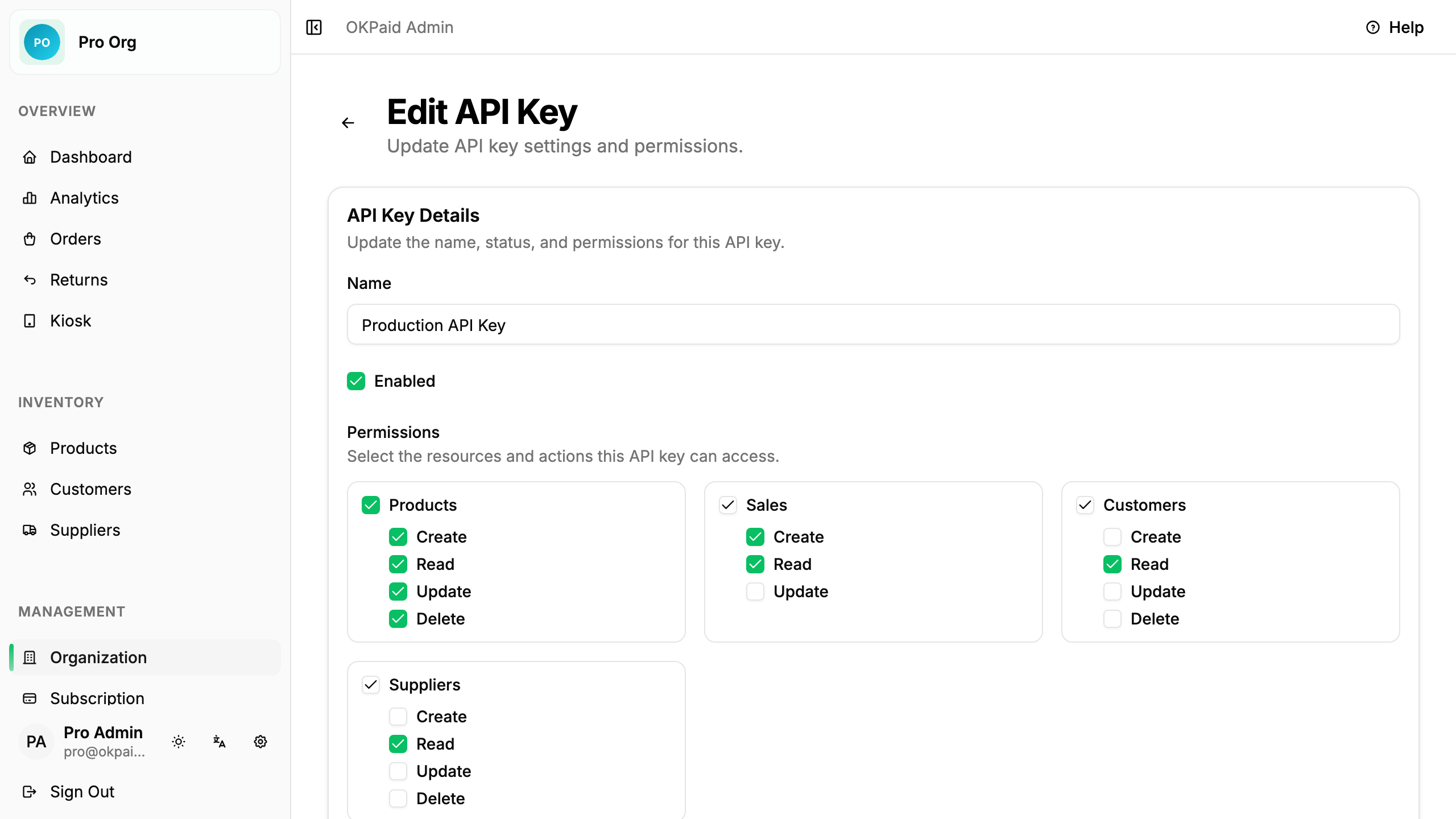
You can change:
- The key name
- Enable or disable the key
- Add or remove permissions
You cannot change the key itself. To get a new key, delete this one and create a new key.
Disable an API Key
To temporarily stop a key from working:
- Go to Organization > API Keys
- Click on the key
- Toggle Enabled to off
- Click Save
The key will stop working immediately. You can enable it again later.
Delete an API Key
To permanently remove a key:
- Go to Organization > API Keys
- Click on the key
- Click Delete Key
- Confirm the deletion
Warning: Deleting a key cannot be undone. Any applications using the key will stop working.
Security Tips
Tip: Rotate your keys regularly. Delete old keys and create new ones every few months.
Tip: Use different keys for different applications. This way, you can disable one without affecting others.
Tip: Check “Last Used” regularly. If a key shows unexpected activity, disable it immediately.
Tip: Delete keys you no longer use.
Common Questions
Can I see the full API key after I create it? No. OKPaid shows the key only once. If you lose it, create a new key.
Can I change an API key? No. You can only change the name and permissions. To get a new key, delete the old one and create a new key.
What happens if someone gets my API key? Delete the key immediately. Then create a new key for your applications.
Can API keys manage team members or settings? No. API keys can only access products, sales, customers, and suppliers. They cannot manage your organization.
Why is my API key not working? Check that:
- The key is enabled
- You are using the correct key
- You have not exceeded rate limits
- The key has the permissions you need
Why am I getting “Insufficient permissions” error?
This error means your API key does not have permission for what you are trying to do.
Common reasons:
- You are using a read-only key to create or edit data
- You are trying to access customers with a products-only key
- You are trying to access suppliers with a customers-only key
How to fix:
- Go to Organization > API Keys
- Find the key you are using
- Click Edit
- Add the permissions you need
- Save the changes
Or create a new key with the correct permissions.
Do API key permissions affect my user account?
No. API key permissions are completely separate from your user account permissions.
- Your user account permissions work when you log in to the OKPaid website
- API key permissions work only when using the API key in your code or app
- Changing API key permissions does not change your user account
- Changing your user account does not change API key permissions
Think of it like having two different keys to a building. Your user account is one key. Your API key is another key. Each key opens different doors.
Need Help?
If you have problems with API keys:
- Check this guide for common issues
- Contact support with your key name (not the full key)
Next Steps
- Products Guide - Learn about product management
- Orders Guide - Learn about order management