
Managing Suppliers
Keep track of your product suppliers and vendors
Last updated: January 19, 2026
Managing Suppliers
Suppliers are the businesses you buy products from. Keep their contact information organized so you can reorder easily.
View Your Suppliers
- Click Suppliers in the sidebar
- You will see a list of all your suppliers
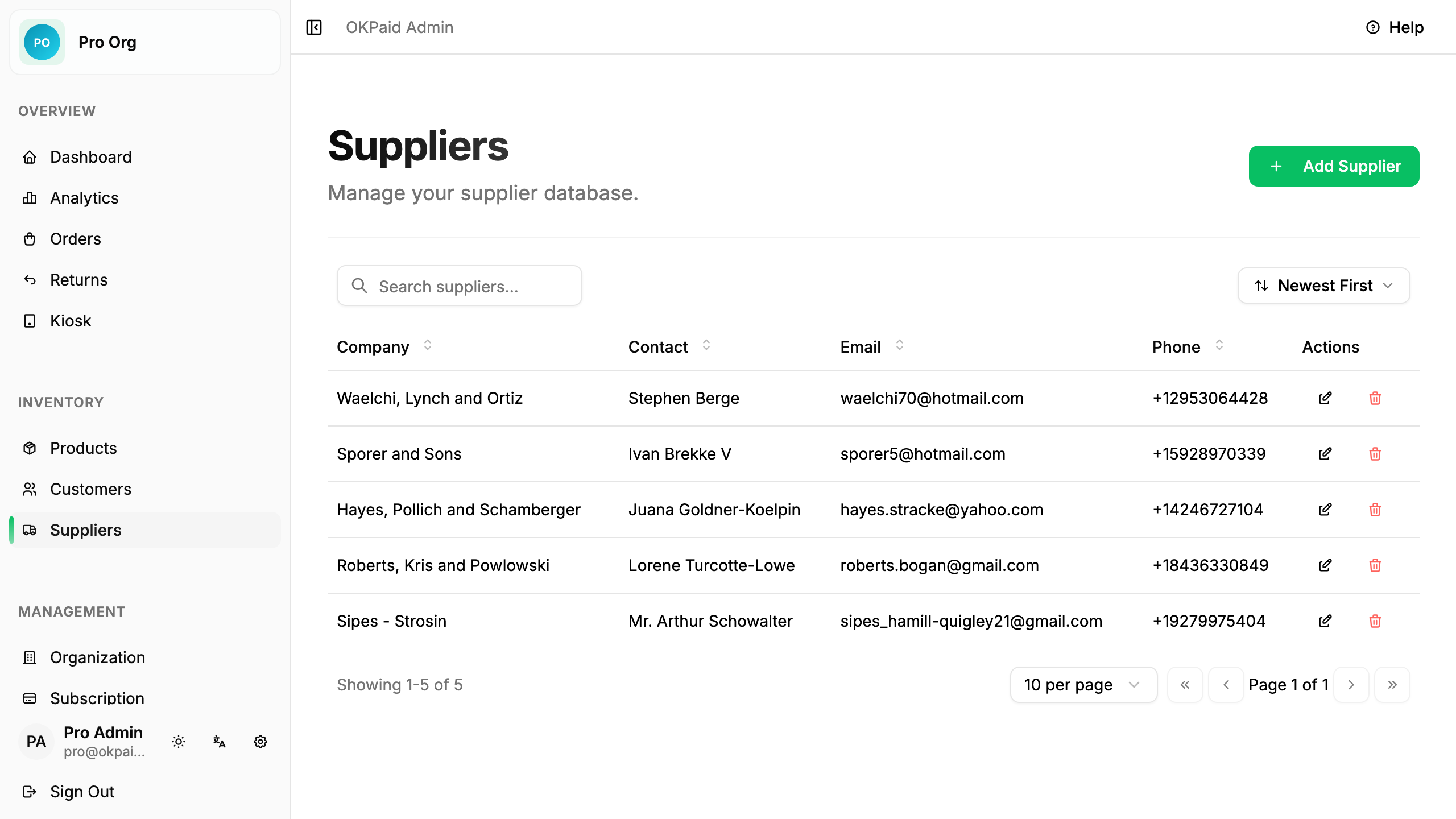
The suppliers list shows:
- Company name
- Contact person
- Phone number
- Email address
Search for Suppliers
Use the search box to find suppliers by name, contact person, or phone number.
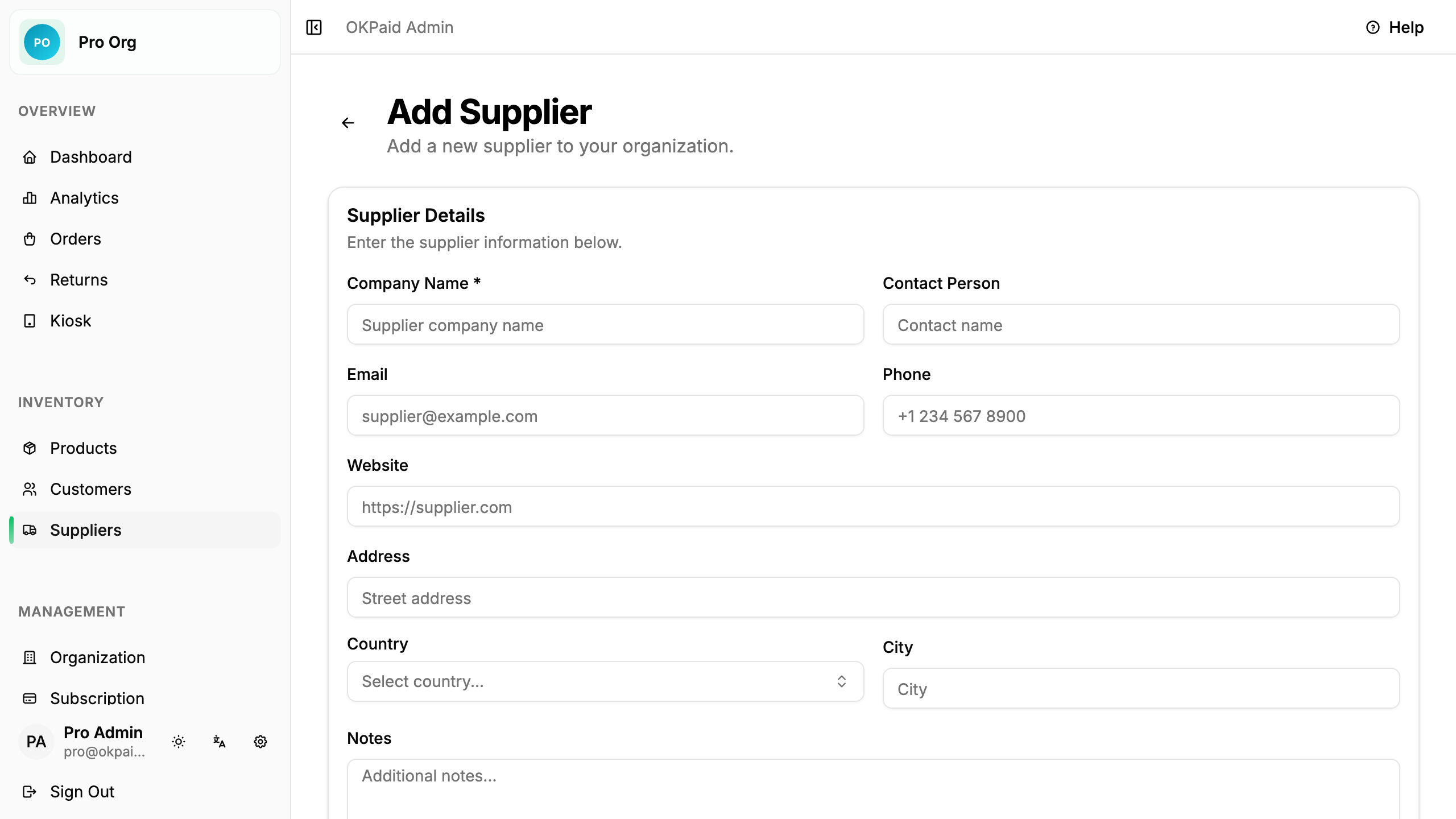
Add a New Supplier
- Click Add Supplier button
- Fill in the supplier details:
| Field | Required | Description |
|---|---|---|
| Company Name | Yes | The supplier’s business name |
| Contact Person | No | Your contact at the company |
| No | Email address | |
| Phone | No | Phone number |
| Address | No | Business address |
| Website | No | Supplier’s website |
| Notes | No | Payment terms, account numbers, etc. |
- Click Save
Tip: Add notes about payment terms, minimum orders, or delivery times.
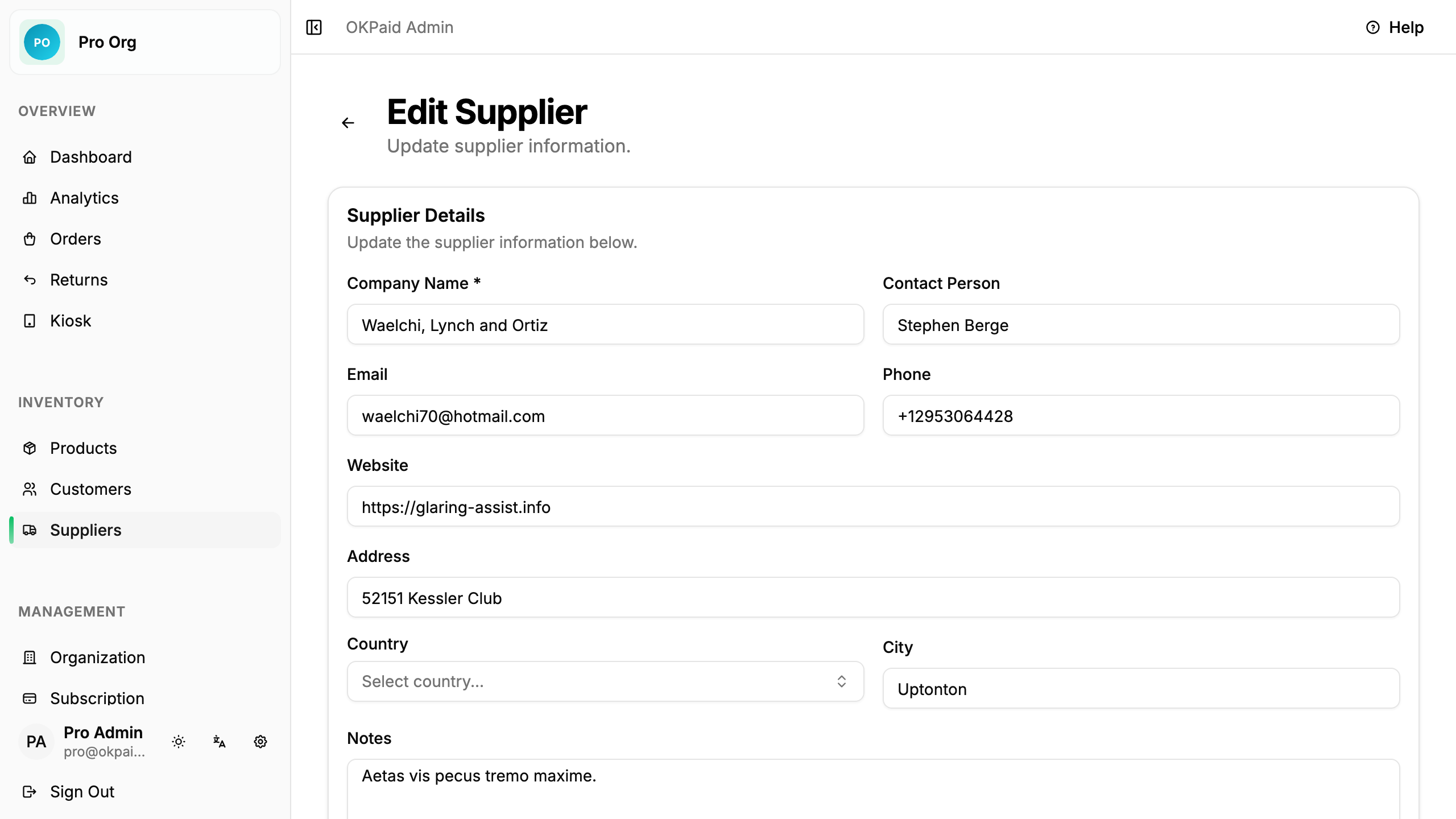
Edit a Supplier
- Find the supplier in your list
- Click on the supplier name
- Click Edit
- Make your changes
- Click Save
Delete a Supplier
- Find the supplier you want to delete
- Click the menu icon (three dots)
- Click Delete
- Confirm the deletion
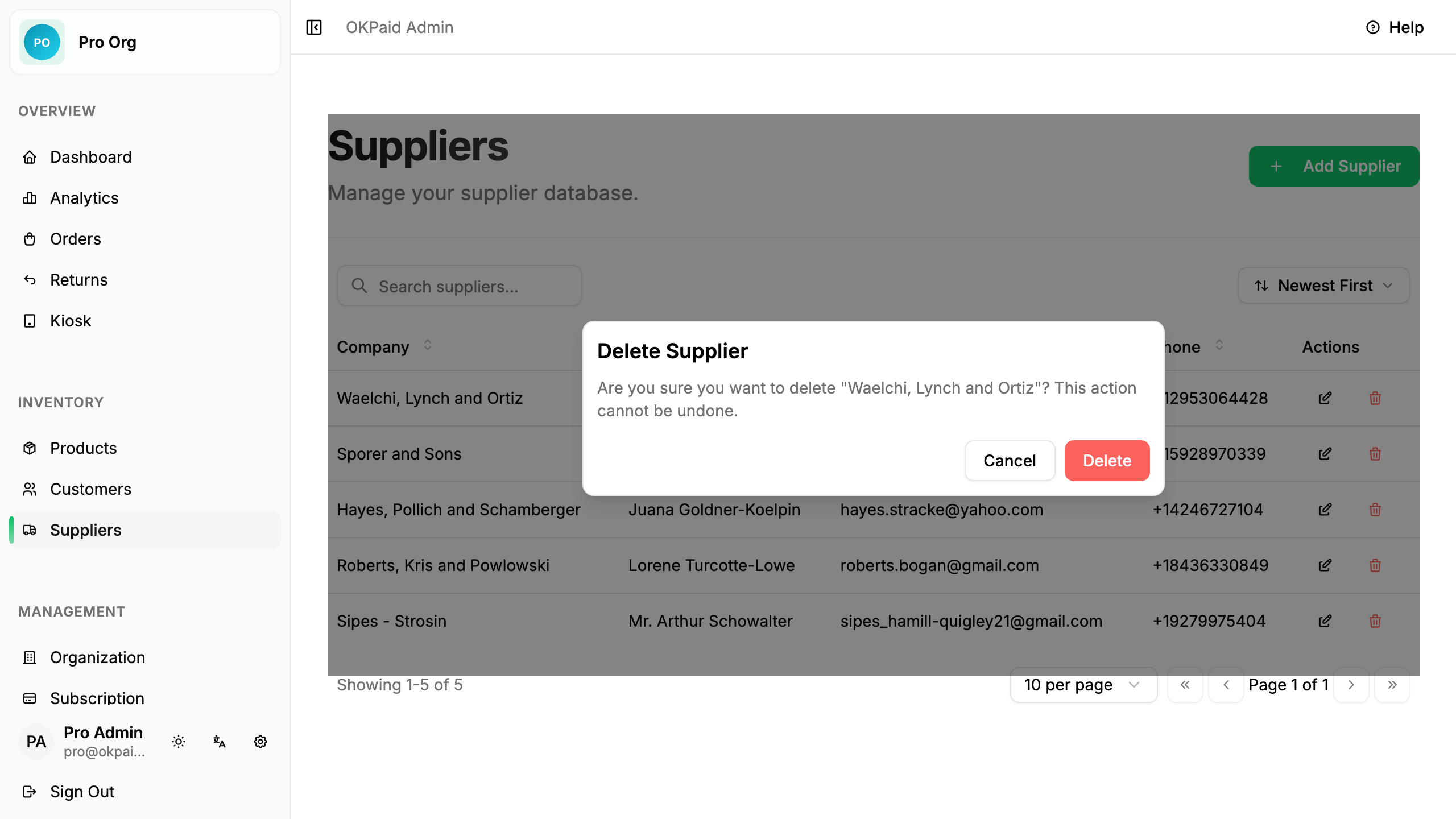
Note: Deleting a supplier removes their information. Products linked to this supplier will no longer show the supplier name.
Link Products to Suppliers
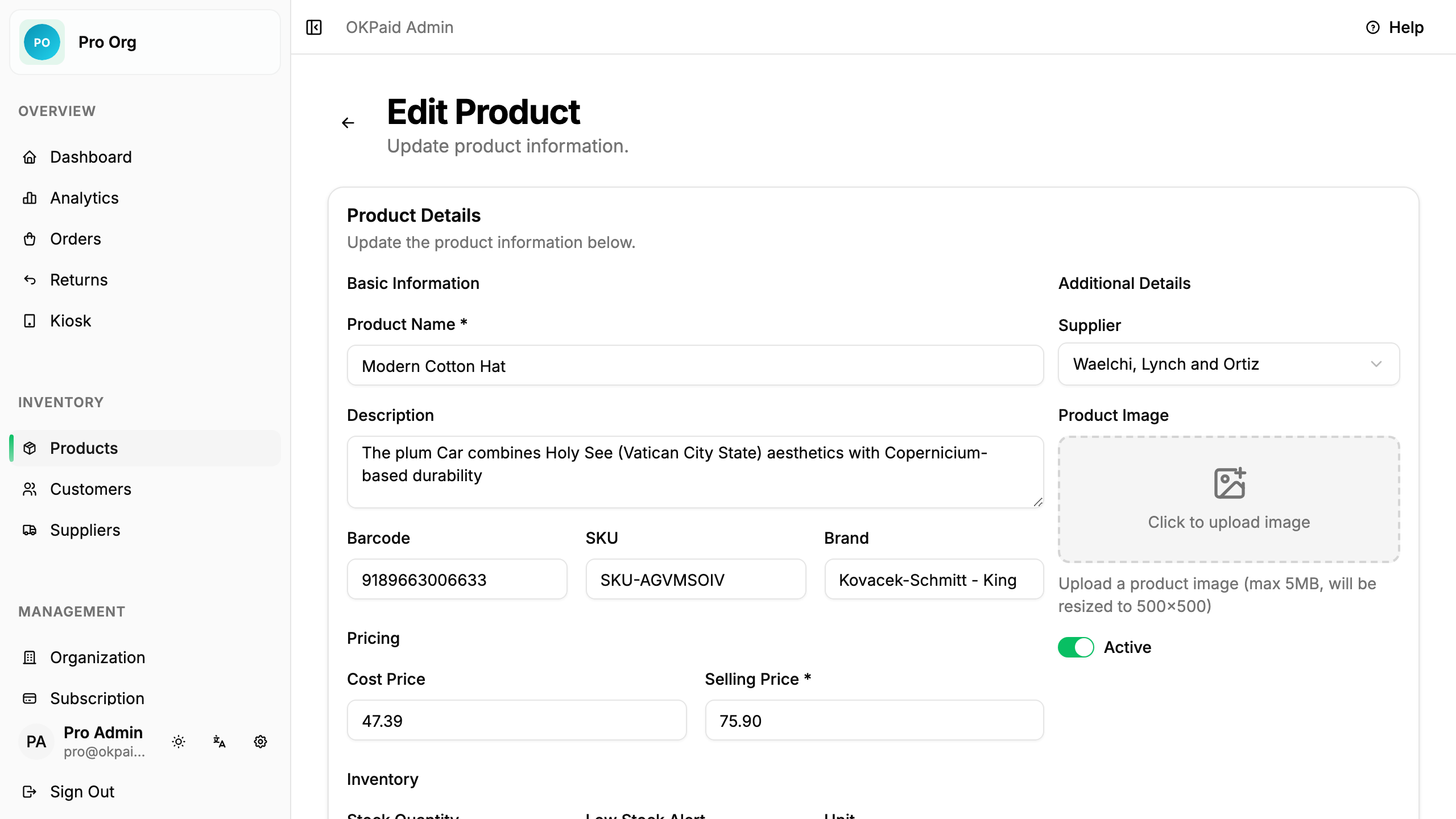
When adding or editing a product, you can select a supplier:
- Edit a product
- Find the Supplier dropdown
- Select the supplier
- Save the product
This helps you know where to reorder products.
Purchases
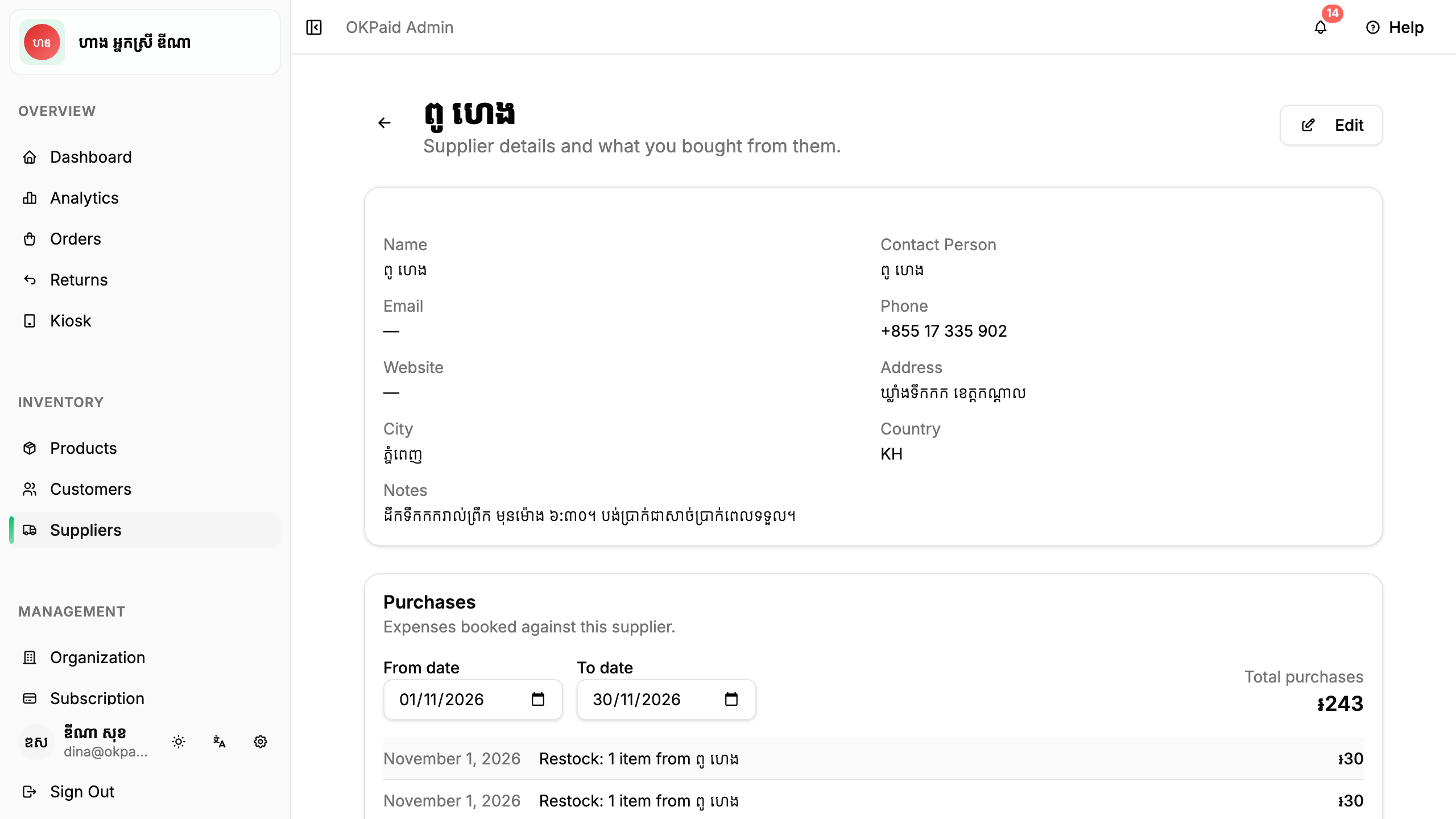
Open a supplier to see what you bought from them. The supplier page is read-only: Edit is a button in the header, not the way the page opens.
At the bottom, Purchases lists the expenses booked against that supplier — every restock you received with them — with a date range (this month by default), a running total, and a link into each expense.
Tips
Tip: Keep contact information current. Suppliers change phone numbers and contacts.
Tip: Use the notes field for account numbers, credit terms, or special instructions.
Tip: Add the supplier’s website so you can quickly check their catalog.
Common Questions
Can I see all products from one supplier? Not yet. You can search products by supplier name.
Can I create purchase orders? Not yet. OKPaid focuses on sales orders. Purchase order features are planned.
Can I track what I owe suppliers? Not yet. Use the notes field to track outstanding payments.
Next Steps
- Managing Products - Link products to suppliers
- Barcode Scanning - Add products faster