Business Profile
Set up your business details for invoices and documents
Last updated: September 22, 2026
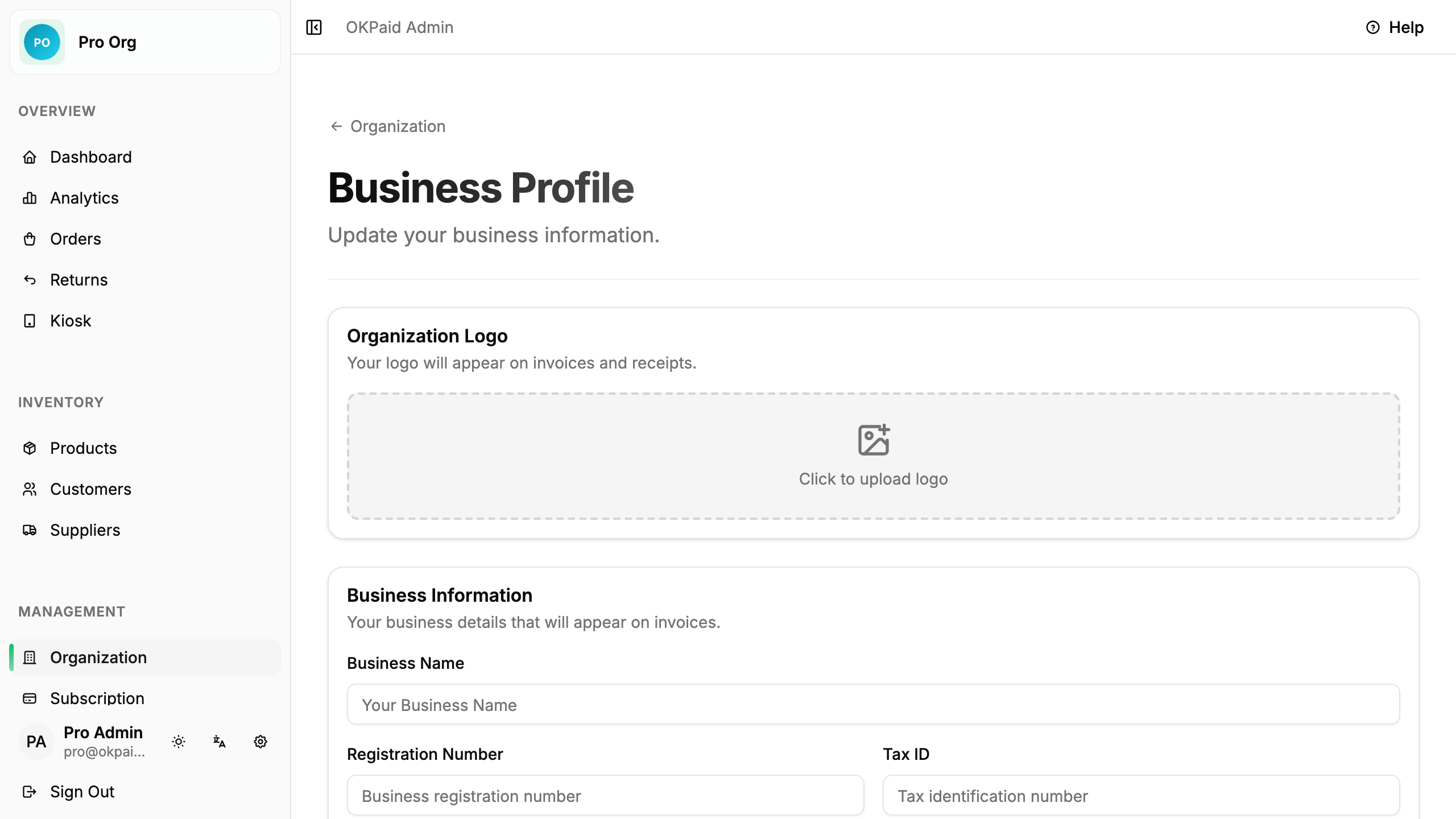
Business Profile
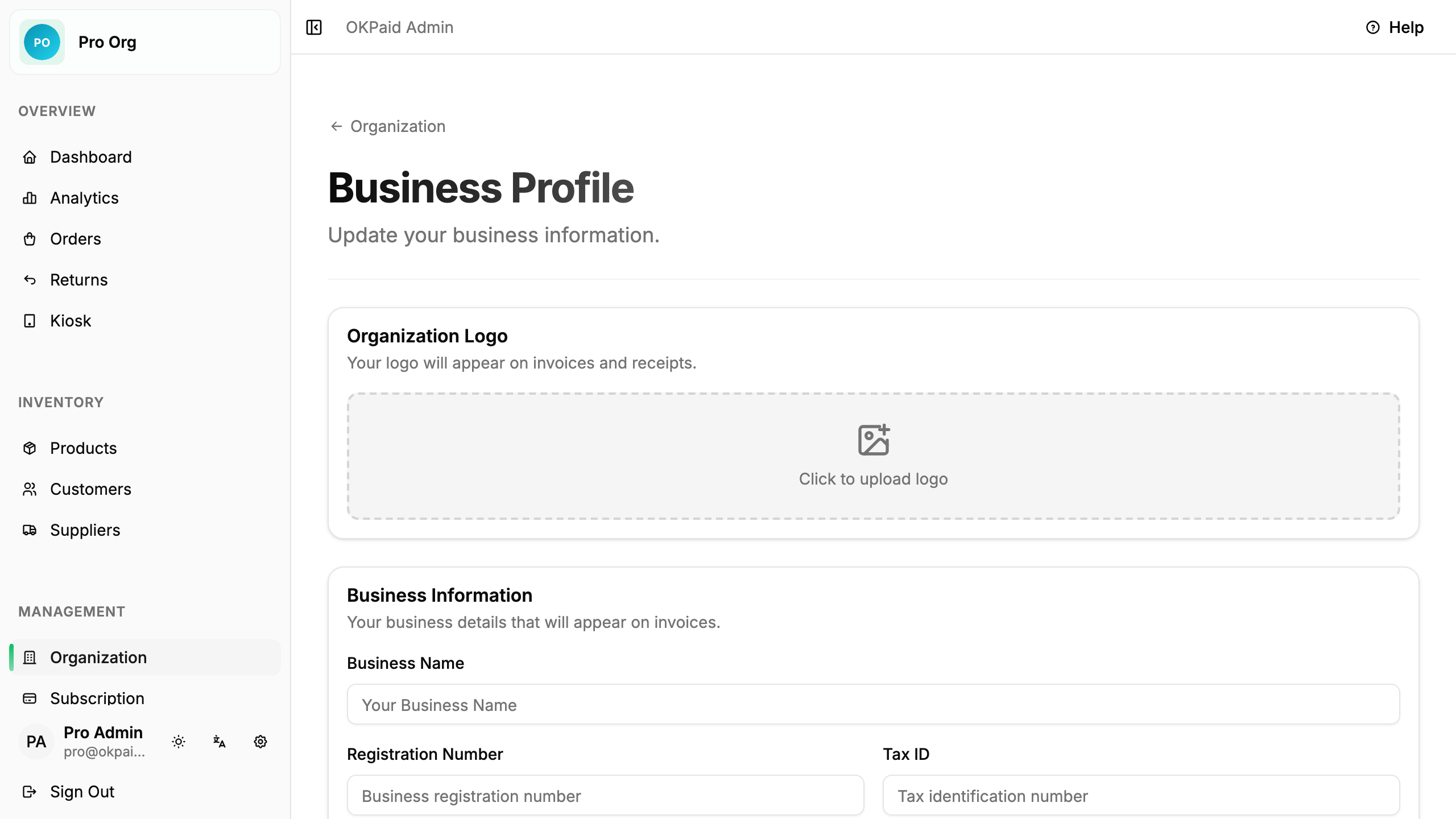
Your business profile contains information that appears on invoices and other documents. Set it up so your invoices look professional.
Access Business Profile
- Click Organization in the sidebar
- Click Business Profile
Business Information
Fill in your basic business details:
| Field | Description | Shows On Invoice |
|---|---|---|
| Business Name | Your company or store name | Yes |
| Legal Name | Official registered name (if different) | Yes (if set) |
| Tax ID | VAT number, business registration, etc. | Yes |
| Business contact email | Yes | |
| Phone | Business phone number | Yes |
Business Address
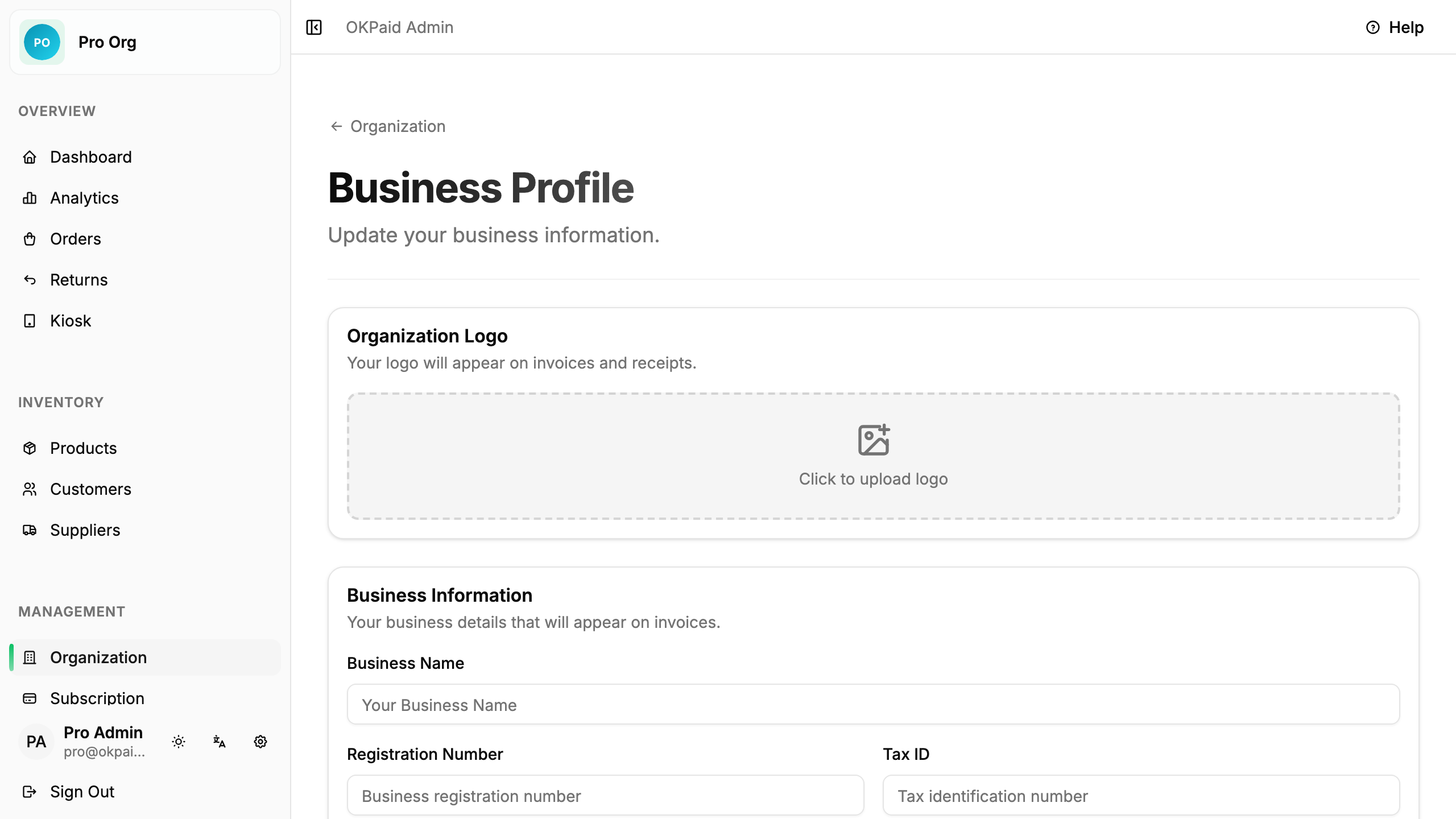
Enter your business address. This appears on invoices.
| Field | Description |
|---|---|
| Street Address | Street name and number |
| City | City or town |
| State/Province | State, province, or region |
| Postal Code | ZIP or postal code |
| Country | Country name |
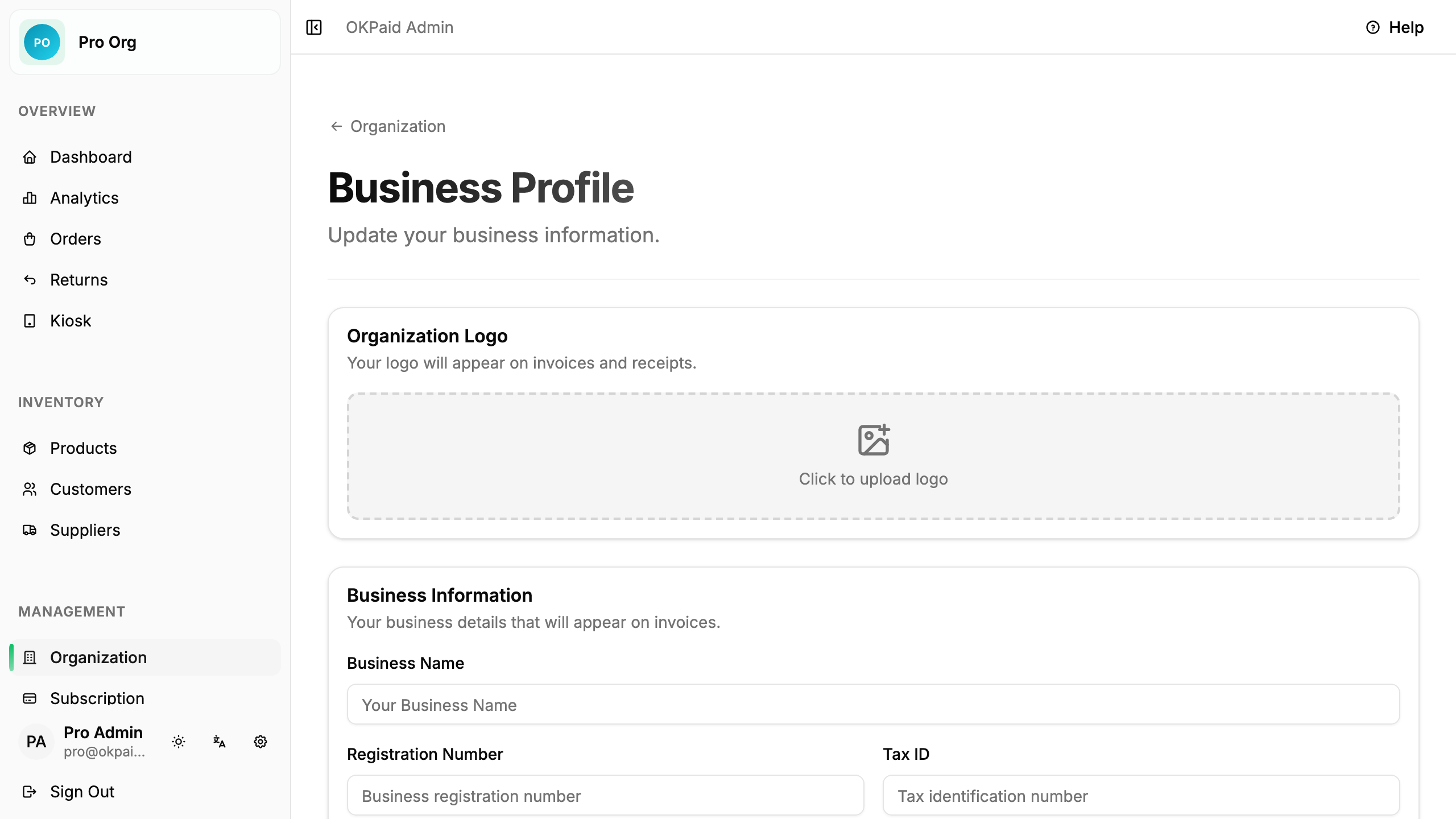
Business Logo (Feature in Development)
Add your logo to make invoices look professional.
- Click Upload Logo
- Select an image file
- The logo preview appears
- Click Save to confirm
Logo Guidelines
- Format: PNG, JPG, or SVG
- Size: Maximum 2 MB
- Dimensions: At least 200x200 pixels
- Background: Transparent PNG works best
Tip: Use a square or horizontal logo. Very tall logos may look small on invoices.
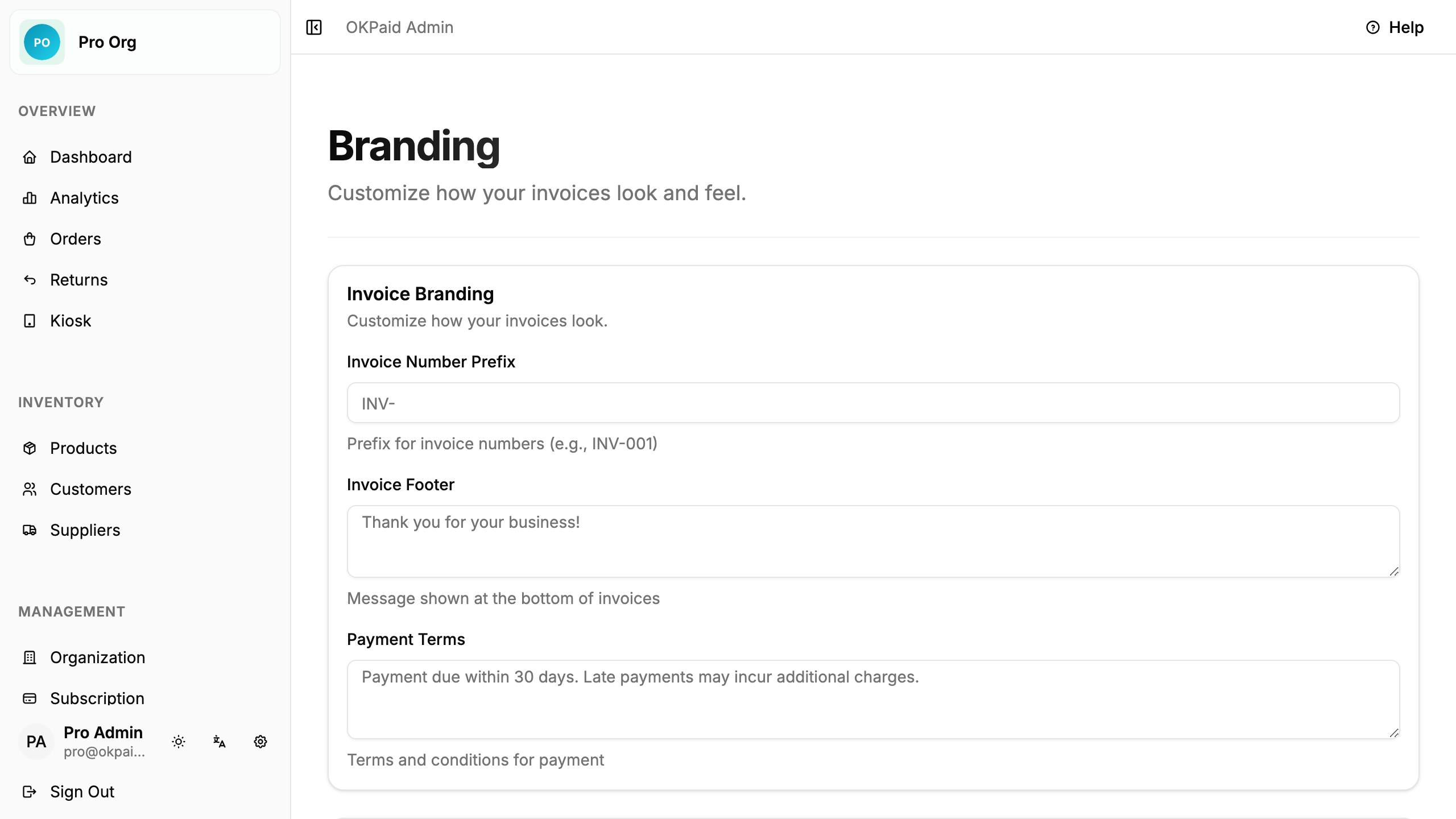
Invoice Settings
Customize how your invoices look:
| Setting | Description |
|---|---|
| Invoice Prefix | Text before invoice number (e.g., “INV-”) |
| Default Payment Terms | How many days to pay (e.g., 30 days) |
| Default Notes | Text that appears on every invoice |
Bank Details
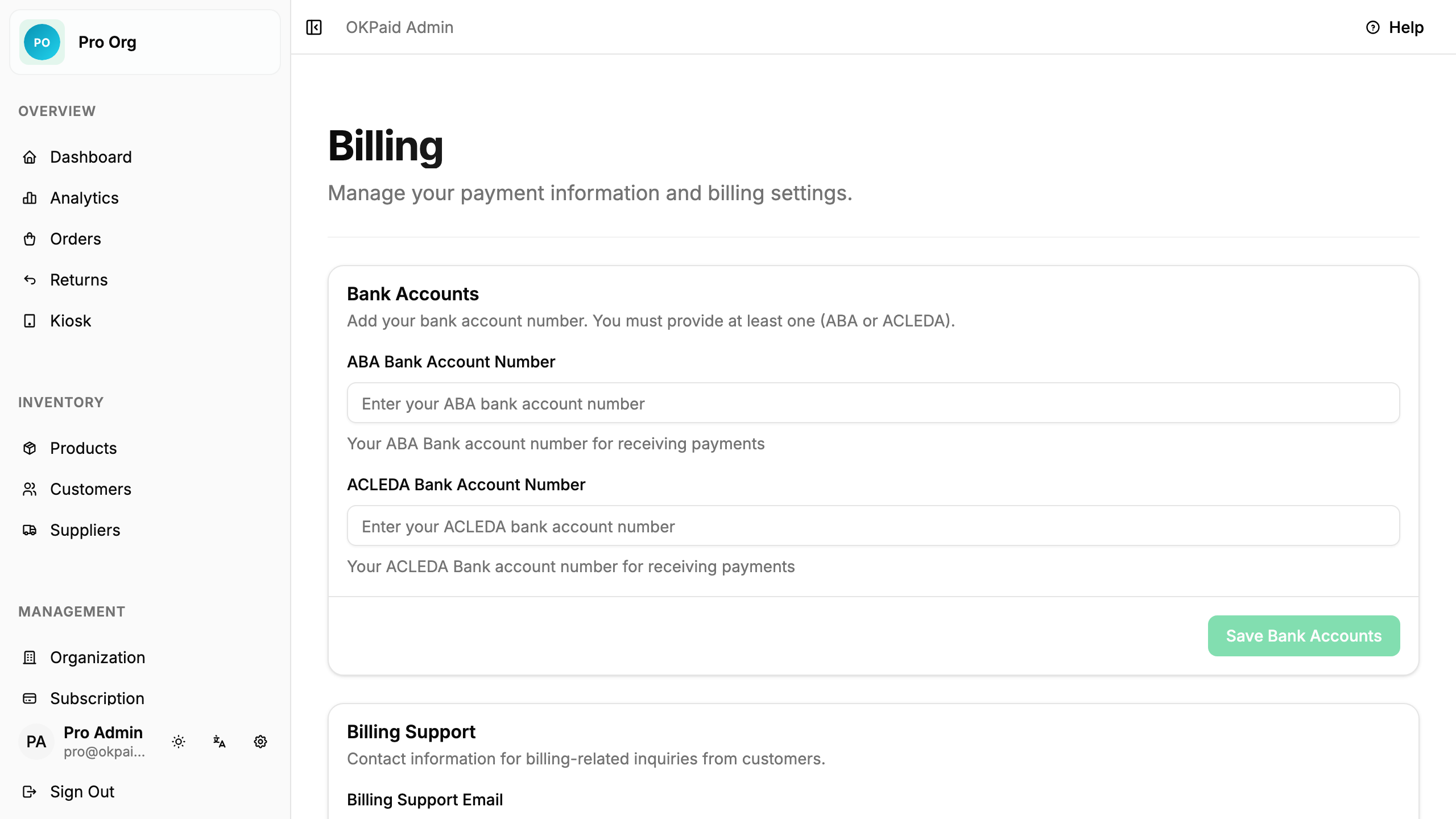
Bank details are not on this page. Go to Organization → Billing and add a bank name and account number pair there:
- Click Add account
- Pick a bank from the list, or choose Other and type the bank name
- Enter the account number
- Click Save Bank Accounts
Add as many bank name and account number pairs as you need. Every pair prints at the bottom of invoices.
Security: Bank details are only shown on invoices. They are not visible to anyone who does not have access to your invoices.
Save Changes
After making changes:
- Scroll down
- Click Save Changes
- A success message confirms your changes
Changes apply to all new invoices. Existing invoices are not changed.
Preview Your Invoice
To see how your invoice looks:
- Go to Orders
- Click on any order
- Click View Invoice
This shows you how your business profile appears on invoices.
Tips
Tip: Keep your business information accurate. Wrong contact details cause payment delays.
Tip: Add bank accounts under Organization → Billing so customers can pay easily. Missing payment information leads to questions.
Tip: Upload a high-quality logo. Blurry logos look unprofessional.
Common Questions
Will changes affect old invoices? No. Only new invoices use the updated information.
Can I have different profiles for different customers? No. All invoices use the same business profile.
Can I add custom fields? No. Use the notes field for additional information.
What if I do not have a tax ID? Leave it blank. It will not appear on invoices.
Next Steps
- Working with Invoices - Create and send invoices
- Organization Overview - Other organization settings