
Clerk Shifts
Track work time and manage cash accountability for your kiosk clerks
Last updated: September 20, 2026
Clerk Shifts
Clerk Shifts helps you track who makes each sale. It also helps manage your cash drawer.
What are Clerk Shifts?
A clerk shift is a work period. When a clerk starts a shift:
- The system tracks their work time
- All sales link to their shift
- Cash in the drawer is recorded
This helps you:
- Know who made each sale
- Track cash coming in and going out
- Find any missing money
Getting Started
To use Clerk Shifts, you need:
- Kiosk Mode enabled
- Team members with access to the clerk screen
- PIN staff can sign in at the kiosk. See Staff PIN Login.
Go to Admin → Kiosk → Start Kiosk to access the clerk screen.
Clocking In
Start Your Shift
While the device is online, the clerk screen opens on the clock-in screen. The product grid stays hidden until a shift is open.
- Open the clerk screen
- Enter the starting cash amount for each currency shown
- Click Clock In
If your organization sells in two currencies, there is one cash box per currency. Fill in both.
When Require Cash Amounts is on in Kiosk Settings, every cash box is required. The Clock In button stays disabled until you fill them.
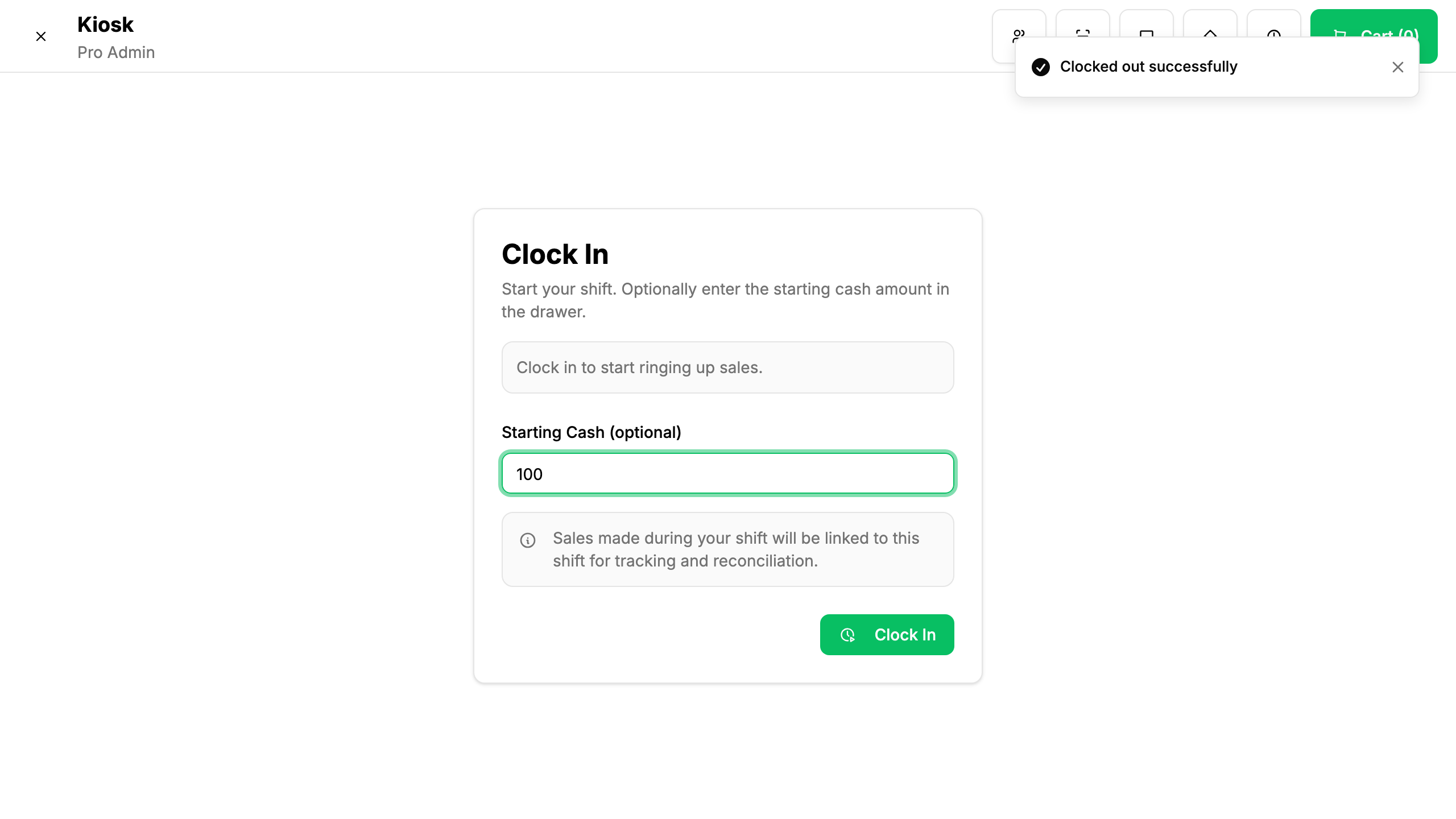
Starting Cash Float
The clock-in screen asks for the starting cash float.
What is starting cash float? This is the money in the drawer at the start of your shift.
When to use it:
- Use when you start with money in the drawer (for giving change)
- Leave it blank if the drawer starts empty
Example:
- Put $100 in the drawer
- Enter “100.00” as starting cash float
- At the end, you should have $100 + all cash sales
After clocking in:
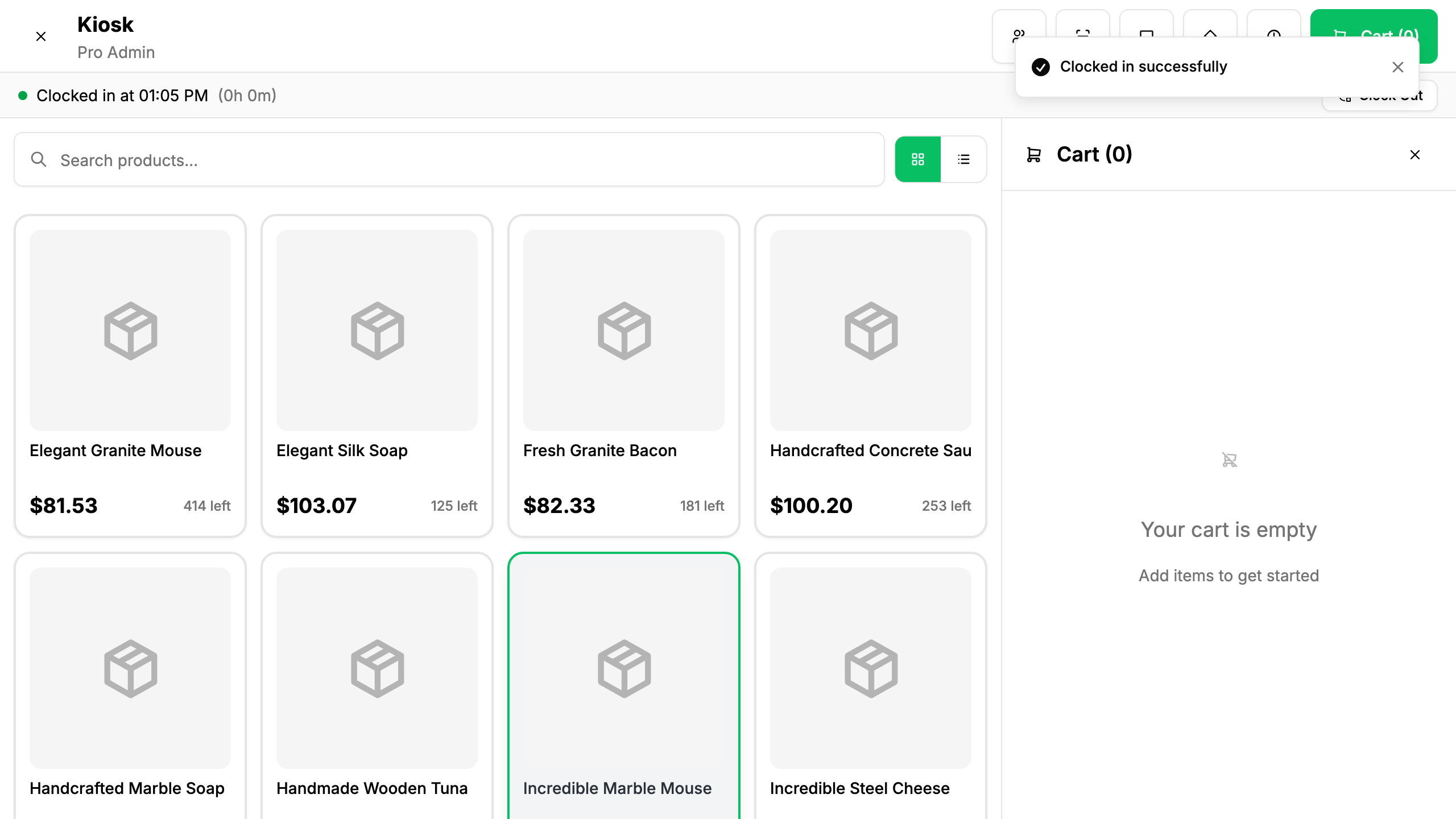
- The shift bar shows the time you clocked in
- The bar also shows the Clock Out button
- Your sales link to this shift
Working During a Shift
All Sales Are Tracked
When a shift is active:
- Every sale you make links to your shift
- Sales show who made them and when
- Cash, card, and other payments are tracked separately
You can see your shift status in the shift bar:
- It shows the time you clocked in
- It shows how long you have been working
- It shows the Clock Out button
The clerk header shows who is signed in.
Offline, the shift bar shows an offline warning instead of a Clock In button. Clock in again when the device reaches the server.
Clocking Out
End Your Shift
When your work is done:
- Click the Clock Out button in the shift bar
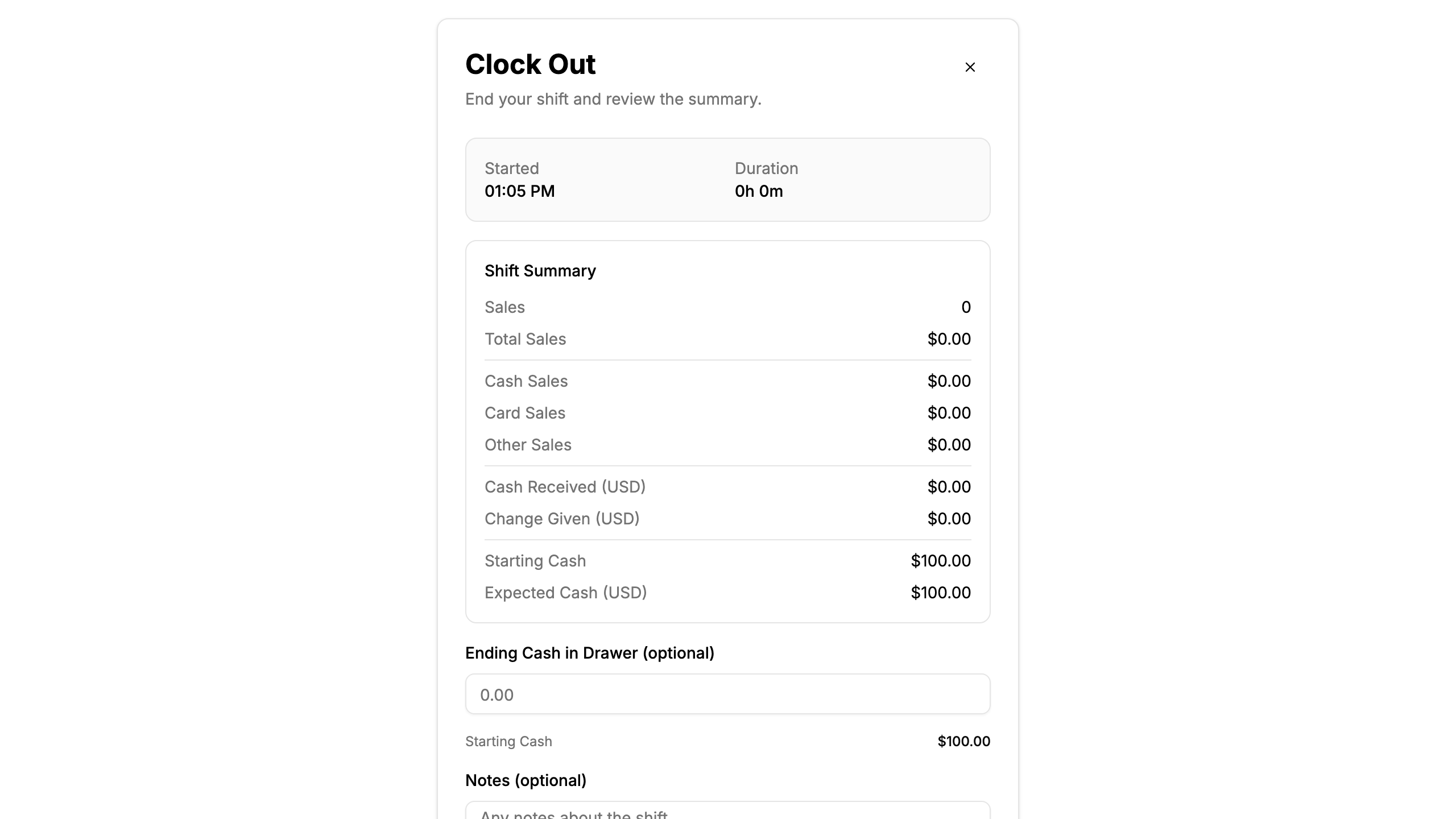
Understanding the Shift Summary
The clock out screen shows:
Sales Summary:
- Total number of sales
- Total revenue from all sales
Payment Breakdown:
- Cash sales amount
- Card sales amount
- Other payment amount (bank transfers, etc.)
Cash Reconciliation:
- Starting cash float (from clock in)
- Plus cash sales
- Equals expected cash in drawer
Counting Your Cash
- Count the actual money in the drawer
- Enter the amount in Ending Cash Count
The system calculates:
- Over: You have more cash than expected
- Short: You have less cash than expected
Example:
| Field | Amount |
|---|---|
| Starting Cash Float | $100.00 |
| Cash Sales | $250.00 |
| Expected Cash | $350.00 |
| Actual Cash Counted | $345.00 |
| Result | Short $5.00 |
Adding Notes
Use the Notes field to explain:
- Why cash is over or short
- Any problems during the shift
- Handovers or special events
Then click Confirm to end your shift.
Leaving the Till
When a shift is open, the kiosk asks before you leave. The question is Clock out before leaving?
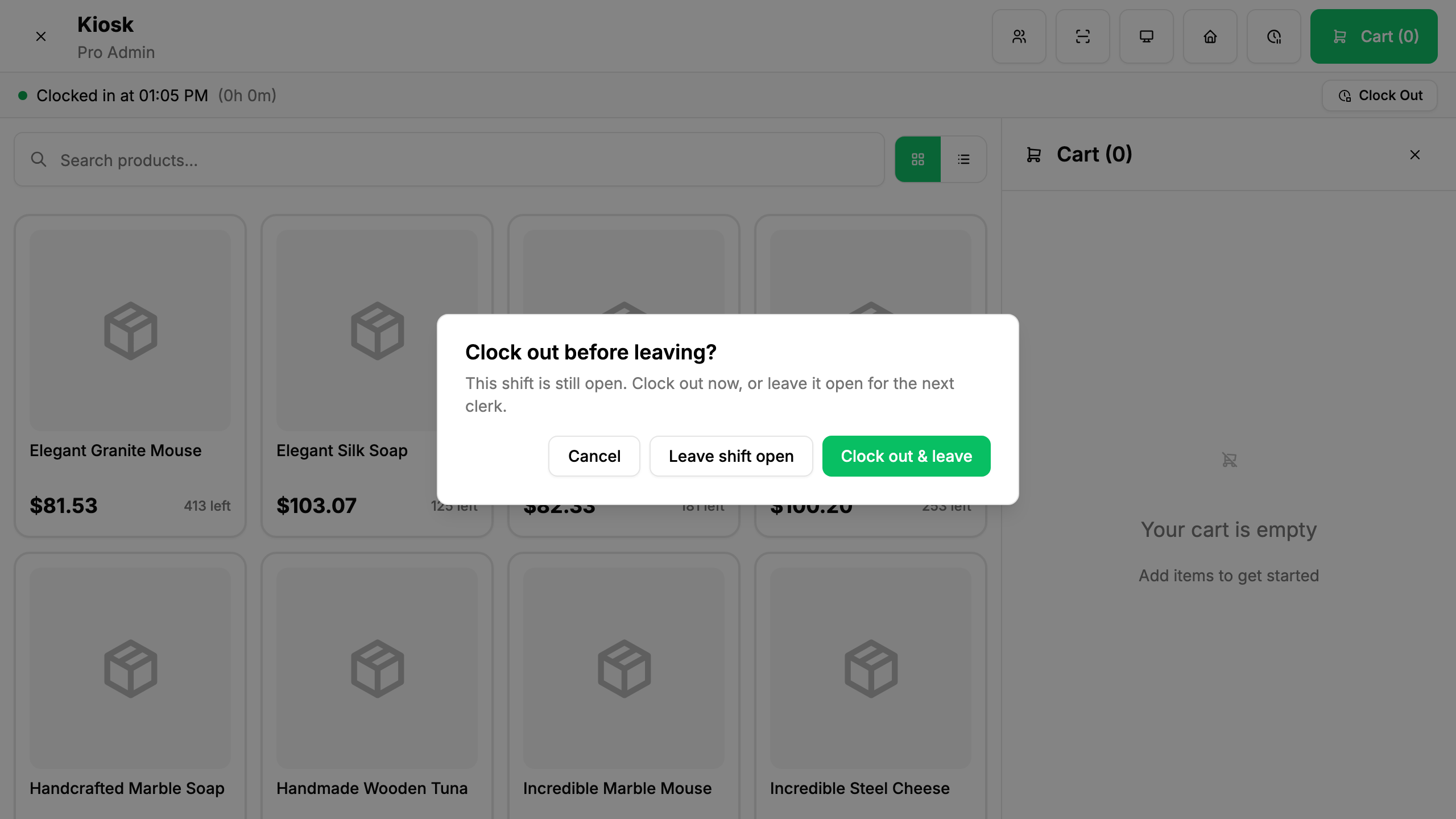
The prompt appears when you:
- Click the exit button at the top left of the clerk screen
- Click Switch staff
- Press the browser Back button
The prompt gives you three choices:
| Choice | What happens |
|---|---|
| Clock out & leave | You count the drawer. The kiosk leaves after the shift closes |
| Leave shift open | The shift stays open for the next clerk |
| Cancel | Nothing changes. You stay on the clerk screen |
Clock out & leave opens the same drawer count as Clock Out.
In staff mode, the Back button does not offer Leave shift open. The message says “Going back ends your shift.” You must clock out to continue.
You can also leave by typing a web address, or by opening a saved tab. The kiosk then asks on the next screen. It asks only once for that shift.
Shift History
View Past Shifts
- Go to Admin → Kiosk → Shift History
- You will see a list of all past shifts
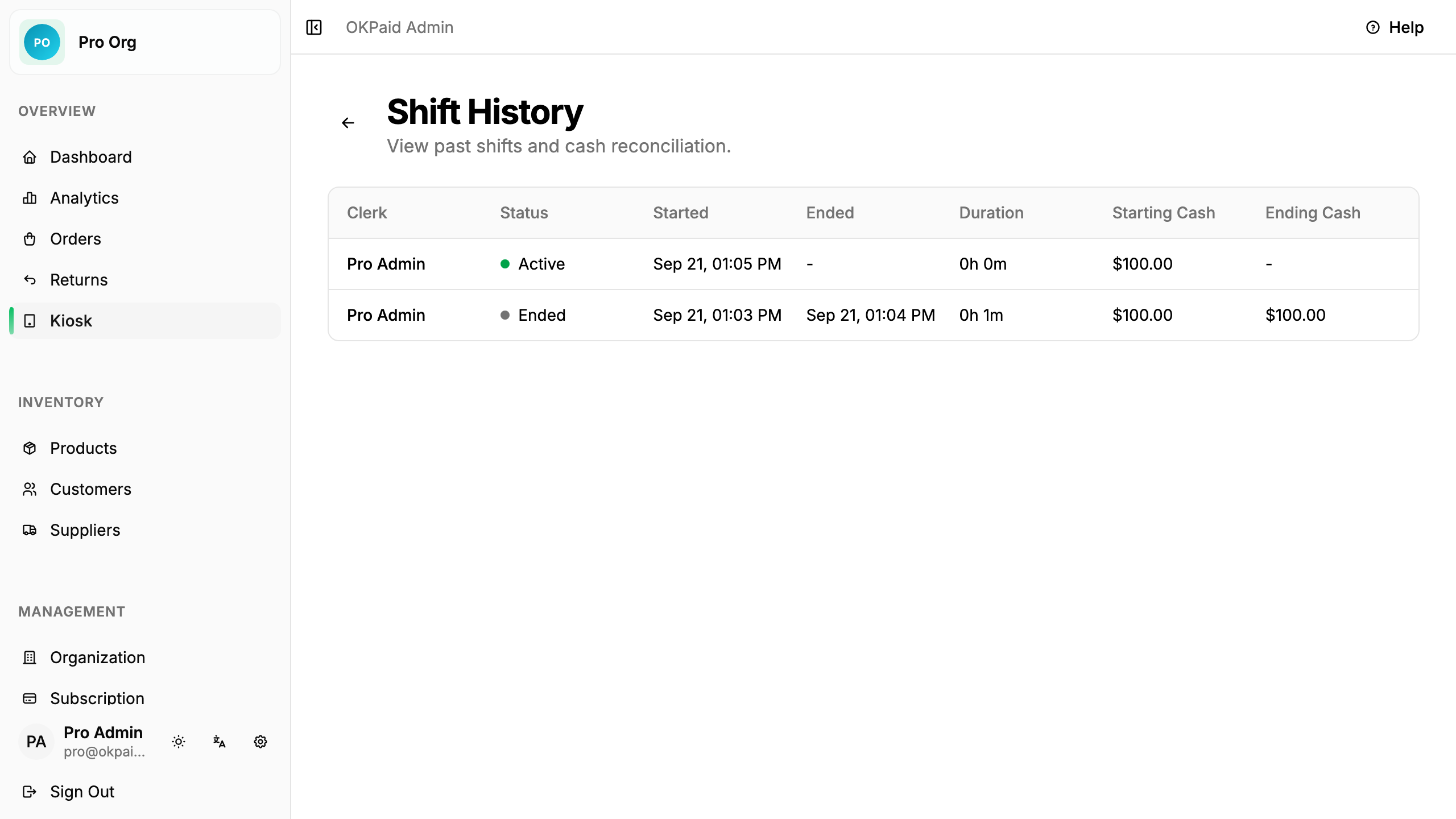
What You Can See
Each shift shows:
- Clerk name
- Start and end time
- Number of sales
- Total revenue
- Cash over or short amount
Filter Shifts
You can filter shifts by:
- Clerk name: See shifts for specific team members
- Date range: Find shifts from a time period
Who Can See What
- Owners and Managers: Can see all shifts
- Staff: Can only see their own shifts
Permissions
Each team role has different shift access:
| Role | Can Clock In | Can Clock Out | Can View Shifts |
|---|---|---|---|
| Owner | Yes | Yes | All shifts |
| Manager | Yes | Yes | All shifts |
| Staff | Yes | Yes | Own shifts only |
Tips
For Clerks
- Always clock in before starting sales
- Count your cash at the start of each shift
- Count your cash at the end of each shift
- Use notes to explain any cash differences
- Clock out before leaving your station
For Owners and Managers
- Check shift history regularly
- Look for patterns in over/short amounts
- Talk to clerks about large discrepancies
- Use shift data for staff performance reviews
Cash Management Best Practices
- Start with a standard float amount (like $100)
- Count cash at shift start and end
- Keep receipts and notes in the drawer
- Reconcile cash daily
- Investigate any missing money quickly
Troubleshooting
Cannot Clock In
Problem: Clock In button doesn’t work.
Solutions:
- Check if you already have an active shift
- Fill in every cash box: the button stays disabled until they are full
- Check the shift bar: it shows your clock-in time when a shift is open
- Ask a manager to check your shift history
Sales Not Linking to Shift
Problem: Sales don’t show up in your shift.
Solutions:
- Make sure you clocked in before making the sale
- Check your internet connection
- Try refreshing the clerk screen
Clock Out Screen Won’t Open
Problem: Clicking Clock Out does nothing.
Solutions:
- Check your internet connection
- Refresh the clerk screen
- Try clicking Clock Out again
Wrong Ending Cash Count
Problem: You entered the wrong amount when clocking out.
Solutions:
- Contact a manager
- They can add a note to your shift
- Use the notes field in shift history to explain
Can’t Find a Shift
Problem: A shift is missing from history.
Solutions:
- Check the date filter
- Try a different date range
- Make sure you’re looking in the right organization
Cash Doesn’t Match
Problem: The over/short amount is wrong.
Solutions:
- Double-check your ending cash count
- Verify the starting cash float amount
- Look at individual sales for errors
- Contact a manager for help
Common Questions
What happens if I leave the till with a shift open? The kiosk asks you first. You can clock out, leave the shift open, or cancel.
Can I have more than one shift at the same time? No. You must end your current shift before starting a new one.
What happens if I forget to clock out? Your shift stays open until you or a manager ends it. The time will show how long it was open.
Can I edit a past shift? No. Shifts cannot be changed after they end. You can only add notes.
Can managers edit clerk shifts? No. No one can edit a shift once it ends. Use notes to explain any issues.
Do shifts work with held sales? Yes. When you complete a held sale, it links to your active shift.
Can I clock out from a different device? Yes. As long as you log in with the same account, you can clock out from any device.
Related Features
- Kiosk Mode - Learn about the kiosk interface
- Team Members - Manage your team and roles
- Products - Manage your product catalog