
Team Members
Add and manage people who can access your OKPaid account
Last updated: January 19, 2026
Team Members
Invite other people to help manage your business in OKPaid. Each person gets their own login.
View Team Members
- Click Organization in the sidebar
- Click Members
- You will see a list of all team members
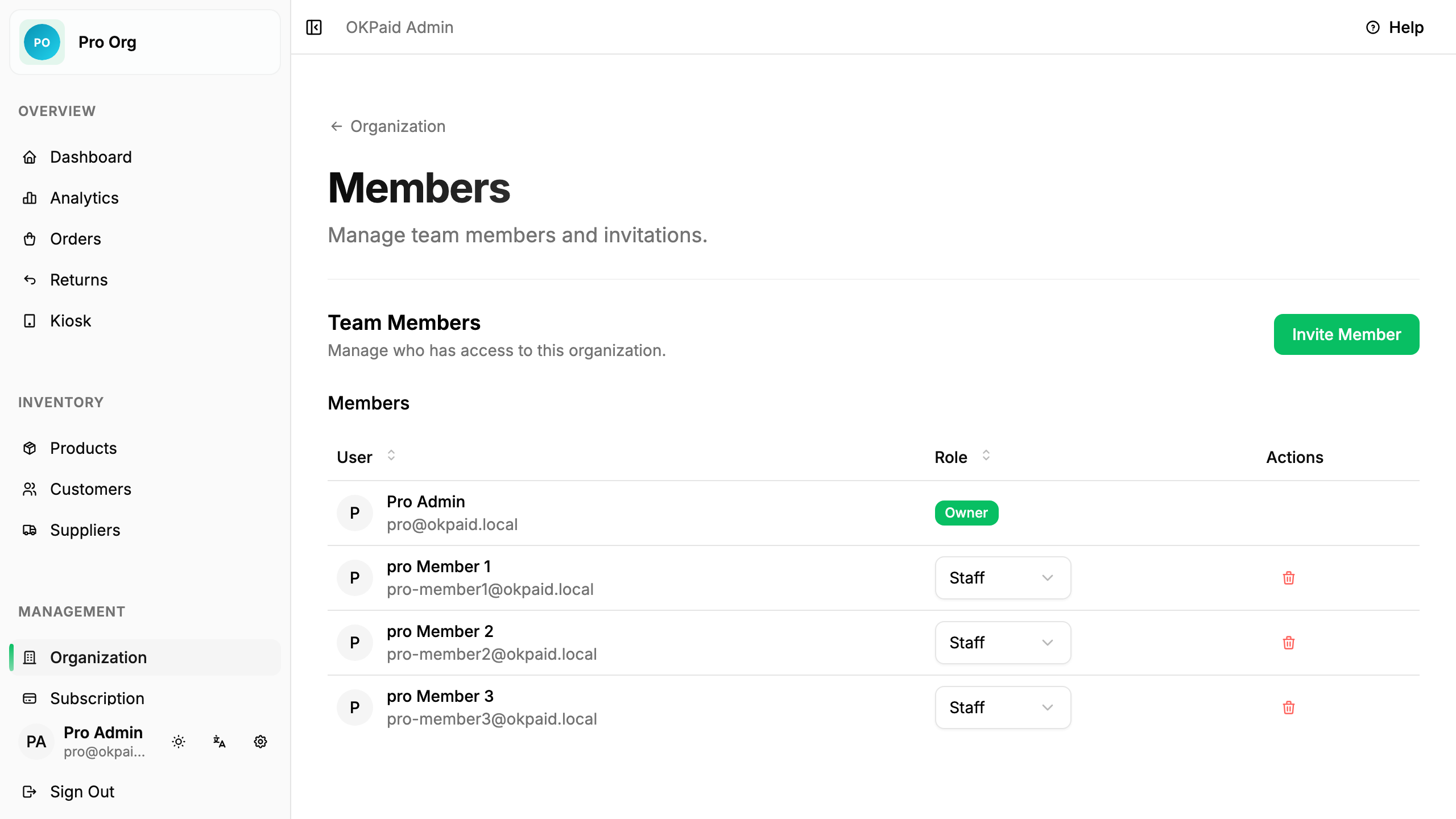
The members list shows:
- Name
- Role
- Status (Active, Pending, Suspended)
- Date joined
Invite a New Member
- Click Invite Member button
- Enter their email address
- Select a role for them
- Click Send Invitation
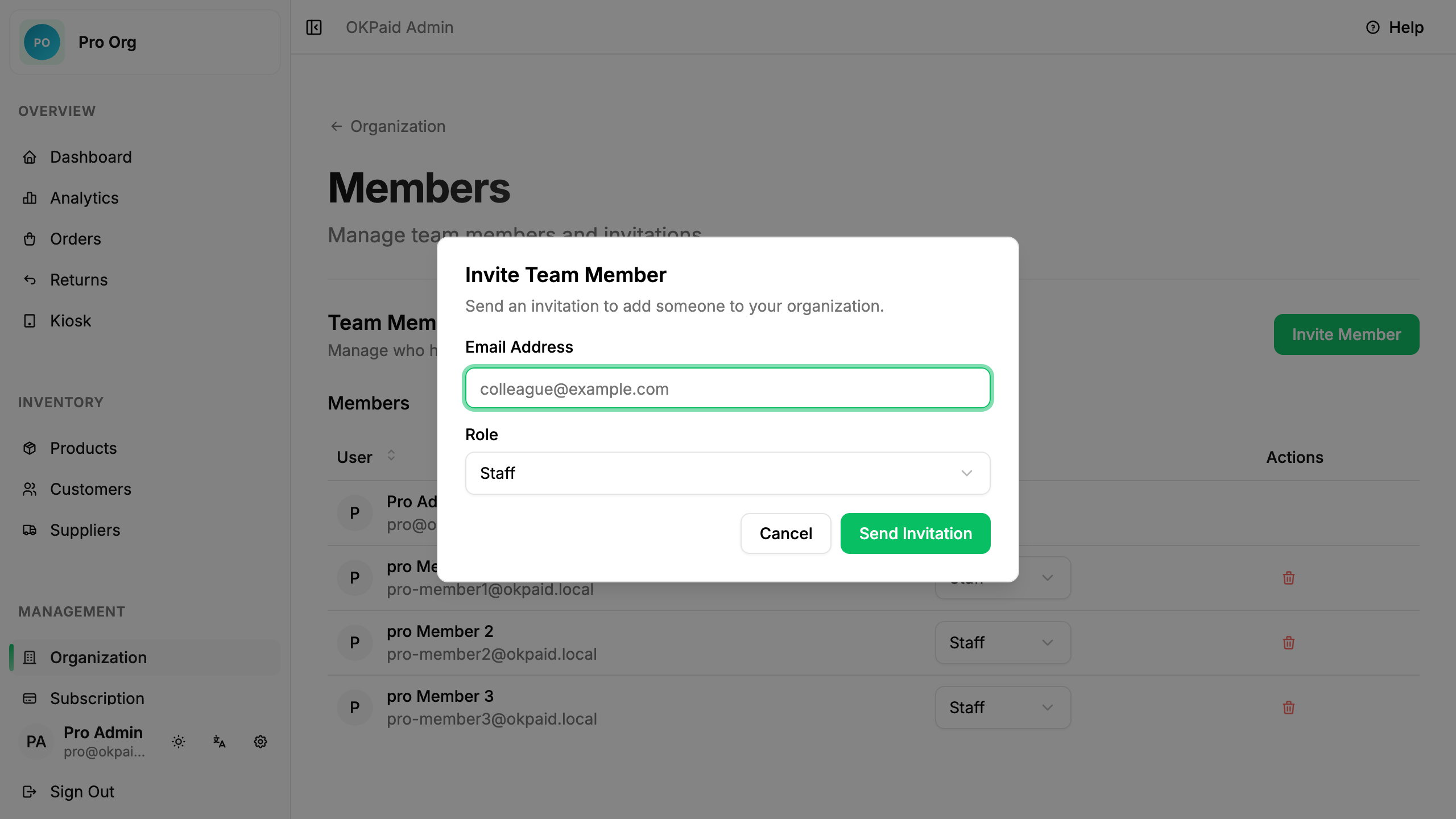
The person receives an email with a link to join your organization.
What Happens Next
- The invited person receives an email
- They click the link to accept
- They create their password (or sign in if they have an account)
- They can now access your organization
Member Roles
Roles control what a member can do. OKPaid has default roles:
| Role | Can Do |
|---|---|
| Owner | Everything, including delete organization |
| Admin | Everything except delete organization |
| Manager | View all, create and edit orders/products/customers |
| Staff | Create orders only, limited view |
Pro Feature: Create custom roles with specific permissions. See Custom Roles.
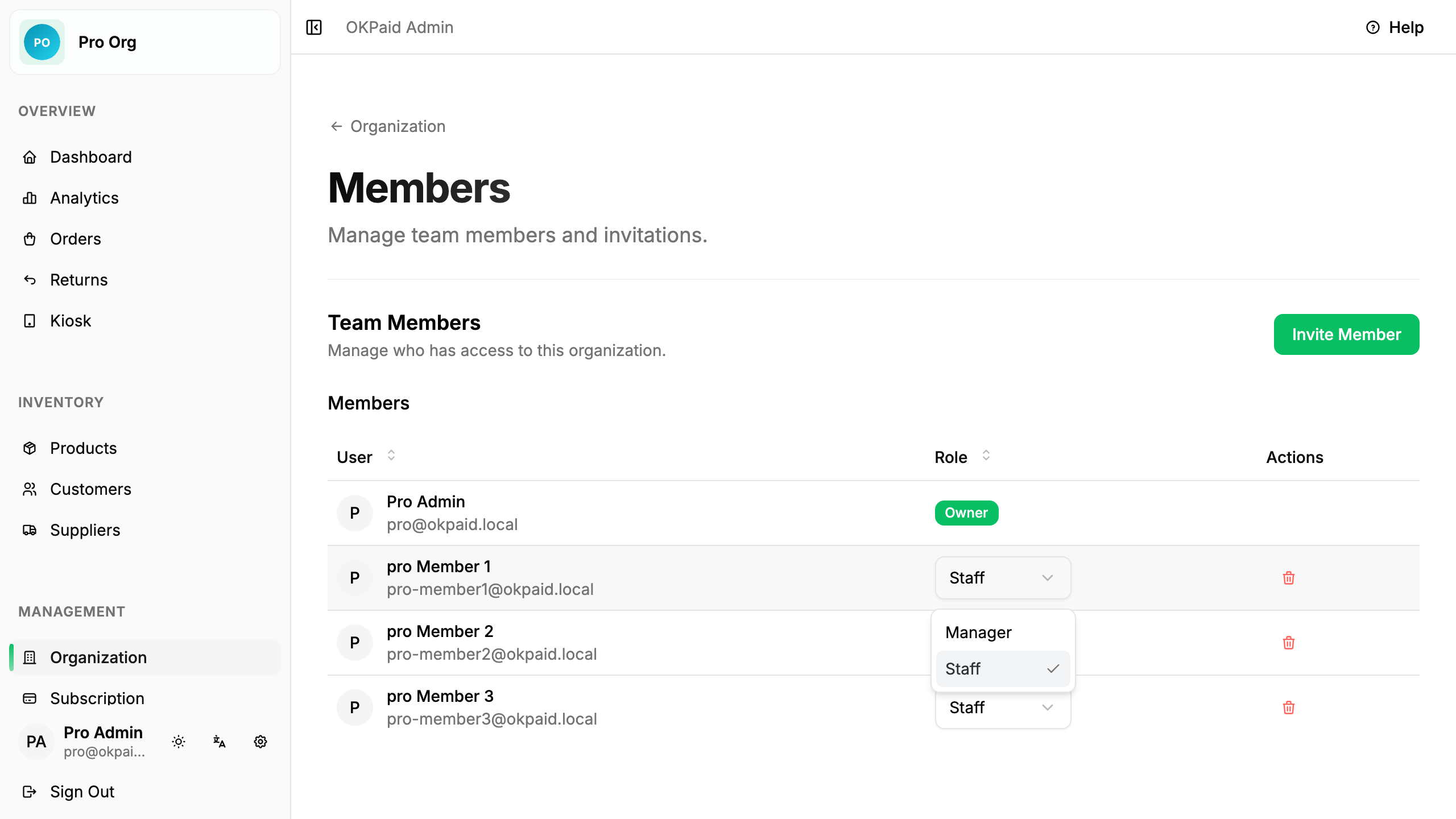
Change a Member’s Role
- Find the member in the list
- Click the menu icon (three dots)
- Click Change Role
- Select the new role
- Click Save
Remove a Member
- Find the member in the list
- Click the menu icon (three dots)
- Click Remove
- Confirm the removal
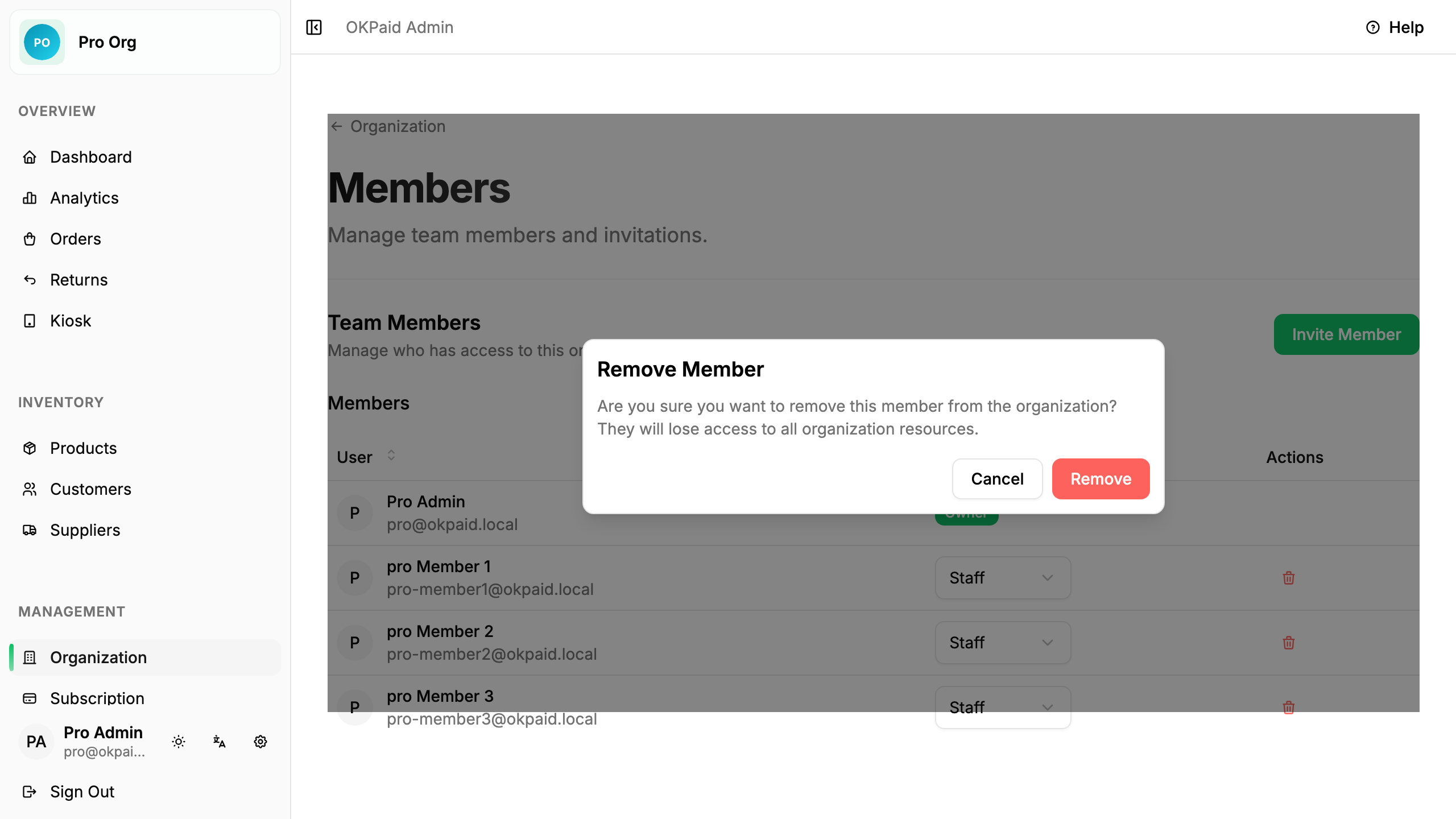
The removed person can no longer access your organization. Their past actions (orders created, etc.) are kept.
Cancel a Pending Invitation
If someone has not accepted their invitation:
- Find the pending invitation in the list
- Click Cancel
- The invitation is deleted
They will not be able to join using the old invitation link.
Member Limits
Your organization can have up to 3 team members. The owner counts as one member. Contact support if you need more.
PIN staff do not count toward this limit. See Staff PIN Login.
Tips
Tip: Use roles to limit what staff can see and do. Not everyone needs full access.
Tip: Remove members promptly when they leave your business.
Tip: Each member should have their own account. Do not share passwords.
Common Questions
Can I transfer ownership? Not yet. Contact support if you need to change the owner.
Can a member be in multiple organizations? Yes. They use the same email and password, and can switch between organizations.
What happens if a member forgets their password? They can reset their password on the sign-in page. You cannot see or reset their password.
Can I see what each member does? Not yet. Activity logs are planned for a future update.
Next Steps
- Custom Roles - Create roles with specific permissions
- Organization Overview - Learn more about organizations
- Staff PIN Login - Add staff who sign in with a PIN