
Custom Roles
Create roles with specific permissions for your team
Last updated: February 11, 2026
Custom Roles
Create custom roles to control exactly what each team member can do. This is a Pro feature.
What Are Roles?
Roles are sets of permissions. When you give someone a role, they can only do what that role allows.
Example roles:
- Cashier - Can create orders but cannot see reports
- Inventory Manager - Can manage products but cannot see finances
- Accountant - Can view reports but cannot change products
Default Roles
OKPaid includes these roles by default:
| Role | Description |
|---|---|
| Owner | Full access to everything |
| Admin | Full access except deleting the organization |
| Manager | Can manage products, orders, customers |
| Staff | Can only create orders |
You cannot edit or delete default roles.
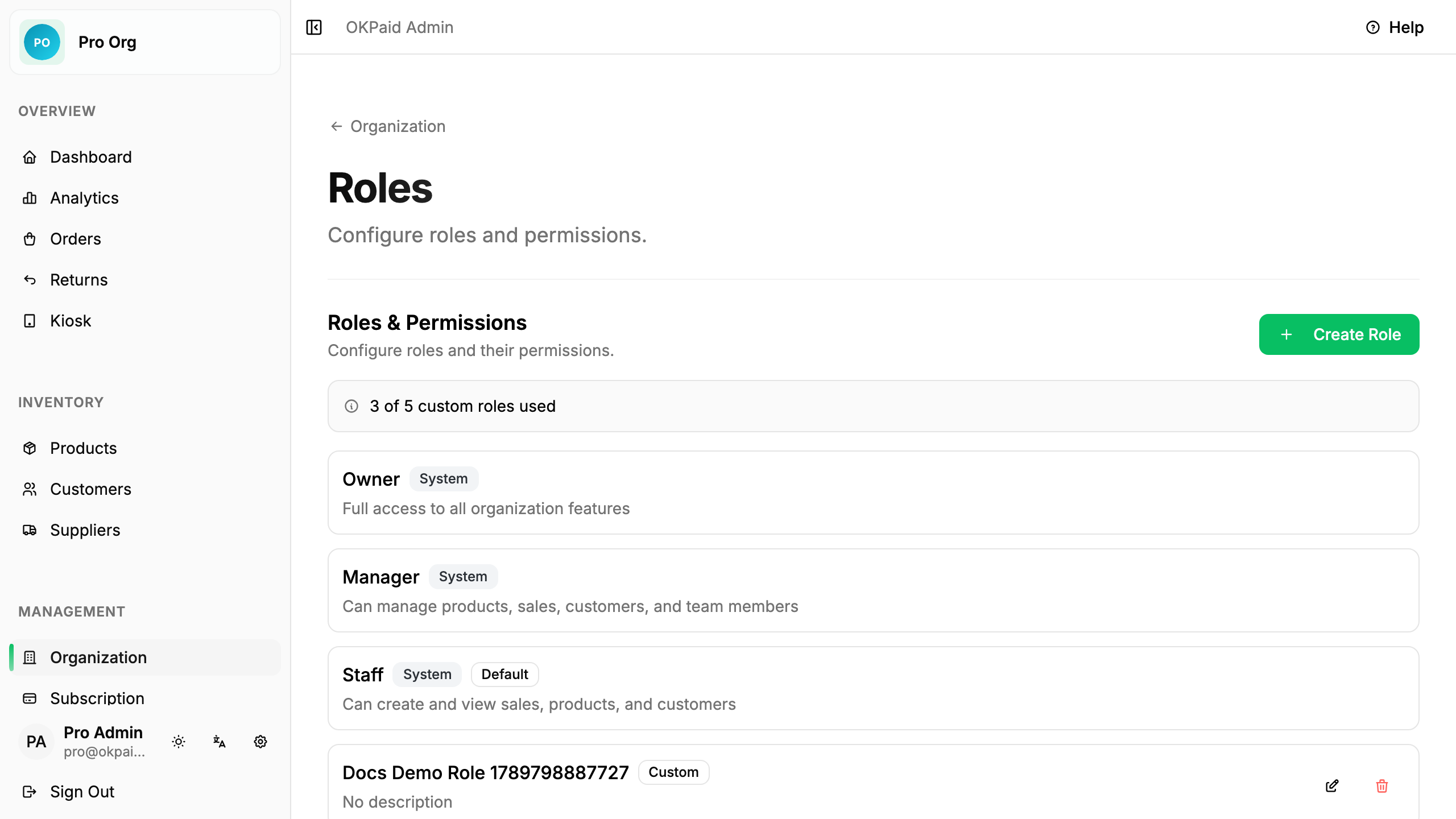
View Roles
- Click Organization in the sidebar
- Click Roles
- You will see all roles
Create a Custom Role
Pro Feature: Custom roles require a Pro subscription.
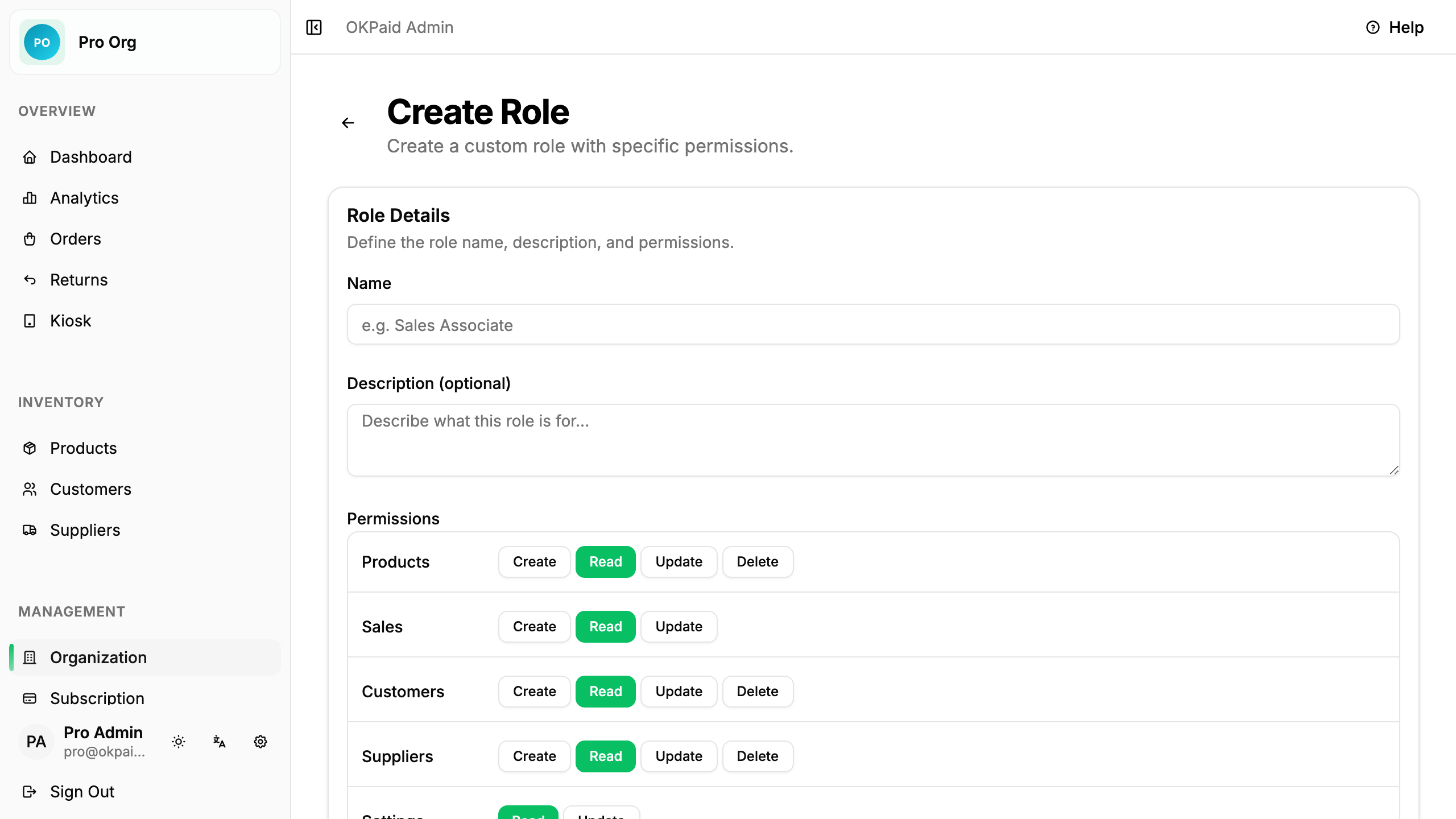
- Click Create Role button
- Enter a role name (e.g., “Cashier”)
- Add a description (optional)
- Select permissions
- Click Save
Available Permissions
Permissions are grouped by feature:
Products
- View products
- Create products
- Edit products
- Delete products
Orders
- View orders
- Create orders
- Edit orders
- Delete orders
Customers
- View customers
- Create customers
- Edit customers
- Delete customers
Suppliers
- View suppliers
- Create suppliers
- Edit suppliers
- Delete suppliers
Organization
- View members
- Invite members
- Remove members
- Manage roles
- Edit settings
Reports
- View dashboard
- View reports
- Export data
Edit a Custom Role
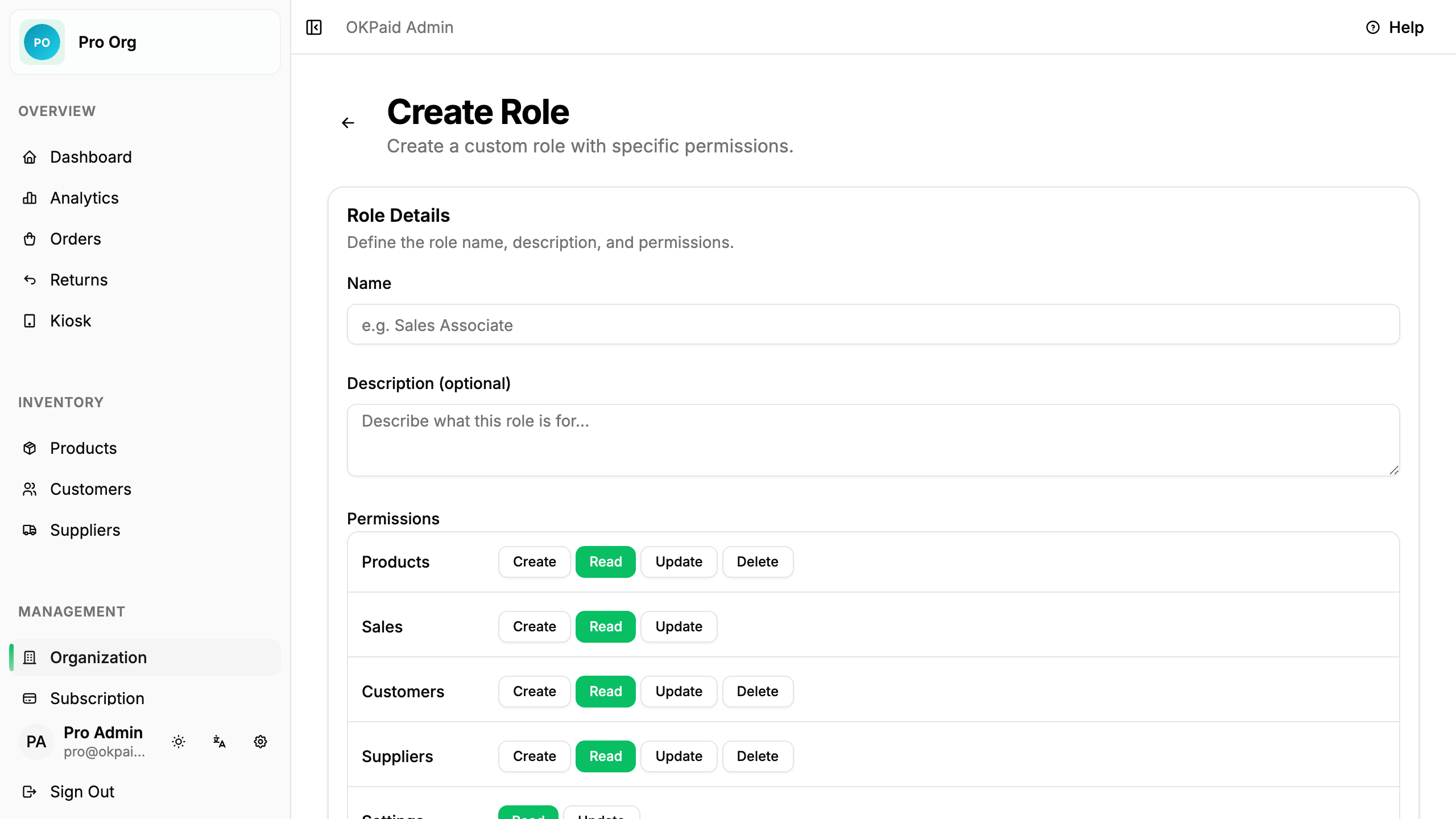
- Find the role in the list
- Click on the role name
- Make your changes
- Click Save
Changes apply immediately to all members with this role.
Delete a Custom Role
- Find the role in the list
- Click the menu icon (three dots)
- Click Delete
- Select a replacement role for affected members
- Confirm deletion
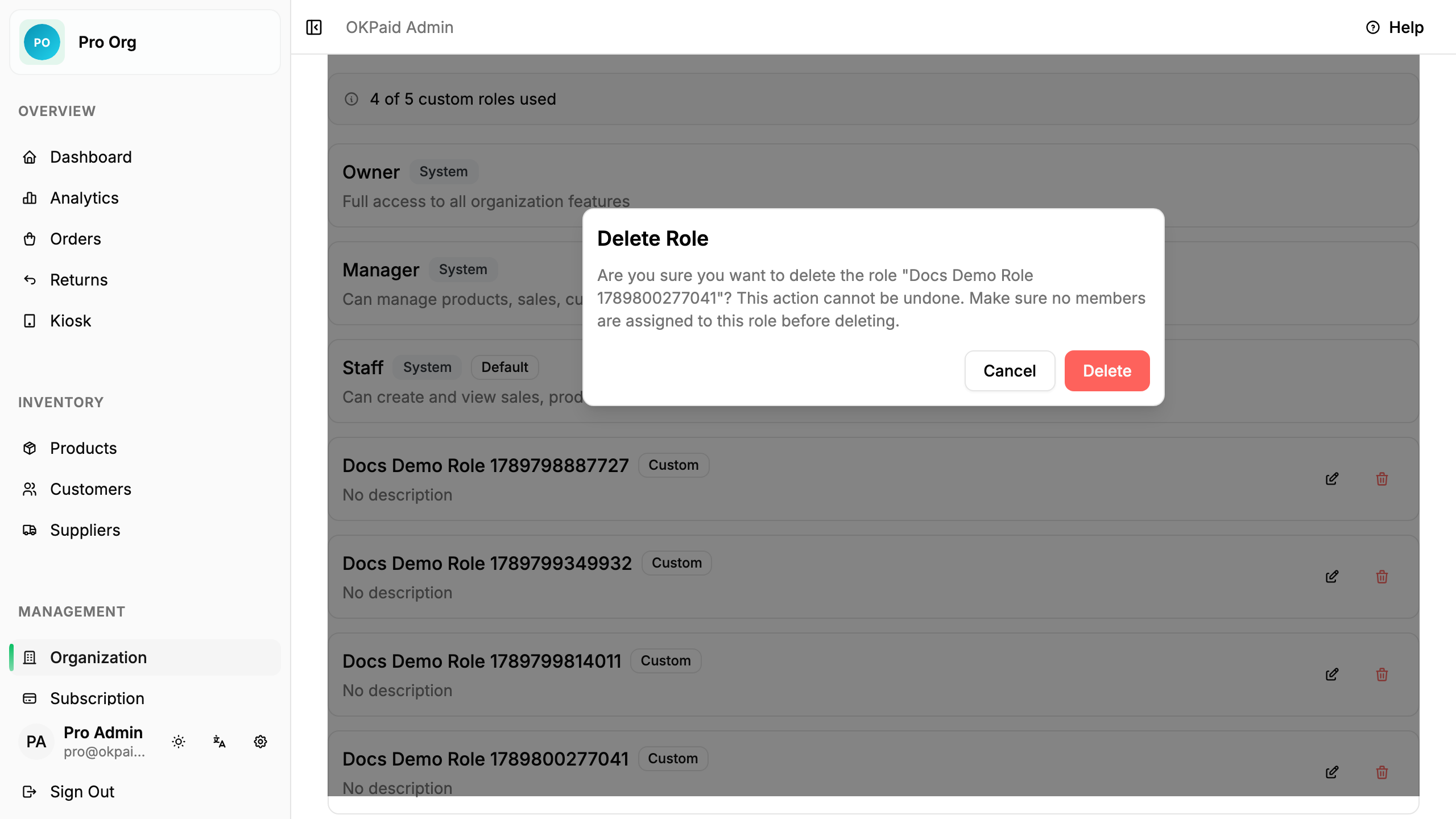
You cannot delete a role if members are using it. Assign them a different role first.
Example: Cashier Role
Here is how to create a Cashier role:
Permissions to enable:
- View products ✓
- View orders ✓
- Create orders ✓
- View customers ✓
- Create customers ✓
Permissions to disable:
- Edit/delete products ✗
- Edit/delete orders ✗
- View suppliers ✗
- Organization settings ✗
- Reports ✗
This lets cashiers take orders and add customers, but they cannot change products or see business reports.
Example: Inventory Manager Role
Permissions to enable:
- View products ✓
- Create products ✓
- Edit products ✓
- Delete products ✓
- View suppliers ✓
- Create suppliers ✓
- Edit suppliers ✓
- View orders ✓ (to see what sold)
Permissions to disable:
- Create/edit/delete orders ✗
- Customers ✗
- Organization settings ✗
This lets the inventory manager control stock without accessing sales or settings.
Tips
Tip: Start with minimal permissions and add more as needed.
Tip: Review permissions when someone’s job changes.
Tip: Use clear role names that describe what the person does.
Common Questions
Can I copy an existing role? Not yet. Create a new role and set the permissions manually.
Can someone have multiple roles? No. Each member has one role. Create a combined role if needed.
Do permission changes apply immediately? Yes. When you save a role, all members with that role see the changes immediately.
Next Steps
- Team Members - Assign roles to members
- Organization Overview - Learn more about your organization