Managing Products
Learn how to add, edit, and organize your products
Last updated: January 19, 2026
Managing Products
Products are the items or services you sell. This guide shows you how to manage your product catalog.
View Your Products
- Click Products in the sidebar
- You will see a list of all your products
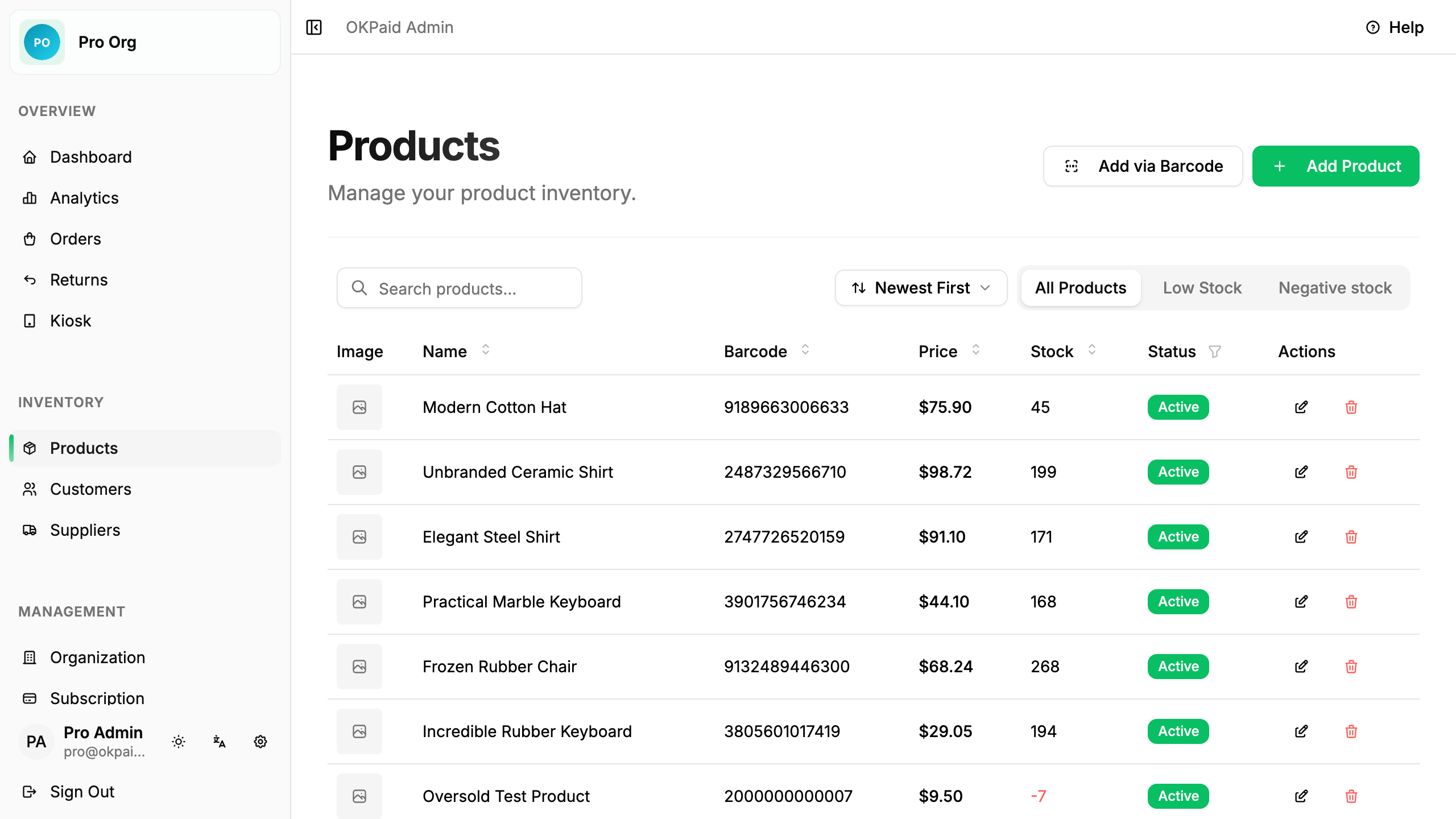
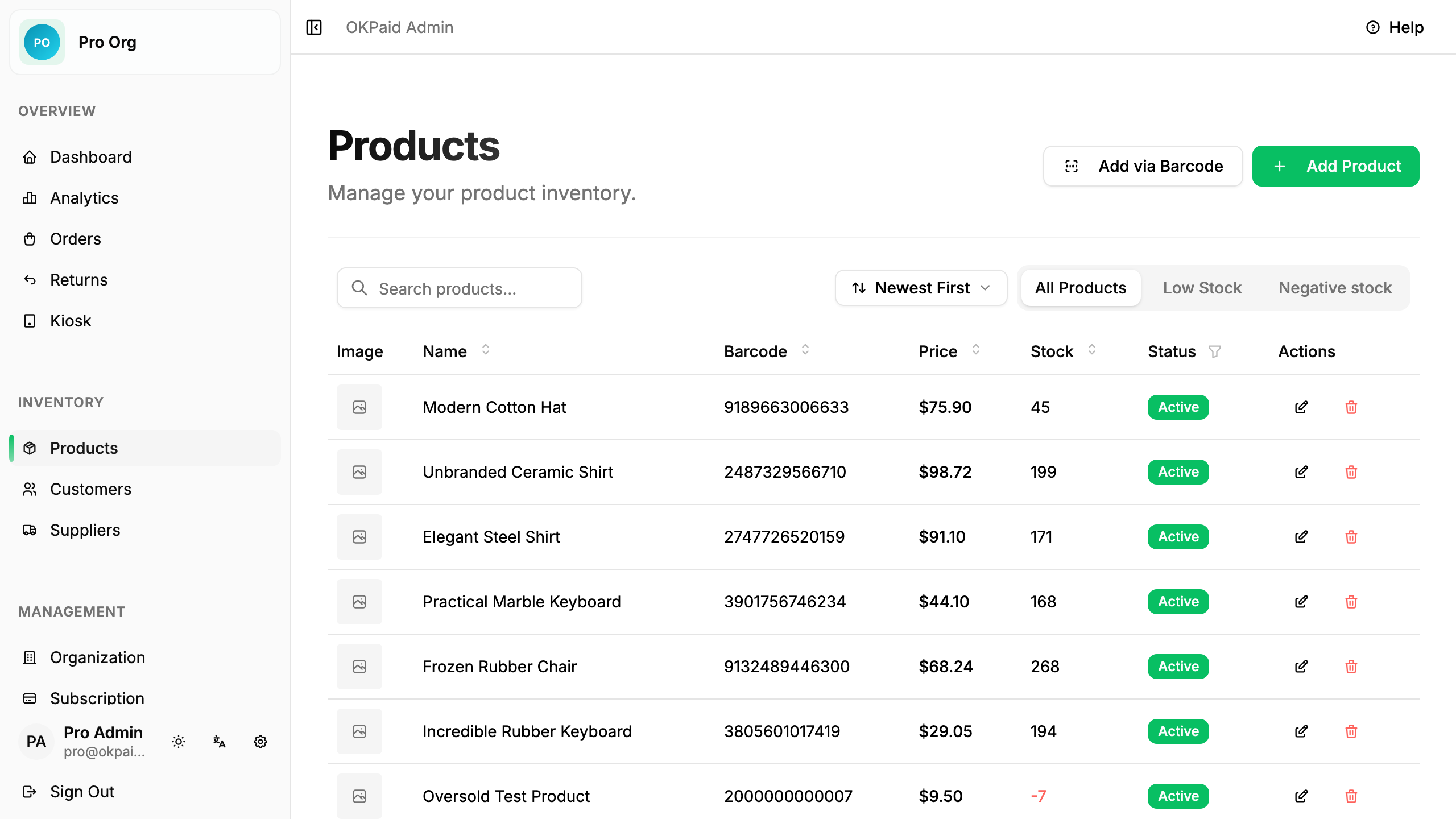
The products list shows:
- Product name
- Price
- Stock quantity
- Barcode (if set)
Search Products
Use the search box at the top to find products by name or barcode.
Filter Products
Click the filter icon to filter products by:
- In stock / Out of stock
- Price range
Add a New Product
Method 1: Add Product Manually
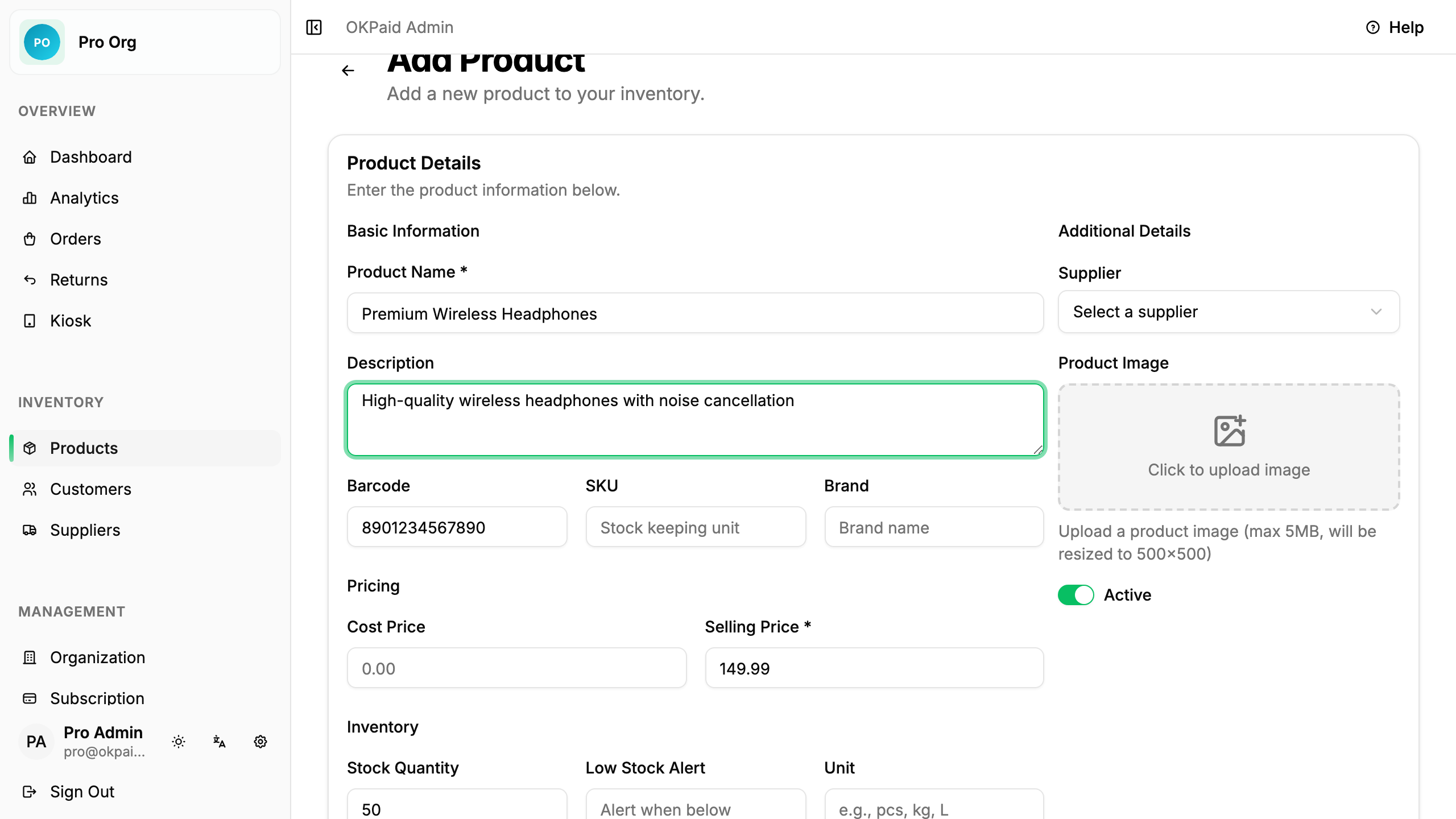
- Click Add Product button
- Fill in the product details:
| Field | Required | Description |
|---|---|---|
| Name | Yes | The product name |
| Price | Yes | Selling price |
| Description | No | Details about the product |
| Stock Quantity | No | How many you have in stock |
| Barcode | No | Product barcode number |
- Click Save
Method 2: Add Product by Barcode
You can scan a barcode to add products faster. See Barcode Scanning for details.
Edit a Product
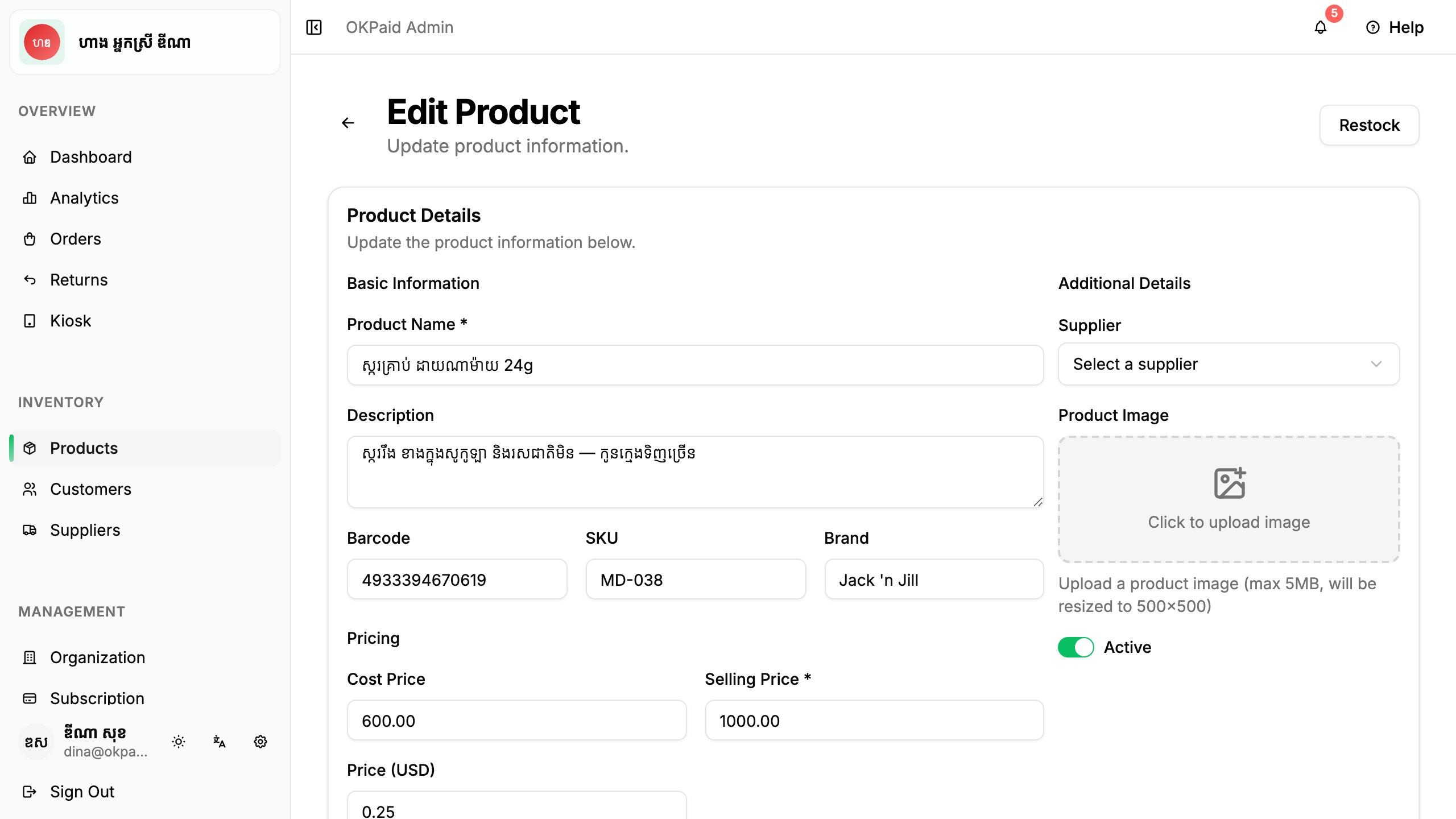
- Find the product in your list
- Click on the product name or the edit icon
- Make your changes
- Click Save
Delete a Product
Deleting lives on the product’s own page, not in the list.
- Open the product you want to delete
- Scroll to the bottom, below Save Changes
- Click Delete product
- Confirm the deletion
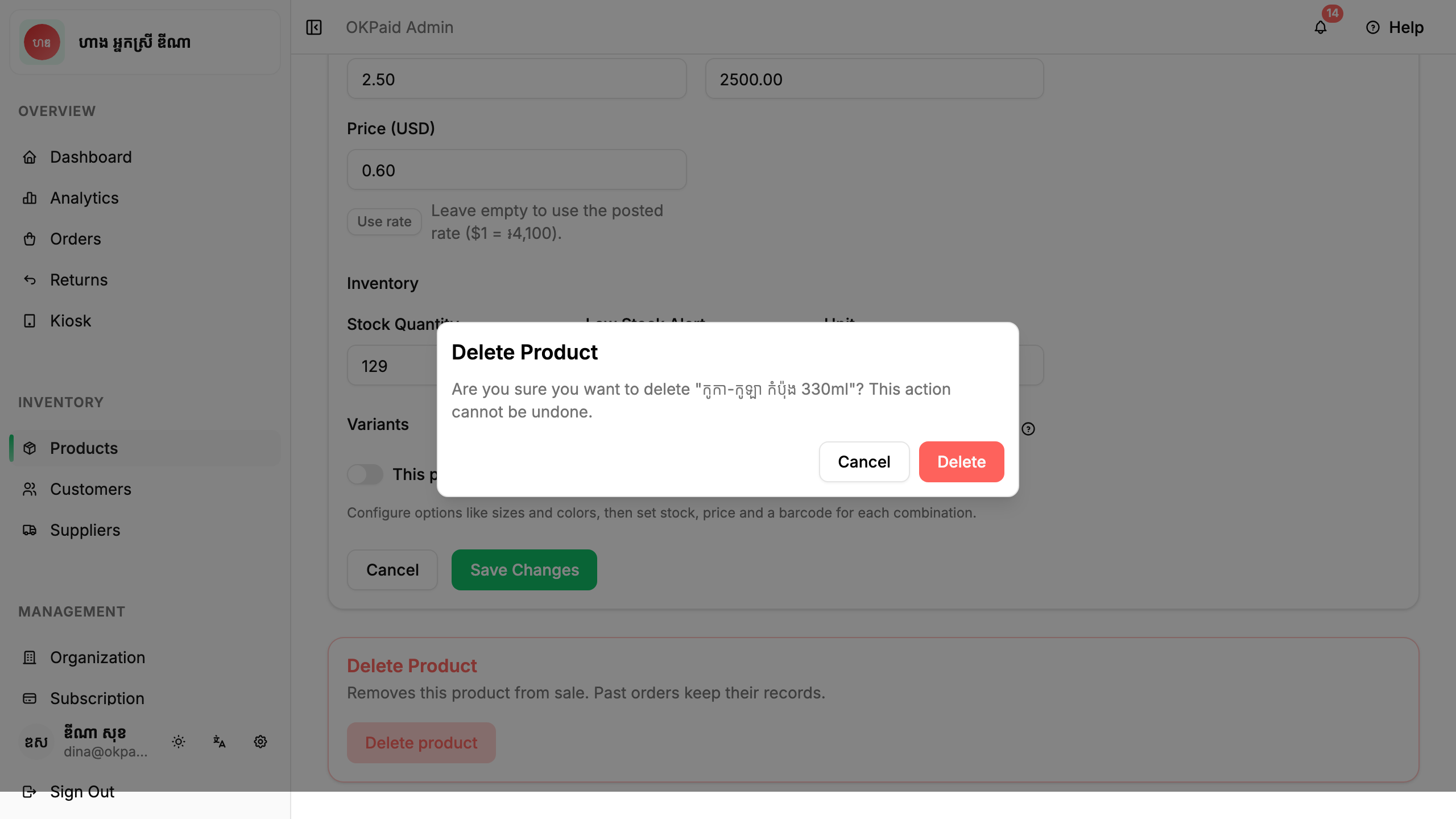
Warning: Deleted products cannot be recovered. Orders with this product will keep the product name and price.
Track Stock Levels
OKPaid can track how many items you have in stock.
Enable Stock Tracking
- Edit the product
- Enter a number in Stock Quantity
- Save the product
How Stock Updates
- When you create an order, stock decreases automatically
- You can manually update stock by editing the product
Low Stock Warning
Products with zero stock show a warning badge in the product list.
Negative Stock
Sometimes the count and the shelf disagree. A product can sell below zero, and its count then reads like -7 left.
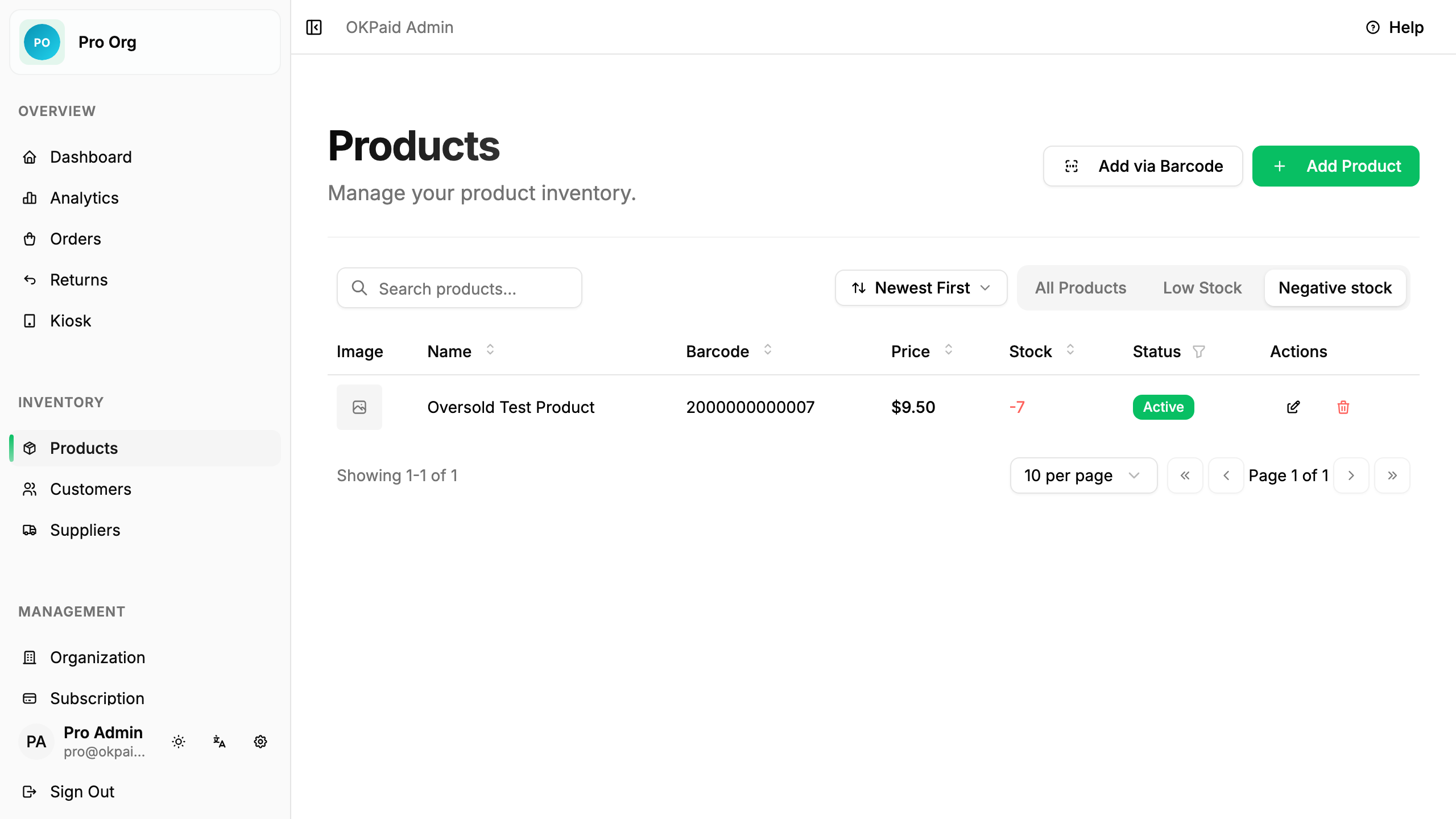
A negative count means you sold more items than the count said. The shelf is fine, but the count is wrong.
You can still sell the product. The kiosk marks its card, and the products list has a Negative stock view.
The dashboard shows a warning banner when a count goes below zero. Click the banner to open the Negative stock list.
To fix the count:
- Open the product and enter the real number in Stock Quantity
- Or add the sale or return that you missed
Zero stock is different. OKPaid calls a product with no stock Out of stock, and the kiosk cannot sell it.
Tips
Tip: Use clear, descriptive names so you can find products quickly.
Tip: Add barcodes to products so you can scan them when creating orders.
Common Questions
Can I import products from a spreadsheet? Not yet. You need to add products one at a time.
Can I add product images? Not yet. This feature is coming soon.
What happens to orders if I delete a product? Past orders keep the product name and price. The product just won’t appear in your catalog.
Next Steps
- Product Variants - Sell one item in sizes or colors, each with its own stock
- Restocking Inventory - Receive new stock, update the cost price and book the purchase
- Barcode Scanning - Add products faster with barcode scanning
- Creating Orders - Use your products in orders