
Discounts & Promotions
Create promotions and promo codes for orders and kiosk sales
Last updated: June 5, 2026
Discounts & Promotions
Use promotions to give discounts during checkout. You can use promo codes or pick an active promotion from the order screen.
What You Can Do
With promotions, you can:
- Create fixed amount discounts
- Create percentage discounts
- Add one or more promo codes to one promotion
- Limit promotions by date
- Limit promotions by number of uses
- Set a minimum spend
- Apply promotions in New Order
- Apply promotions in Kiosk Mode
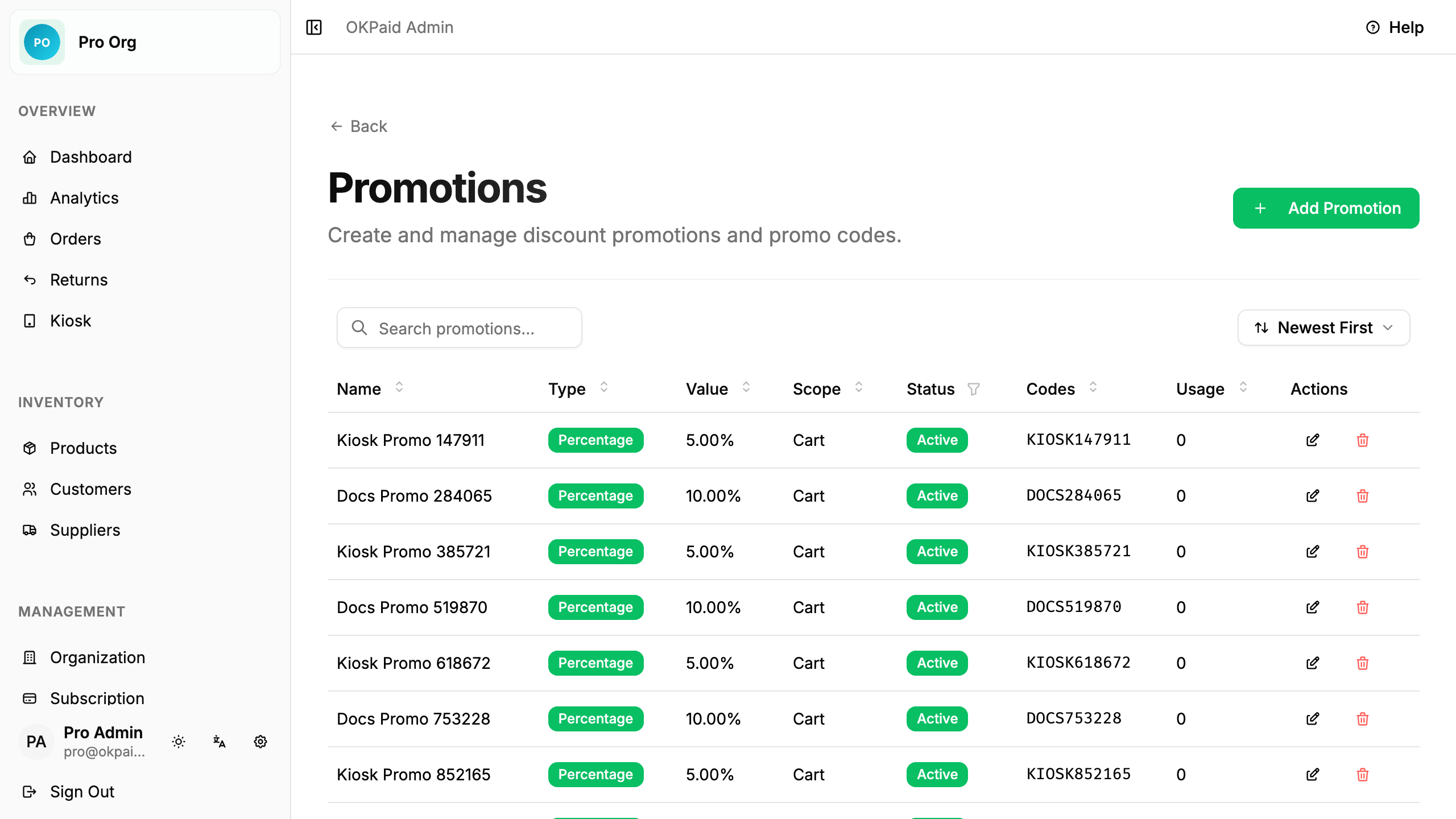
Open Promotions
- Click Organization in the sidebar
- Click Promotions under Store setup
- You will see your promotion list
Create a Promotion
- Click New Promotion
- Enter a promotion name
- Choose discount type:
- Fixed for a flat amount like
$5 - Percentage for a rate like
10%
- Fixed for a flat amount like
- Enter discount value
- Choose scope:
- Cart for whole order discount
- Line Item for matching items only
- Add at least one promo code
- Click Create Promotion
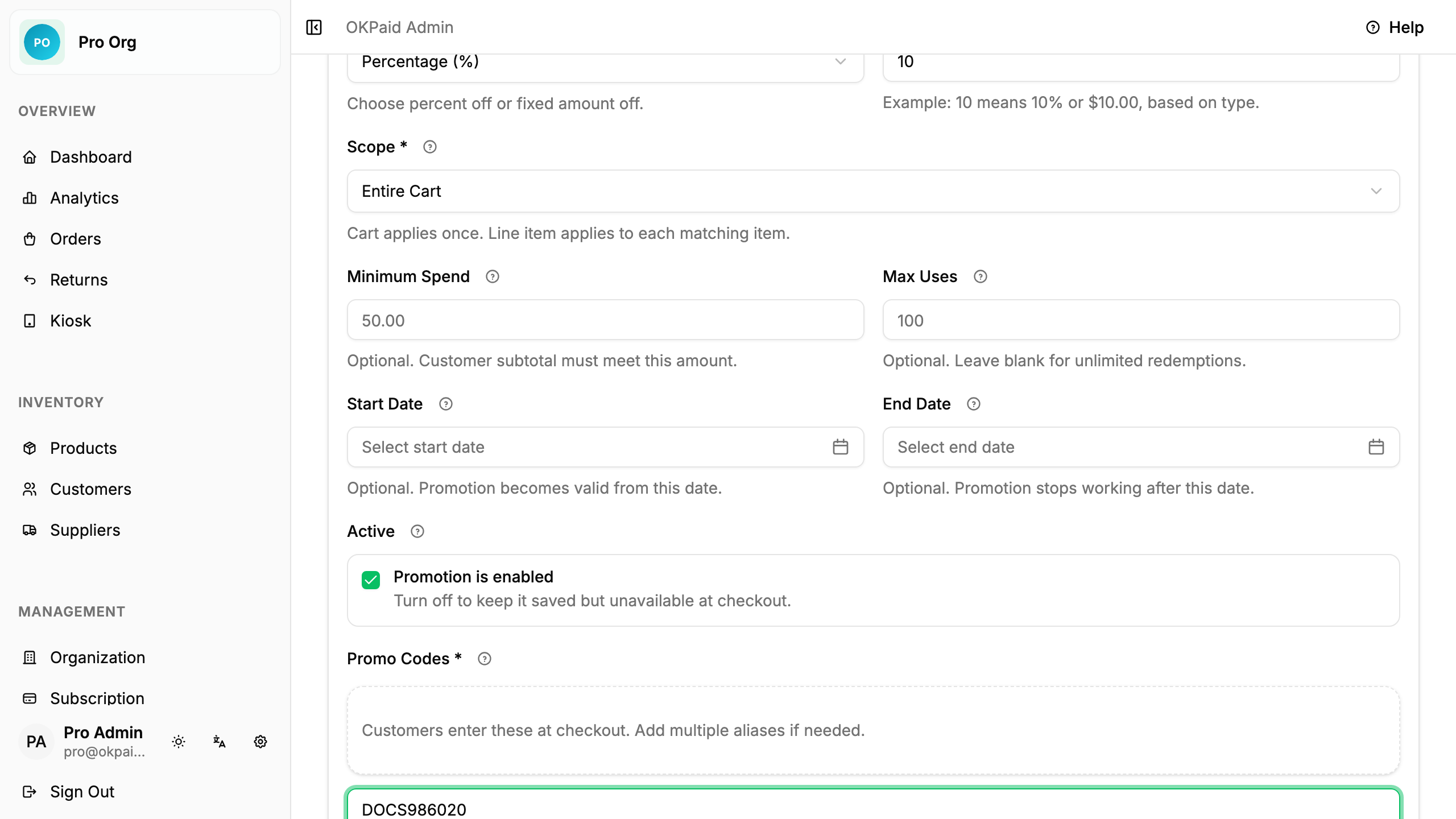
Promotion Settings
Promo Codes
Each promotion needs at least one code.
Examples:
WELCOME10VIP5SUMMER2026
Codes are easier to use when they are short and easy to read.
Minimum Spend
Use Minimum Spend when a discount should only work on larger orders.
Example:
- Minimum spend:
$20 - Customer order:
$15 - Result: promotion will not apply
Date Range
Use start and end dates for limited-time campaigns.
Example:
- Start: June 1
- End: June 30
- Result: code only works during June
Maximum Uses
Use Maximum Uses to stop a promotion after it reaches a limit.
Example:
- Maximum uses:
100 - After 100 successful uses, the code stops working
Apply Promotion in New Order
- Go to Orders
- Click New Order
- Add one or more items
- In Order Summary, open Promo Code
- Search active promotions or type a code
- Click Apply
If code is valid:
- Promotion name appears
- Discount appears in order summary
- Total updates right away
If code is not valid, OKPaid shows an error message.
Apply Promotion in Kiosk Mode
- Open kiosk clerk screen
- Add items to cart
- Tap Promo Code
- Enter code
- Tap Apply
Applied promo discount appears in cart summary before payment.
Remove a Promotion from Sale
If you applied wrong code:
- Find applied promotion in summary
- Click Remove
- Total updates again
Tips
Tip: Use clear names like “Weekend 10% Off” so staff can find promotions faster.
Tip: Add a minimum spend to protect your margin on small orders.
Tip: Test a new promo code with a sample order before sharing it with customers.
Common Questions
Can one promotion have many codes? Yes. One promotion can contain multiple promo codes.
Can staff apply promo codes during checkout? Yes. Staff can apply promo codes from New Order and Kiosk Mode if they have access.
What happens when a promotion expires? It will stop working automatically after the end date.
Can I disable a promotion without deleting it? Yes. Turn off the active status in the promotion settings.
Next Steps
- Creating Orders - Use promotions in the order form
- Kiosk Mode - Use promotions during in-person sales